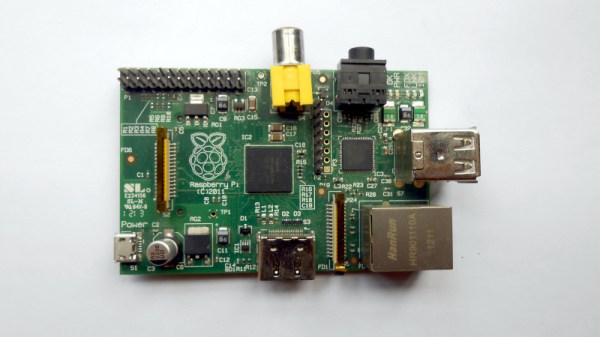
If you’ve ever experimented with a microprocessor at the bare metal level, you’ll know that when it starts up, it will look at its program memory for something to do. On an old 8-bit machine, that program memory was usually an EPROM at the start of its address space, while on a PC, it would be the BIOS or UEFI firmware. This takes care of initialising the environment in both hardware and software, and then loading the program, OS, or whatever the processor does. The Raspberry Pi, though, isn’t like that, and [Patrick McCanna] is here to tell us why.
The Pi eschews bringing up its ARM core first. Instead, it has a GPU firmware that brings up the GPU. It’s this part of the chip that then initialises all peripherals and memory. Only then does it activate the ARM part of the chip. As he explains, this is because the original Pi chip, the BCM2835, is a set-top-box chip. It’s not an application processor at all, but a late-2000s GPU that happened to have an ARM core on a small part of its die, so the GPU wakes first, not the CPU. Even though the latest versions of the Pi have much more powerful Broadcom chips, this legacy of their ancestor remains. For most of us using the board it doesn’t matter much, but it’s interesting to know.
Fancy trying bare metal Pi programming? Give it a go. We’ve seen some practical projects that start at that level.