
Color 3D printing has gone mainstream, and we expect more than one hacker will be unpacking one over the holidays. If you have, say, a color inkjet printer, the process is simple: print. Sure, maybe make sure you tick the “color” box, but that’s about it. However, 3D printers are a bit more complicated.
There are two basic phases to printing color 3D prints. First, you have to find or make a model that has different colors. Even if you don’t make your own models (although you should), you can still color prints in your slicer.
The second task is to set the printer up to deal with those multiple colors. There are several different ways to do this, and each one has its pros and cons. Of course, some of this depends on your slicer, and some depends on your printer. For the purposes of this post, I’ll assume you are using a Slic3r fork like Prusa or OrcaSlicer. Most of the lower-priced printers these days work in roughly the same way.
Current State of Color
In theory, there are plenty of ways to 3D print in color. You can mix hot plastic in the nozzle or use multiple nozzles, each loaded with a different color. But most entry-level color printers use a variation of the same technique. Essentially, they are just like single-nozzle FDM printers, but they have three extra pieces. First, there is a sensor that can tell if filament is in the hot end or not. There’s also a blade above the hot end but below the extruder that can cut the filament off cleanly on command. This usually involves having the hot end ram some actuator that pushes the spring-loaded knife through the filament.
The third piece is some unit to manage moving a bunch of filaments in and out of the hot end. Everyone calls this something else. Bambu calls it an AMS while Flashforge calls it an IFS. Prusa has an MMU. Whatever you call it, it just moves cold filament around: either pushing it into the extruder or pulling it out.
Every filament change starts with cutting the filament below the extruder. That leaves the stringy melted part down in the nozzle. Then the extruder can pull the rest up until the management unit can take over and pull it totally out of the hot end/extruder assembly. That’s why there’s a sensor. It pulls until it sees that the extruder is empty or it times out and throws an error.
Then it is simple enough to move another filament back into the extruder. Of course, the first thing it has to do is push the leftover filament out of the nozzle. Most printers move to a bin and extrude until they are sure the color has changed. However, there are other options.
Even if you push out all the old filament, you may want to print a little waste piece of the new filament before you start printing, and this is called a purge block. Slicers can also push purge material into places like your infill, for example. Some can even print objects with the purge, presumably an object that doesn’t have to look very nice. Depending on your slicer, printer, and workflow, you can opt to print without a purge block, which can work well when you have a part where each layer is a solid color. Some printers will let you skip the discharge step, too, which is often called “poop.”
One caveat, of course, is that all this switching logic takes time and generates waste. A good rule of thumb is to try to print many objects at one time if you are going to switch filament, because the changes are what take time and generate waste. Printing dozens of objects will generate essentially the same amount of waste as printing one. Of course, printing a dozen objects will take longer than a single one, but the biggest part of the time is filament changes, which doesn’t change no matter how many or few you print.
Get Ready to Print
We’ve talked before about creating your own color objects. We’ve even seen how to do it in TinkerCad. Of course, you can also load designs that already have color in them. However, there are several different ways to put color into an otherwise monochrome print.
First, you can take a regular print and use your slicer’s paint function to paint areas with different colors. That works, but it is often tedious, and for complex shapes, it is error-prone. Another downside is that you can’t really control the depth easily, so you get strange filament shifts inside the object if you do it that way.
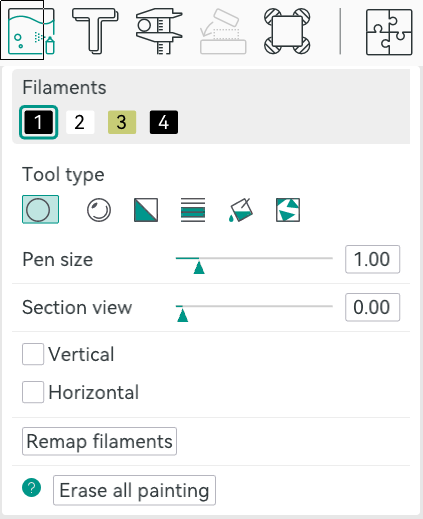
In Orca, you can select an object in the Prepare screen and then use N, or the toolbar, to bring up the paint color dialog. From there, you can pick a brush shape, pen size, and color. Then it is easy to just paint where you like by left-dragging. You can remove paint by pressing Shift while clicking or dragging. Press the little question mark at the bottom left to see other options.
Once you make a color print, the slicer will automatically place a purge block for you unless you turn it off. Assuming you use it, it is a good idea to drag it on the build plate to be closer to the print, which can shave a few minutes of travel time.
From Many, One
Possibly the easiest way, other than not printing in color, of course, is to have each part of the model that needs to be one color as a separate STL file, as we talked about in the previous post. You tell the slicer which part goes with which filament, and you are done.
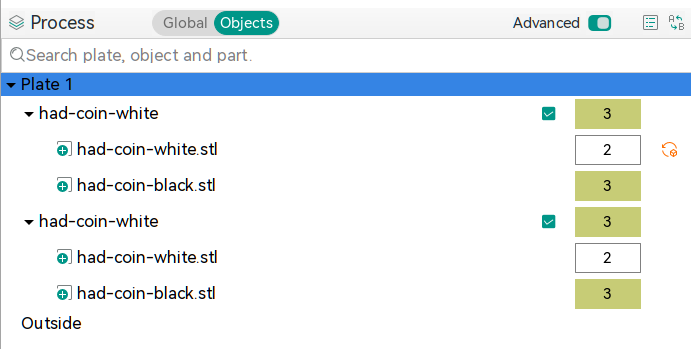 In Orca, the best way to do this is to import several STL models at one time. The software will ask you: “Load these files as a single object with multiple parts?” If you agree, you get one object made of individual pieces.
The resulting object won’t look much different until you go to “Process”, on the left-hand side of the screen, and switch from the default Global to Objects. From there, you’ll see the objects and their components. At first, each one will be set to the same color, but by clicking on the color box, you can assign different colors. In the screenshot, you’ll see two identical objects, each with two parts. Each part has a different color. The number is the extruder that holds that color.
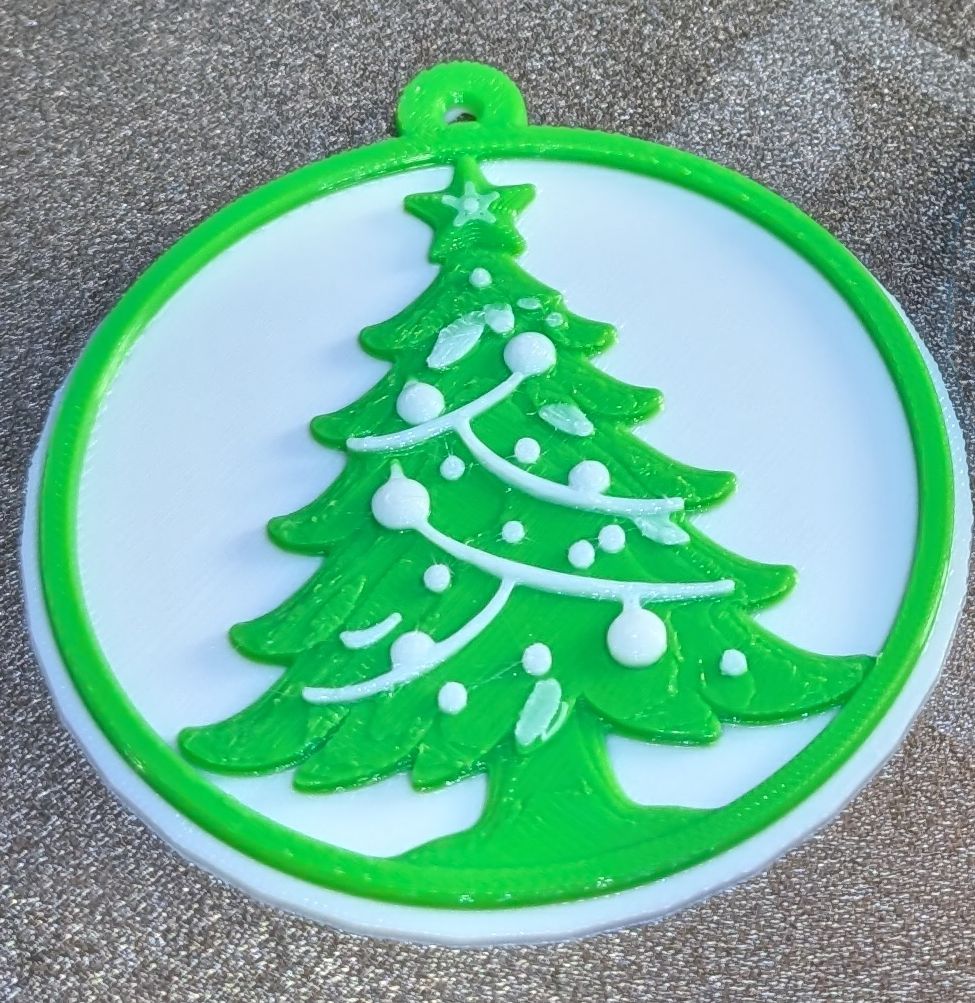
There is another way, though. You can avoid almost all of the waste generation and extra time if your model is designed so that each layer is a single color. People have done this for years, where you put a pause in your G-code and then switch filament manually. The idea is the same but the printer can switch for you. For example, the Christmas Tree ornament uses two filament changes to print white, then green, then white again. This works great for lettering and logos and other simple setups where you simply need some contrast.
In Orca, you’ll want to slice your model once and switch to the preview tab. Using the vertical slider on the right-hand side, adjust the view until it shows you where you want the filament change. Then right-click and select “Change Filament.” This is the same way you add a pause if you want to change filament manually, for example.
If you use this method, remember to turn off the purge block. You don’t really need it.
Summary
So now, when you unwrap that shiny new multimaterial printer, you have a plan. Get a color model or color one yourself. Then you can decide if you need color changes or full-blown, and waste-prone, color printing. Either way, have fun!












worth nothing that the MMU doesn’t cut filament. the added ramming step leaves a useable tip.
There have also been systems like the Mosaic Palette around for years that do a filament splice rather than an AMS style purge.
The mosaic pallette doesnt eliminate purge. when the filament splice hits the nozzle there is the same period of material mixing. You have to run a purge tower between colors or you get muddy blended colors instead of the crisp colors you intended.
It would be nice if a company doing the AMS style multimaterial would at least attempt to use a camera based purge completion sensor. Some color transitions are much quicker than others.
If you don’t mind experimenting and eyeballing orca and the similar slicers, do let you set Purge volumes for each color. Not quite the same but you can optimize if you’re patient enough.
yeah sure you can twiddle and fiddle to the end of days, tuning profiles for each and every filament, and each and every transition, but surely a CCD and a bit of code could do a better more reliable job.
Or could just get the next Prusa with 8-material INDX by Bondtech tool changer.
https://www.youtube.com/watch?v=XhHmCLYMke4
Thats only 8 colors though. X1c can print in 16 colors. H2C with multiple AMS can hit 25.
When I was a kid our displays only had 4 colors, half of the colors were shifted a half pixel right and we liked it!
Because the crappy computers did graphics w extended ASCII characters.
But even on those, porn…
Daisywheel printer porn!
dualhead printers have been a thing for some time and are making a comeback, less waste and coupled with a toolchanger or MMU for the 2nd head, we’re going to see more of this solution in the very near future, Indx and vortek are the new names in store bought toolchangers, then whatever thing is going to come out of the self build community. And if you don’t fancy 2 nozzles on the same printhead, there’s always Idex (2 printheads) and quadex (4 printheads obviously).
MMU units such as the standard 2 from creality (CFS) and bambu (ams) + whatever all the other brands are calling theirs, are definitely useful/useable but wasteful, although they are getting better, more than 1 head or toolchangers are the way of the future imho.
also no major mention of software in the post, Hueforge needs a big shout out, simply stunning what you can do with 4 colours and determination :-D
I generally do only functional printing. I’m working toward acquiring a dual head printer. I have two use cases in mind: 1) Dissimilar filaments for supports in complex parts 2) Second color to print text in a flat surface.
There are suddenly so many options for multi-head printers that my evaluation and selction process just got significantly larger.
My use case is so I can leave a 0.2mm nozzle and a 0.4mm nozzle permanently installed.
You can also do supports in a soluble filament so you can just wash them off. You can also have, for instance, TPU flexible parts in an otherwise rigid part.
No mention of the INDX system that it appears Prusa are moving toward in their next generation? Looks quite neat.
In injection molding there are colored pellets mixed with a transparent or white pellet to achieve colors. I wonder if some day 3d printers adopt something like this. You could basically have an additive color model to achieve any color you want. There would need to be some system to premelt the color. In injection our systems premix the pellets using air, melt them in heated tubes and then there are turbulence tubes that mix the plastic for uniformity. If the plastic was already molten when it hits the nozzle could speeds also be increased?
Bambu seems to be going for nozzle switching. Some others are going for multiple tool heads. Competition is good.
But most of the current multi color printers produce an unethical amount of waste. I do multi material but just to have a support interface material. Filler primer and paint the parts and assemble.