
The “cheap” and “easy” way in about an hour! A question that pop’s up from time to time is “I somehow ended up with an archaic old laptop / computer, can it run Linux?” Well of course it can, but that totally depends! On what? Well machine CPU, CPU speed, hard disk space, RAM and most importantly what you are expecting it to do.
Okay, why a Intel 386? Well number one I own a 386, but more importantly its the absolute bottom Intel CPU you can run Linux on. While it wont be able to do much, it will give you a basic system to kick around and “get to know” the insides of Linux without a million things installed and the worry of breaking it.
Unfortunately a 386 requires some special moves as the actual chip was dropped from almost all distributions long ago. All of the modern distributions I have looked at require at least a 486 CPU. This tutorial will be strictly for installing a basic bare bones Linux on a 386. Have a 486? Pentium? Faster? Never fear I will be covering that in a part II later this week.
Linux on a 386 in about an hour? Madness you might think, it probably takes Linux longer to boot on a 386 (and in some cases you are correct)! Want to know the trick? Simple, cheat!
Join me after the break for the parts and steps needed to get you started.
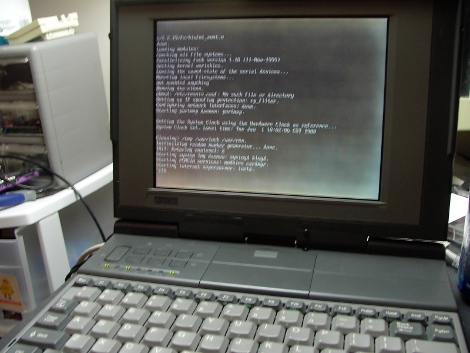
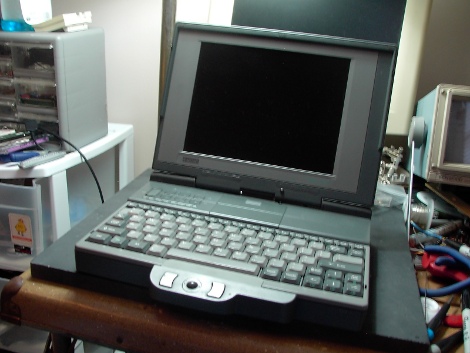
First we need a target machine, here is mine. It is a DEC PC325SL, which translates out to intel386SL (which is a 386SX CPU in a highly integrated package where much of the support hardware is also inside the chip) running at 25Mhz with 4MB of ram and 120MB of hard disk space. It also has 256K video memory and 640×480 color VGA display. If you can swing it, a 386DX CPU or a 386S(X/L) with a 387 math co-processor is recommended, no it doesn’t really matter if its an Intel, AMD, etc. It also needs an IDE disk up to 2G, sorry MFM drives.
Next we need a distribution that will actually work with a 386 CPU. This is where it gets to be confusing. Everyone still has a distribution called i386, but support for the 386 was dropped a while ago. I looked at some of my favorites, Debian, Slackware, FreeBSD, and NetBSD (which I know are not Linux but hey.) Here is what I found out:
Debian stopped support with 3 so anything earlier is ok.
Slackware stopped around the same time in release 9.
FreeBSD states that it requires a 386DX, but then says most 386 laptops are ok via math emulation, but in a more current readme it states that you need a 486 (confused?)
NetBSD says it should work on all 386’s but I never made it that far.
Well of course I am not a super Linux guru, and can really only futz around without running off to a forum or a book, so I went with Debian. Originally version 2.2 as it was the newest version that machine could run, and yes in fact it did. The problem is it took over an hour to boot with a year 2000 generic kernel and when it finally did it refused to move past the package installer.
You could spend a lot of time trimming and optimizing to get it running great, but I am facing a brutal truth here, and that is the best I could run is still over a decade out of date and its going to require a lot of work. So I just simply stepped back in time a bit further to find something a bit more appropriate.
In the end I used Debian 1.3.1, which is a mid 1990’s Linux, and that’s really the point. Use whatever you like but its going to have to be pretty old or require a ton of work, which at that point you might be better off doing it from scratch.
Tools for the cheat install:
x86 compatible Host PC with an IDE/ATA port, and a standard BIOS capable of booting into DOS. I used my dual core AMD A2X2 with a nvidia chip-set so its pretty safe to say most PC’s will. It also needs an Internet connection and some form of Linux installed or booted (I use mint)
CD ROM or USB stick you can boot from with a windows 98 emergency boot disk (EBD from here on), or since MS DOS does not know how to access USB or SATA CD ROM’s, I used a old IDE drive with a 100Mb FAT16 partition on it.
IDE to 3.5 IDE pin adapter, they are cheap and handy I suggest you have one, just make sure you plug it in correctly you can kill your drive (as in magic smoke kill).
That should do it, lets get started
Step One:
Turn off your Host PC, plug in a spare IDE hard disk set as slave. To keep my self from borking my computers main drive I went ahead and unplugged it from the SATA port. Check BIOS to make sure its detected and that you are booting from your CD drive first, Insert the Windows EBD save changes and let the computer boot from the EBD.
You will see a Windows boot disk menu, choose to “start without cd rom support”. Once at the DOS prompt use FDISK to setup a 100 or so meg partition, be sure to tell FDISK no when it asks you if you want large disk support to ensure a FAT16 partition.
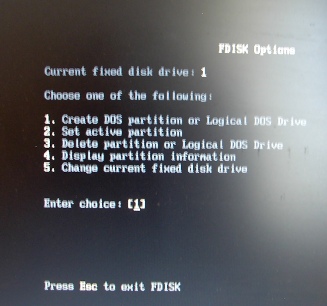
Exit FDISK, reboot with the EBD and use FORMAT C: (make sure that is the correct drive if you have others plugged into the system), then Eject the EBD. In my case I then plugged my SATA hard drive back in and set BIOS to boot from that disk and went on into Linux Mint, though you could leave your main drive unattached and use a live CD Linux.
I know that linux can make a FAT16 partition. I was having trouble with the EBD reading it while figuring this all out, so I just started making the partition with the OS that really needs it most.
Step Two:
Boot your Host PC into Linux, I am using (again) Linux Mint but It does not matter, it just has to be able to get on line, and mount a FAT16 partition. Point your web browser to the Debian archive and goto the following folder Debian-1.3.1/main/disks-i386/1997-10-13/
Download the following files
and copy them to your FAT16 partition.
Optional Step:
My 386 came with 120 meg disk, That might be large enough to squeeze a basic Linux system on, but I also wanted a little room for a MS DOS partition so I upgraded to a 540 meg hard drive. Of course 386’s and other <1994 machines have a bios limitation of 1024 cylinders limiting the drive to 500 megs. This computer is even more picky limiting my choices down to 2 DEC approved drives, the 120 meg or a 240 meg (probably sold as an option). In order to use this drive so that both DOS and Linux can live happily on it, I must use a drive overlay (ick). So far I have been avoiding the use of floppies, but I do have floppies, and the drive on the machine works fine.
I found a old copy of Western Digital EZ Drive 9.03, I also used a MS-DOS6.22 boot floppy image. EZ drive is simple but even if you do not want a DOS partition, you HAVE to have one or else EZ drive will scream “no boot partition” and halt. So make at least 1 MSDOS partition at the start of the drive, even if its only a megabyte in size.
Step 3:
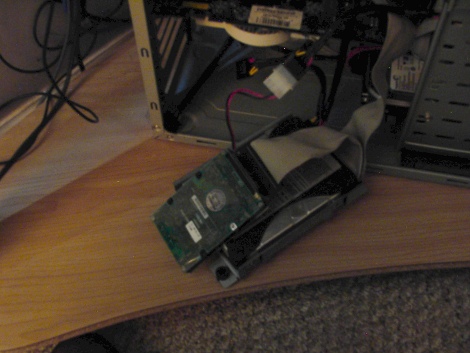
Remove the hard disk from the 386 and attach it to your host PC, it should be MASTER on Channel 0 and the drive with the FAT16 partition we put the install files on. should be the SLAVE on Channel 0. Enter your PC bios and find your 386’s drive, and be sure to turn off LBA. If you are using a drive overlay set your bios where it boots from the 386 drive first.
Reboot the Host PC (I disconnected my main drive for now as well), if you are using a drive overlay let it boot the hard disk first, then tell the overlay to boot from drive A, insert your Windows EBD into your CD drive and it will eventually load. If you are not using an overlay just boot from the Windows EBD. When you come up to the EBD boot menu use the arrow keys to stop the timer, then hold SHIFT and press F5 which will just dump you directly to a command prompt.
Find the drive with the linux install files on it and run:
loadlin linux root=/dev/ram initrd=root.bin
The debian installer should fire right up, follow the menus until you come to the disk partitioner. Create 2 partitions, 1 as type 82 (linux swap) at about 16-32 megs big, and the other should be set up as you like as your space. I just used the remainder of the disk and it defaulted to a linux type. Write the changes and continue on with the installer. Also be sure to use the right disk, it should be /dev/hda
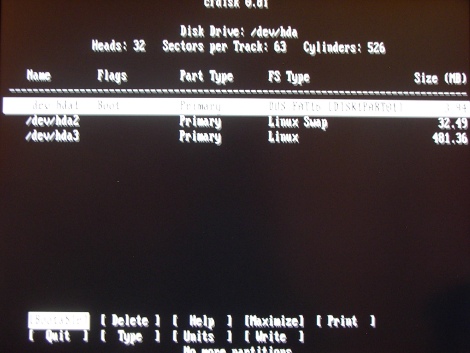
The installer should continue and eventually ask you to install lilo, which is fine on the MBR, then reboot. Remove any disks still left in the Host PC and Debian should start. Now you have to go though another round of configuration questions. Eventually you will get to the dselect package manager (which I hate). Once you figure out how to exit dselect you should still be root. Type in halt and the system should start shutting down, if you are logged into your user account you need to use su and enter the root password first to halt the machine.
Step 4:
Once everything is down, remove your 386 drive from the Host PC and place it back into the 386, with a little luck it should start up just fine. Though there is nothing but the bare basics installed, there is still a ton of stuff to check out and poke around through. Outside of reading this and getting everything prepared it should take about an hour.
Getting software packages into the machine, right now I am just downloading the deb files from the Debian archive on my mac and coping them over via floppy disks. Another option would be to use minicom and a null modem cable. If you are really lucky you can get networking going. I downloaded the entire binary-i386 folder for Debian 1.3.1 and its about 400MB, and while I am not trying to load the machine up, some things like a menu driven text editor (fte) and mouse support are nice.
Have fun and be sure to tune in for part II which involves my 8MB Pentium 90 laptop for linux after 386, you might find it surprising.









Cool… I have an old Compaq 486 laptop that I was considering cross compiling Linux from Scratch for. Tried using a boot floppy and Puppy linux on a parallel ported ZIP100 disc before that but it wouldn’t recognise it. This kinda thing is always good for those one-upmanship, difficult linux installs conversations! :P Look forward to part two!
Exactly! Have a look to the crossdev toolking in Gentoo Linux, it will simplify a little the toolchain creation and then the cross compilation of packages..
I think it is nuts to install old versions of a Linux distro to run on old hardware, when you can just cross compile the kernel and relevant software…
This looks great! I’ve been wanting to get Linux installed on my old IBM 380ED for a while now…
What do you do though when you’ve got a HDD larger than the BIOS supports?
My HDD is 10GB but the BIOS only sees 8GB. For Windows 98 I currently use some DDO software.
well i cant think there is much you can do depending on the bios
its generally not as simple as changing the number 8 to 10 in the asm but changing what integer it uses
tho i dont know what intager ends at a number arround 8 … 64 bit signed? … 2 unsigned 32 bit?
again i have no idea how bios systems work
Check the drive to see if there is a FAT32 enable pin, I have seen (even SATA) drives that will happily limit themselves to 4GB if you set a jumper correctly.
Alternatively, you may be able to partition it off, if the BIOS still detects it as a drive.
Linux does not use the bios for accessing the drive. My old laptop only sees 128GB of the disk but linux uses the full 500.
You could partition the drive to create 2 or more virtual drives to divide that memory into easier to manage chunks. I use to do that with a Win95 boot disk.
Like plo says, linux should see and be able to use the entire drive. You may need to have your boot partition within the first 8GB, though. I had Debian running on a 380 for a while (maybe still do – I haven’t looked at that computer in a few years) and it worked fairly nicely for console based stuff. X11 was a stretch. Never could get text console to use the whole screen, though…
HDD larger than “BIOS supported” is not a problem. Do the following:
1. Figure out the disk geometry (cylinders – a big number/heads – usually 16/sectors – usually 63).
2. Select “user defined” disk type in BIOS setup and enter 1024 cylinders (old BIOS limit) and coorect numbers of heads and sectors.
3. Create a small partition for booting, within these 1024 cylinders. It may store up to 504 MB of data, you won’t need that much. It is to be be mounted under /boot and has to contain the kernel and all lilo extras, so that BIOS will be able to read it.
4. That’s all. You may organize remaining disk space as you wish, linux kernel is able to use large IDE disks even on very old machines. I did it many times, even attached a cdrom to so called “Multi I/O card”, containing serial/parallel ports, FDD controller and IDE interface.
Yes, but if you were actually doing this to “get to know” Linux, you could do it much more easily on a virtual machine without needing extra hardware or an outdated distro. And you’d be getting to know Linux as it actually is, rather than as it was in the mid 90s.
Installing/running/hacking old systems is fun. You don’t need to make up unrealistic “useful” reasons to do it.
+1
+1
I do things with linux and 386DX computers daily that outstrips 99% of all projects here on HAD with my day job.
the 386DX is still a common processor in the embedded world. you can still buy 386DX PC104 cards new for embedded system design and building.
Anyone that poo poo’s the 386 is nothing more than a wannabe poseur who really knows nothing at all about electronics or computers in general.
So dont worry about those that poo poo the lower speed processors. There is plenty of horsepower inside them for a lot of things.
+1, I have two PC104s that have been needing an install for a while. They’d make great experiment boxes, just slow to compile.
I should totally do this with my 386sx on a spare disk. However, I have DOS doing way more than Linux probably could on that hardware, just because of speed issues. GMail, Web Browser, heck, I even used the crap out of ANSI codes to get everything color coded like a Linux terminal often is.
/Cool Story, Bro.
@Pilotgeek,
I’m not sure why you think DOS is more capable than Linux. I have built a few distros that were extremely lightweight and supported all of my hardware plus software that I didn’t think the hardware would be able to handle.
Are we talking, like, multimedia applications? “driving a pc speaker while playing video” kind of stuff? Console emulation? I’m a cockslaving consumer, so break down how much crap these command-line driven linux distros can do.
I’d say DOS is more usable on my 386sx @16mhz just because of the fact that it’s faster. I have web browsing, ssl email, ftp, telnet, ssh, and all the other net-based goodies running. I also have very nice ANSI colors on everything. In addition, I have a plethora of old dos games that it will run. With Linux, I honestly feel like I would be more limited.
I’m certainly not against Linux, either. Damn near everything else I own runs Linux =P.
Why not gentoo linux?
Gentoo – on a 386 – just be damn sure you have working NIC for distcc.
Otherwise you’d type emerge world and the fsking world will end before it completes :)
Linux will be slow if you compile in every module known to man, run every service you can think of, and use a GUI. That’s how most commercial distros are built, because they need to be run on all kinds of hardware by end-users who have no *nix admin expertise. HOWEVER, if you compile linux specifically for your hardware and run only the daemons for the services you actually need, and stay away from the eye-candy, it outperforms everything else I’ve used.
For example, I ran DNS and SMTP for nearly 400 people on a 386 computer fifteen years ago, no problems. Seriously! That’s equivalent to DOS for speed, but with far more capabilities.
It could not run X-windows without BIND and sendmail becoming unacceptably slow, though, so it was a command-line only box.
I wonder if a compact flash card would’ve been a good substitute for an obscure hard drive
CF cards absolutely fit the bill, but you have to be careful about how you partition the drive. Older bioses are really finicky about drive geometry — so if you can, run FDISK from the machine directly rather than another more modern machine to be on the safe side. Once you’ve partitioned it, you can set it up from your snazzier (read: actually usable) computer. I went through this sort of ordeal trying to breathe life back in to a call machine (which was basically a 486 PC on a card.)
CF cards absolutely fit the bill, but you have to be careful about how you partition the drive. Older bioses are really finicky about drive geometry — so if you can, run FDISK from the machine directly rather than another more modern machine to be on the safe side. Once you’ve partitioned it, you can set it up from your snazzier (read: actually usable) computer. I went through this sort of ordeal trying to breathe life back in to a toshiba stratagy voicemail card (which was basically a 486 PC on a card.)
CF cards, being IDE drives basically, work great. No moving parts, low energy consumption. I hacked one onto an old thin-client box that now runs Debian from the CF card and acts as a home development server for LAMP. under 13 watts no moving parts.
Unless you need really really spiffy file I/O, then CF cards have tons of potential.
CF cards work fine. As another poster mentioned, partitioning is something to watch out for (ancient BIOS + “small” modern 4GB CF card == interesting times).
I have had success using old BIOS overlay software on CF cards to simplify things. (Overlay software has a bad reputation, but it’s not horrible with Linux. Since once the kernel is loaded the BIOS (and overlay) is out of the loop anyway in actual use. It just helps get things booted, and then the kernel recognizes the special overlay on the disk, and things work normally.)
I’ve got an old, old, old 386SL laptop here running a suitable old version of Slackware from a CF card with an Ebay adapter, and it runs fine.
(The box itself is a pile of hacks: The display housing was smashed when I got it, so I replaced that with some sheet stainless, aluminum angle, pop rivets, and nuts/bolts. The battery was toast and the AC adapter missing, so I soldered a not-very-heavy unregulated 12VDC wall wart to the battery terminals. The hard drive was a 90MB JVC, which worked but was small and had moving parts, so that’s where it gained the CF card for local storage. I have no floppy drive or CD-ROM for the thing, so I installed Linux on the CF card using another machine.
The keyboard got lost in a flood, so it doesn’t have one of those either anymore (actually, the whole thing was submerged in flood water for a couple of days, but the keyboard got tossed).
It still boots and runs flawlessly, using just a few Watts of power total. One of these days I’ll hang it on the wall and turn it into an NTP-synced clock with no moving parts.)
This is great in that it can be done, but be aware that these old Linux distributions will have tons of known bugs that have since been fixed, including many critical security vulnerabilities that would let an attacker launch known exploits to get a root shell on your box and from there to go after your internal network.
What would be more interesting is to see a modern distro modified to run on i386.
Am I the only one who thought it mentioned an “Xbox 360” laptop? Because, while this is useful to those who can stand really old and slow laptops, if it was about installing Linux on a 360 – which happened to be a laptop – would be really cool.
A Ps3 would be much more suited towards that idea than a 360. There’s too many advantages to list out why.
I wonder why it took a whole hour to boot, there couldn’t be THAT much extra going on. I first ran Linux (kernel 0.99pl12) on my 486-66 back in 1995, and it would boot up in just a couple of minutes.
the year 2000 install took an hour to boot, the 1996 install only takes 2.5 minutes
A large part of that is virtual memory. An old distro will be small enough to avoid it all together, but a new one will rely on it frequently. That’s a problem on an ide interface before ata66. Very, very, slow.
Using a kernel tuned to need no loadable modules during boot, and disabling unneeded daemons will help quite a bit.
It took so long to boot because of lack of RAM almost certainly. New kernels (within the last year) are *slightly* better, but when the kernel runs out of RAM it really goes to pieces, it’ll freeze for like 30 seconds at a stretch deciding what to do.
Regarding the distro being out of date — it sure is. But, a system quite this low spec is difficult. I started out with an early slackware in 1994, on a 386sx-16, 4MB of RAM, and a 40MB RLL hard disk. The 386 and 40MB disk were not such a big deal, the 4MB of RAM was the *real* kick in the nuts. Going to even 8MB makes things FAR easier (not the 386 has a limit of 16MB of physical RAM, although it does support the full 4GB virtual memory.) That is just how a full UNIX is, the early 1980s UNIX systems already wanted to have at least 1MB of RAM, and Suns and such started with 4MB by the mid 1980s.
Oh, and you *CAN* use MFM and RLL drives 8-). I did it with my first slackware install. It is listed in the kernel configuration as “XT hard disk support”, and the device is /dev/xda (rather than /dev/hda or /dev/sda for “normal” hard disks). It is probably enabled even on very recent distros, just because as long as it’s compiles there is no reason to turn it off. Partitons are usual /dev/xda1, /dev/xdb1 etc. This will be slow though, I got around 750KB/sec off my disk RLL disk (ST-250R) and MFMs would be even slower; also the seek time was about 250ms. Which was much better than the ~150KB/sec it got in DOS, but yeah, not even 1MB/sec.
Using qemu with an ide to usb adaptor works well. Saves writing a bunch of CDs and floppies. I’ve used it to get the latest slackware on a p75 ultraportable.
Well, the last time I installed Linux on a 386 with 4MB memory I ended up with 8MB swap partition and booting from DOS because 2.0.x kernel took all of the memory while booting. Bootup was “fast” – around 10 minutes. I had internet with 10MB 3Com PCMCIA card but the gen of it all was the shutdown – it took around 30 minutes.
Not really usable.
I have seen people running CrunchBang on hardware that’s almost this old. Older Pentiums and such. (Crunch Bang = #!)
I have Crunchbang running on an old P3 533 Mhz with 256MB of memory and it’s very snappy, I’m sure you could run it on even older hardware but probably not something as old as a 386 or 486. After bootup, the entire system running an FTP and VNC uses roughly 43MB of memory total… Minimum system requirements for Crunchbang are P3 with 256MB of memory for decent performance, anything under that would just be too slow… And considering that #! is based off of Ubuntu minimal install, anything under a 686 CPU (P3) just won’t work. It’s still a modern distro even though it’s super lightweight.
Exciting! I recently got hooked with the Tiny Core distribution using persistence! Great stuff.
I did this about 10 years ago to an old Digital laptop…386 running at 25 mhz. The BIOS didn’t support a drive larger than 200 MB…but I found a way to bypass it by putting the Linux kernel + LILO on a floppy…and using that for the first stage of booting. Once inside the kernel, it could read the entire 1.2 GB drive I crammed in it. Loaded SuSE 5.1 on it with X…was able to run some basic apps…but mostly stayed in console land. In fact, I used this to take notes through my senior year of high school and first year of college.
What the hell?
I ran variants of Unix on 386s “back in the day”, and they most certainly did not take 10 minutes or more to boot. Somebody, somewhere is doing something wrong.
Yes…but not everyone is as good at fine-tuning their start-up process. For example, my 25mhz machine (post above this one) took 15 minutes to boot…because back then I was still a n00b in the Linux world. Now that I know how to properly configure a Linux distro (and what not to install on a machine slower than my calculator)…I could make that system fly. :)
This is certainly one of the best Linux posts ever. because the newer kernels still supports the old 386, cross compiling linux would be the best choice. And with tools like Crosstool-NG cross compiling is as easy as they come.
Does this mean I can’t get Linux to run on my 268 :(
The 286 processor was 16-bit. Linux requires an MCU (memory control unit), and I believe those weren’t introduced until the 386. Plus…the fact that all kernels are compiled for 32-bit platforms and above is a slight bottleneck…lol.
The 286 certainly has an MMU – it’s the first x86 to have one (Intel announced this as Protected Mode). It is considerably less flexible than the one in 386 (no paging, no 32-bit pointers) and Linux was designed for the 386.
Linux needs a 32 bit CPU and the 286 is only 16 bit. However there was a variant built for 16 bit CPUs called ELKS if you really want to run Linux on a 286, see http://elks.sourceforge.net/
Linux “needs” a 32bit x86 cpu because only the 386 and above have a real MMU. uClinux, which IIRC is actually in the mainline kernel now, does or at least did run on 16bit (depends on what you consider 16bit really) machines like the H8/300 and M68000 IIRC. There are few a “PC” assumptions in the kernel too, mainly in drivers that have never been tested on non-x86 machines, but its not impossible to get it running on some really crazy hardware.
I had a 386 laptop myself back in the day…linux ran fast and furious on it…under two minutes to boot and less than 5 minutes more to get to a GUI. I guess the new builds have a lot more features tho (not that you can use any of them with an old 386 laptop).
I’m afraid linux does not run on 16bit processor (except for some proprietary distros that don’t work with any apps). That is why I was never able to load it onto my old 8088.
>>That is why I was never able to load it
>>onto my old 8088.
Lack of MMU would be the biggest roadblock. uClinux does run on some “16bit” processors.. I just don’t think there is any support for x86 in “flat mode” considering how old even the 386 is.
You can load “Linux” on a 8088, albeit an extremely cut down version of it, but you indeed can.
http://elks.sourceforge.net/
To the moderators: I apologize for hitting again the report link by mistake. Please consider adding a confirmation request.
LoL…I don’t think I’ll be using that thing again any time soon… my arduino has more processing power and my smallest flash media is hundreds of times larger than the hard drive. It makes me sick to think of how much that 8MB of ram cost…
I have two 486 boat anchor laptops here kindly donated to me.
Might be fun to make some use of them, as it turns out you can use a Flashpath adaptor as a cheap HDD alternative as these can take up to a 128MB SM card.
Only snag is that without hardware modifications it won’t natively boot but this is hackable with a simple 10F206 microcontroller which dumps the boot sector into memory as soon as something tries to access Sector 0
mailme mandoline at cwgsy dot net
Also a lot of the early 386 laptops were run below max clock because of heat issues and the unreliable memory.
If you can replace the memory then you can in fact overclock a 386 SX-25 to around 33 or higher without problems; someone has even managed to get one up to nearly 60 MHz using a peltier cooler on the CPU and chipset.
The old trick of starting CPU at stock and increasing slowly works, a simple VCO using a tuning diode and voltage derived from a trimpot will work here… :-)
It’s good to be reminded how hard it was back in the day to get a machine running just the way one wants it to. Sure, most of the extra steps required here come from the fact that the machine’s severely outdated, but it’s still a lot easier these days to install an OS (or multiple) on a computer.
Boot loader config is still a mess, but not as much as it used to be.
There are some interesting time limits in this article but I don’t know if I see all of them heart to heart. There’s some validity but I’ll take hold opinion until I look into it further. Good article , thanks and we wish extra! Added to FeedBurner as well
Does anyone know of a modern tiny distribution? I’d like to play around with something like this, but everyone seems to be hung up on all the fancy new features. GUI, mouse support, networking…who needs them? I want a kernel, a shell, the basic supporting commands, a C compiler, and a text editor. Something which can boot in seconds like DOS, yet still give me all the shell power I need.
Think of it as a big arduino with a nice 80 x 30 character LCD and keyboard for debugging.
try ttylinux, or blue dot linux. both available at minimalinux.org.
minimalinux is distributed usable oob, but you’d have to supply your own C compiler, while blue dot is basically linux-from-scratch-in-a-script so you need anoter linux box first to get a bootable blue dot.
You might find that LFS or DFS are good starting points for something like that.
You might find that LFS and DFS are good starting points.
I am fairly certain that the latest release of NetBSD will run on a 386.
what can you do with this one may ask.
http server
quake server
server stuff
arduino thing like dude said
bunch o stuff.
imagination is all you need!
a dumb terminal would also be a good idea if you wana use more modern hardware that could be headless.
play nethack
@agent24
you have to partition the drive so it sees it as two diffrent drives, the os will see it this way too so its a two steps foward one back kind of thing
linux on a 386 in 5 minutes, download openwrt x86 image, dd if=imagefilename of=/dev/hda1
reboot
I think this is a useful posting for getting to know more about Linux, but I should point out that BasicLinux does this exact same thing (on 386 too, it claims). It comes on a two-floppy distribution, features add-ons for networking and user access, and can even use the packages from Slackware 4.0 (still available if you look hard enough) for additional features.
I use BasicLinux to create network nodes in my personal router lab. They respond to ping, and I can create lots of them with 8MB RAM / 8MB Disk per node on a virtual machine host.
Modern tiny distributions tend to be aimed at the embedded market — emdebian, dd-wrt, etc.
Debian is a do-ocracy, if you are willing to put in the effort (and it isn’t small) you can continue support for old hardware. There is still an active 68k community in Debian, but it has been dropped from the main archive.
This is a complete waste of time if I ever saw one.
If you want to run Linux and learn about it, don’t do it on a 386. Running a decade old Linux distribution isn’t going to teach you anything useful, and more to the point, there are going to be many bugs and possible exploits which will make running this machine in 2011 dangerous. If you actually connect this thing to the Internet, you are a fool.
If you want to run something on a 386, use NetBSD, which actually supports the processor and is up to date with modern software and security updates. I can’t understand why the author admits he knows NetBSD is actually designed to run on this kind of machine, and then proceeds to suffer through this worthless Linux installation.
I’m really starting to dislike the staff-created posts on HaD, it seems like everyone of them so far have been needlessly complex for the sake of making it look more important.
This could have been summarized as:
Install NetBSD = Use it to learn something useful
Install Linux = Make a post on Hack a Day
Would you like some cheese with that whine? ;-)
Seriously though this is something most die hard Linux/BSD geeks have done. It’s the drive to make all hardware you have useful and it’s within most true geeks. So why complain about it?
As for me this rocks because if the system has a good screen of any type that makes it a winner for turning into a digital picture frame. I don’t know about anyone else but I have _tons_ of old B&W family photos that I’ve scanned that would look just fine on a monchrome display.
Add an ethernet card/dongle with a cheap POE hack (take two unused wires on either end of the cable and use them for power) and you’ve got a single wire picture frame that can be put on the wall neatly. :-)
Busybox is currently used in many 386 platforms for applications such as small routers. I don’t see why you should be able to learn a lot of stuff by installing busybox/tinycore or such distributions to tweak your hardware and make your old box useful.
I see a lot of people complaining because some Linux distributions have evolved to run better on current platforms. This also happens on top of non-knowledgeable people trying it and liking it. That wouldn’t be possible if you give an average person a kernel and ask expect them to solve their problems with drivers and whatnot.
If you want a Linux that runs in 386. There are many (Puppy, Tiny/Multi core, command line: Busybox). The applications you can run on 386 are multiple and it’s on the users to go ahead an check their routers or NAS (Yes, there are several companies shipping routers and NAS running busybox), etc.
A regular Linux distribution with many fans, most probably is going to run into problems because… Hey, who supports 20yo platforms anymore, and why would they?
I don’t see this post as a “tremendous hack” but hey is interesting that people want to try and probably motivate others to do fun stuff with a very old box. My webserver has a 1999 laptop with a broken hinge and has been running just fine. (It’s not older because I used to give away my old boxes to people I knew)
http://www.netbsd.org/ports/i386/hardware.html
“NetBSD/i386 Supported Hardware
The minimal configuration for a NetBSD/i386 system requires 4M of RAM and about 40M of disk space. For a full installation (including source and X11), at least 8M of RAM and 200M of disk space are recommended.
Any i486 or better CPU should work – genuine Intel or a compatible such as Cyrix, AMD, or NexGen. ”
Actually supports the 386, huh?
Linux is starting to lack in areas that used to be it’s strong point. The old “it runs on a toaster” gag used to be true but since a couple of years building systems on older or rare hardware has become a royal pain. Obsolete hardware really is obsolete again. Maintaining old DecAlpha’s or VIA chipset boxes for dedicated tasks requires a vast mishmash of distro’s, kernels and odd hacks to keep them up. In most cases the once much hated (by me) Debian distro seems the best match, but just barely.
I don’t see Linux on the desktop happening, but if this last bastion of Linux keeps on getting worst, then I’m jumping ship.
Hey, there’s a lot of development. It’s sad that the segmentation of distributions has caused very poor decisions. But with mobile processors faster than a 90’s Pentium MMX (and this is my old HTC Wizard), 386 support seems like a big “Why?” to me. Then again, if you want your toaster to run linux, you want to find an appropriate distribution for your toaster, and not trying to instal Fedora Core or Ubuntu because it’s going to be difficult.
Well, I’m not talking about self inflicted pain from trying to cram a 2.6.x kernel with Xorg on a pinball machine. This project is rather extreme seeing as it is the first kind on machine that runs original linux (not the (later) no-MMU capable versions).
Why does linux suck on Sparc, Via Cx, Alpha, PPC and mips when, not to long ago, it didn’t.
You are right that a large part is due to brain-dead ideas crammed into installers. but really ! Ubuntu ! It is a nightmare, it resembles Win95 on most systems older than 3 years.
What a waste of time. There are many alternatives for older/low-end x86 processors. NetBSD is friendly. If you insist on Linux, then take a look at this venerable and still active project:
http://www.freesco.org/
The best rainy day project for me. I’ll try to find my old laptop here and do this too for sure! :)
Congratulations
I love Linux and I love old machines, but seriously HaD? You call this a hack? We keep seeing more and more posts like this that are certainly NOT hacks. Interesting? Sometimes. A hack? Not even close.
It is a slow news day and it is interesting, plus it sparked a bunch of old timers to remember the old days, so stop complaining.
There are even a few installation reports for ELKS Linux on laptops with 286 CPUs.
I could somewhat understand the appeal of undertaking something like this if computers still were expensive, but when you almost have to pay to get rid of systems that are 10 years newer than a 386, whats the point?
Most people that have been around for a while remember how much “fun” it was to deal with chat scripts and ppp to use a dialup, and most probably have no desire to go back to anything that reminds them of that kind of tech.
No idea why this guy wants to torture himself.
I recently had a similar experience trying to install Linux and repurpose a Dell server with a PERC II RAID and no IDE/ATA. 4 Xeon 500mhz, 4Gb EDO, and more 9Gb SCSI drives than you can shake a stick at makes a handy dev server. Interesting but not a hack.
Reading the article, there seems to be a fundamental misunderstanding about the SX/DX division.
The 386SX and DX differ mainly in that the SX only had a 16bit memory bus to allow it to be used with old 286 chipsets, where the DX (or just “i386”) had a 32bit memory bus.
Neither had a math copro onboard – they both needed an external math processor – the 386SX could use the 287 or 387SX, the 386DX would use the 387DX, or often a third party processor from the likes of Weitek which were rather quicker than the Intel equivalents.
This changed with the 486 where the main difference between the 486SX and 486DX was that the DX had a math copro on the die, where the 486SX didn’t – there was a 487SX offered for a while, but what it actually was was a 486DX in an odd form factor (different socket) that locked out the “main” processor when it was inserted, taking over all processing.
Oh wow check it out:
http://linux.slashdot.org/story/11/08/13/1341240/Installing-Linux-On-a-386-Laptop
Seemingly it is a similarly slow news-day for the old beards over at /.
Nostalgia moment: When I was running Minix on my 12 Mhz 286, I was lusting after a 386 so I could run FreeBSD. ;-)
It is important to note that development on Minix has progressed as well, and now exists as Minix 3. Not only is Minix far more suited to this type of hardware, but the kernel still comes in at around 20,000 lines of code and can be fully understood by anyone who is willing to dedicate a bit of time to studying it.
Another interesting option is RetroBSD, which are the BSD 2.11 sources ported to the PIC32. I haven’t played with it yet, but the kernel sources come in under 20,000 lines as well.
I’ve still got a copy of Yggdrasil Linux with a 0.97 kernel kicking around from 1995… I ran one of the first ISP’s in the Niagara Region, Ontario from that, back in the day on a ‘386…
http://en.wikipedia.org/wiki/Yggdrasil_Linux/GNU/X
I thought there was a flag one could pass the kernel on boot (i.e. in grub) to take a modern disto, and turn off all of the architecture specific stuff found on i5 processors. One should be able to run a stock kernel with math emulation turned on (this may not be compiled into the kernel anymore) and a reported 486sx architecture. IIRC the 486 and 386 differed little other than the math coprocessor. I remember doing this not that long ago. I’ll try to dig up my kernel .config.
I think the next frontier is ARM based Linux. ARM stuff is usually “Just Enough” for most tasks especially loading up a web browser in the style of Citrix et al . I do have a bricked Tmobile G1 hmmmmmm
I’m using a Dell b120 w/ Celeron M 1.4 Ghz processor. Has a 40 Gig Hd and 2 Gb of memory. It does great on Ubuntu 10.04 LTS.
Compac Portable 386 has 1k ram, what can it run?
Try tinycorelinux.
Does not get any easier.
I can see an old boat anchor like this being useful for running E2PROM programmers (i.e. fixing TVs/changing mac addresses/repairing old phones/etc), as well as home CNC setups.
Also many of these older machines had hardware which the newer ones don’t, such as parallel, serial and infrared.
Especially handy if you want to do low level stuff :-)
OpenBSD will run on a 486 or greater (or an entirely different architecture if that pleases you…hello ARM: http://openbsd.org/plat.html), and you actually get a modern and capable OS. The default install is very light (especially if you cut out some unnecessary install sets – ie anything x-related) and the documentation is great.
http://www.openbsd.org
I love this kind of thing. Reminds me of my first days with Linux installing Slackware from floppies onto a 486DX2-50.
Could you have left the HDD in place? Here’s what I did with my 386/33 Thinkpad (12MB), floppy drive, 40MB HDD and PCMCIA slot:
Booted Debian 2.0.4 floppy, switch to driver disk for PCMCIA drivers. PItA to find a floppy that rawrite wouldn’t spit out.
Connected via eth0 (PCMCIA) to dedicated server to install minimum Debian.
I’m talking real minimum, no X, but I learned lots. Joe and aspell for documents.
Eventually I wanted mc, but there wasn’t room for any compilers, so I compiled it on another machine and copied over the binary. Said laptop lasted me another 5 years.
“its the absolute bottom Intel CPU you can run Linux on.”
Wrong. Back when 286s were state-of-the-art, I installed Red Hat on mine, with a full GUI.
That’s hard to believe as the 386 was introduced years before Redhat even started distributing. Linux did not exist when 286 was state_of_the_art
There is lot of custom linux variant designed to run on old hardware with educational purpose.
monkey linux http://projectdevolve.tripod.com/text/descript.htm
basiclinux http://distro.ibiblio.org/pub/linux/distributions/baslinux/
etc
http://www.linuxlinks.com/Distributions/Mini_Distributions/