
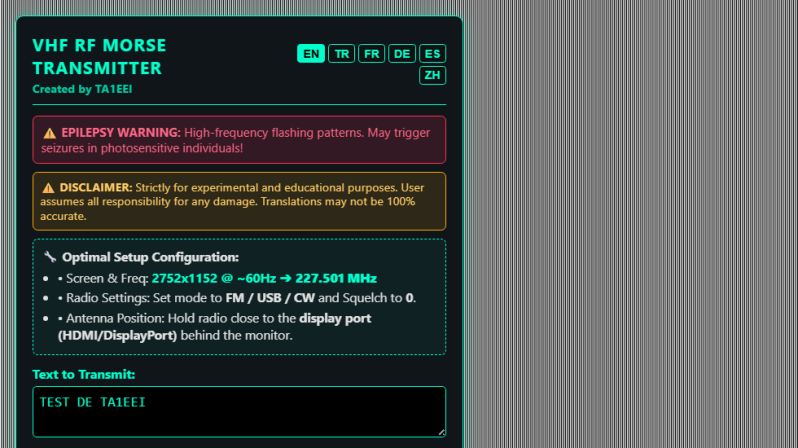
If you’re intending to transmit on the VHF band, you’re probably going to reach for a handheld or some kind of rackmount rig in your ham shack. But you needn’t bother with all that complexity, when you can use the computer on your desk to spit out such signals using a simple browser tool from [Efe].
The concept is straightforward—[Efe]’s tool manipulates pixel clocks in order to create spurious transmissions from your computer’s graphics hardware. The math pencils out pretty easily—multiply the horizontal resolution by the vertical resolution by the refresh rate, while paying attention to the precise timing of the video standard your monitor is using, and you’ve got your transmission frequency. For example, for a screen displaying 1080p at 60 Hz, with the CEA-861 timing standard, your horizontal and vertical resolutions are 2200 and 1125 respectively when paying attention to the requisite blanking intervals. Multiply those by 60 hz, and you’ll find you’re creating a signal at 148.500 MHz. Leverage this by displaying the right pattern of black and white pixels to maximise changes in voltage state on the HDMI or DisplayPort lines, and you might create a strong enough signal that you can actually pick something up. [Efe] created a tool to display these patterns to send simple Morse code messages over VHF just by flickering your screen just right.
You can test the transmitter tool for yourself here, right in your browser. You’ll want to hold your radio’s antenna nice and close to the monitor to see if you can pick up much of a signal. After all, the monitor, connectors, and cable are all built to optimize for clear signal transmission to the display, while preventing signal from leaking out to interfere with surrounding equipment.
Of course, a fair warning—you’re not supposed to intentionally transmit on bands you’re not licensed for, even if it’s incredibly weak and unlikely for anyone else to notice in a scenario like this. Still, it’s an interesting project that shows you just how electromagnetic interference can leak out of just about anything under the right conditions.









I remember reading about someone creating a valid DVBt signal showing a static image using harmonics from their specially (de-)tuned video card using XF86 ModeLines a very long time ago – https://bellard.org/dvbt/
It’s amusing that people are now using TEMPEST like techniques to intentionally transmit. Although I think we’re a little past irony these days, considering the state of things.
Since it’s intentionally trying to transmit information, it’s more a covert channel I suppose.
This wiki article might be of interest to people here.A little history on the concept.
https://en.wikipedia.org/wiki/Van_Eck_phreaking
https://hackaday.com/2015/10/19/tempest-a-tin-foil-hat-for-your-electronics-and-their-secrets/
and
https://hackaday.com/2009/01/25/tempest-a-signal-problem/
and
https://hackaday.com/2025/01/09/all-band-receiver-lets-you-listen-to-all-the-radio-at-once/
Raindrops on roses, and Van Eck phreaking…
Ah, the BBC TV detector vans.
Just eat the telly.
And Vivian made it so
I would rather have a way to stop it from transmitting instead. The usual pixel clock for a 1080p60 signal is 148.5 MHz. The third harmonic of that is in the 70 cm band and it causes a lot of interference. I’ve tried clipping a bunch of ferrites to the video cables and it only reduces it a little bit. I wish I could find an HDMI or DP cable with good shielding.
Just use VGA..
It happens with VGA as well, though the interference will be on different frequencies.
Maybe you can set a custom modeline, to get 1080p50 or 1080p70. Or upgrade to 4k :)
I did bump the pixel clock up as much as I could on one of my desktops. That moved most of the RFI above the 70 cm band. The monitors on my other desktop don’t seem to like a higher clock speed.
I would like to upgrade to 1440p monitors at some point. I wish GPUs still had DVI ports. I had some really nice, thick DVI cables that never caused any RFI issues.
Try wrapping your existing cables in more shielding. Adhesive metal tape is pretty cheap. Braided shielding is also readily available.
I do have a couple rolls of copper tape. I would probably have to cut back some of the plastic shell on the connectors to solder the copper foil to the shield connection though.
HDMI and dvi are electricity compatable; you can get passive adapters for a few bucks
Why do you think the cable is the issue??? 99% it’s there you have some jump in the characteristic impedance. So it’s where the shield and lines connect to the connector and there the receptacle connects to the PCB. Of course the receptacle/connector combination and the input impedances of the driver and receiver are a weak point too… But I bed with you, the PCB just barely meets the specs. I see this a lot with ethernet. Clean up the traces, and the peaks in the spectrum just magically disappear…
With better cable you get maybe 3-6dB down. The PCB design does 15-20dB
73
DisplayPort runs at one of 4 fixed cable clocks; either 162 MHz, 270 MHz, 540 MHz or 810 MHz. If you’re using DP and seeing interference on a harmonic of 148.5 MHz, changing the cable won’t help because the interference is coming from elsewhere.
It’s most likely to be the display itself causing the interference, and you’ll need to shield that, not the cable.
The DP cables I am using are adapters that convert to HDMI. My monitors are too old to support DP. That’s good to know about the fixed bitrate. Upgrading to monitors with DP inputs would probably fix my RFI issues then.
Has LTTstore got any HDMI? There USB C cables are all coax.
I know they spoke about doing HDMI and DP as well as USB C but not sure if they ended up only doing USB C
Same idea as “Tempest for Eliza” from 25 years ago http://www.erikyyy.de/tempest/
I’m getting old :)
same as “Das Clock Fake 77” from 23 years ago https://github.com/mazzoo/dcf77
yes, we are
Cool link!
I love the disclaimer at the end. It’s the preemptive strike of the ham world.
Actually I only leveraged AI for the UI. I wrote the core project myself but it didn’t look very nice so I got help from Gemini. However, it suggested ‘Hey, it would be better if I fixed these areas’ and I didn’t argue
We did, but that tranny moron Zoe didn’t get the memo.
this seems like some sort of april fools joke or something i woukd imagine as a kid
So i just like picked it up with a portable crt tv, the signal was closer to channel 45 OR 46 UHF.
How does this get around the TMDS bit encoding trying to keep the number of transitions relatively constant?
Author here! That’s a really great question. To be completely honest, I actually stumbled upon this somewhat by accident while tinkering around and noticing my radio picking up weird RF spikes from screen patterns.
Technically, while TMDS 8b/10b encoding minimizes intra-word transitions and keeps DC balance, the mapping is strictly deterministic. By rendering alternating spatial patterns (e.g. repeating high-contrast pixel strips across the canvas), we force repetitive 10-bit codewords at predictable intervals.
This generates a massive, coherent RF spike at specific subharmonics/multiples of the pixel clock and line frequency. When switching back to a flat solid background, that spectral peak collapseseffectively giving us clean On-Off Keying (OOK/CW) that breaks through real-world common-mode cable and panel leakage.
why not ZModem?