
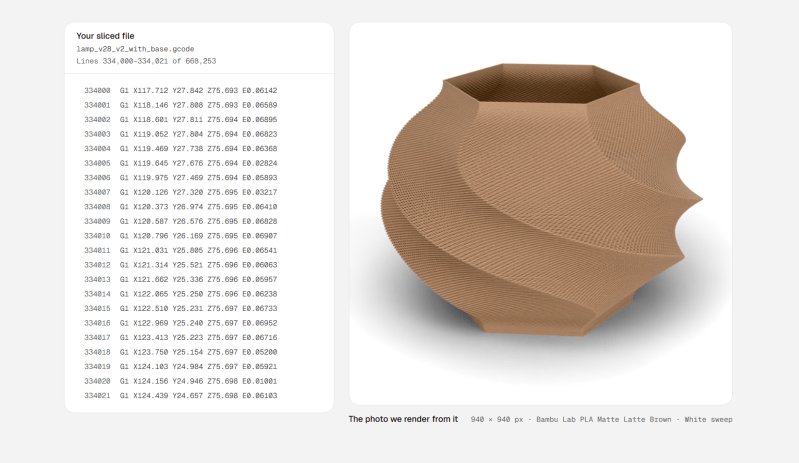
Your CAD software generally has some rudimentary tools for rending images of your parts, from simply-textured models to more photo-realistic options. However, those renders are of the geometry you created—not how that geometry would look after it was sent to a 3D printer. Extrudio is a tool that aims to create more realistic renders for 3D printed parts.
Rather than rendering from the geometry of your model, such as by using an STL file, Extrudio uses G-Code instead. It creates its render based on the instructions your 3D printer uses to produce your part, sweeping a virtual bead of plastic along the toolpaths in the code. In doing so, it can realistically display layer lines in a 3D print and other artifacts of the printing process, like stair-stepping on spheres and curves. It can display the render in various contexts, from blank studio backgrounds to a number of “sets” like a bench or kitchen.
The tool’s website notes that this could be useful for generating images for those selling 3D printed parts online, though obviously the realism of actually printing and photographing a part would still be superior. Still, it could prove a useful tool for quickly pitching realistic images of a 3D printed part, particularly if it’s desirable to model different colors or print techniques without putting in the hours to actually produce them.
We’ve featured some other great 3D printing hacks lately, like this nifty trick for doing overhangs without supports.









Sometimes you can’t spell ‘Hackaday’ without spelling ‘ad’
Yeah for $12 a month I’ll print one and take a photo, thanks.
Who TF is this aimed at, hackaday? Have you met your audience?
“Every new account starts with 20 free credits, for Standard and High. Previews and retries are free; each final image uses credits. Plans start at $12 a month, and credit packs at $12; the pricing page lists them.”
Agreed. Ouch.
Way back in like 2012 there was a Blender plugin that did this….but for some reason it stopped working.
Cannot remember if it was a revision thing or if it went to payware and I stopped using it…but soon after it became easier to use the built in one with slic3r.
How long before someone vibe-codes something that does this for free?
Although, maybe you can just ask Claude to “render this sliced gcode” right now.
Exactly my thoughts.
The only remaining barrier is that most people are still far too lazy to set up the environment where you ask Claude to do stuff. It’s weird
“how long…” Zero.
I just had Claude “render this sliced gcode” AND “vibe code something that does this for free” to any input file at the same time.
I now have some nice renders of a sample .bgcode file I pointed it at and some python scripts if I ever need to do it again.
It figured out I had blender installed on my machine (I do have the blender MCP installed). Then it wrote one controller script and three sub-scripts to convert a bgcode file to gcode, turn the gcode into paths for a blender file, and then setup cameras and lighting in the blender file & do the render from a few very good viewpoints.
“I’ve a feeling we’re not in Kansas anymore”
Very nice. Do share! :)
I can get a pretty good sense of the resolution/stair-stepping in the OrcaSlicer preview already. It would be cool to see it fully rendered with lighting, but hardly worth exporting the gcode to another tool? Paying a sub ascription for this service seems absurd. I’d sooner write a script myself to convert each path into a closed tube, save as STL, and render it in Blender for free.
prusaslicer literally comes with a gcode viewer that does this
Thought the same thing, but it’s not photorealistically rendered. I mean, your slicer does a good noodles-view preview if that’s all your’re after.
But as everyone points out, given the paths (the g-code) it should be trivial to turn this into a 3D model of your choosing to load up in Blender or whatever.
I guess the magic is in the renderer. It would be trivial to vibe code an app that takes gcode and spits out an stl file with extruded geometry along the gcode path. It can then be imported into any 3D rendering app like blender, Lightwave 3D, 3D studio etc to render a good looking image.
Maybe it’s trivial to convert g-code into an STL if you’re ok with a bazillion polygon mesh. I would think turning g-code into a good model that’s actually useful in CAD is a whole lot harder.
I’d probably use some kind of shrinkwrap algorithm but a collision mesh that complex likes to cause glitches
Doesn’t every slicer do this in the sliced view render?
Not with nice soft shadows and global illumination
This is pretty cool. I’ve looked for something like this once or twice. This needs to be in all slicers!
Purse slicer, and most slicers in general let you export the sliced model as an OBJ of the tool path. That could easily be rendered in blender, or your preferred 3d software.
Prusa slicer
I just tried it and this tool is really slick. Works very well. You can select the exact filament brand/type/color you want.
I sell planters in 10 different colours and this will allow me to generate them in the exact colours I use for uploading to my Shopify site. It can even assemble the planter and its base automatically in the render. This will save me a ton of time and money. And it uses only one credit per image so for $12/month I can generate 100 images, which is more than enough for my needs.
Yeah, it’s not for everybody, but for a small business like mine this is going to be extremely useful.
For anyone who wants the free route: PrusaSlicer can export the sliced toolpaths directly (in the preview, File > Export > Export Toolpaths as OBJ). The catch is size, since even a small part can turn into a few hundred MB and millions of triangles, which Blender handles but slowly. A light Decimate pass, or converting it to a compressed GLB first, makes it much easier to work with. After that, a single area light at a low grazing angle does most of the work of making the layer lines show up in the render.