Thunderbolt Strikes Windows98

If there’s one thing everyone hated about Windows 98, was the lack of USB4.0 support. We remember vividly the cries of anguish at the launch party when we found out that 21 years in the future, the operating system wouldn’t support the then-undreamt of speeds of the thunderbolt-based fastest USB protocol. After two decades of living with this crushing disappointment, [Yeo Kheng Meng] has delivered the goods: the most modern of USB interfaces on some very much not modern versions of windows.

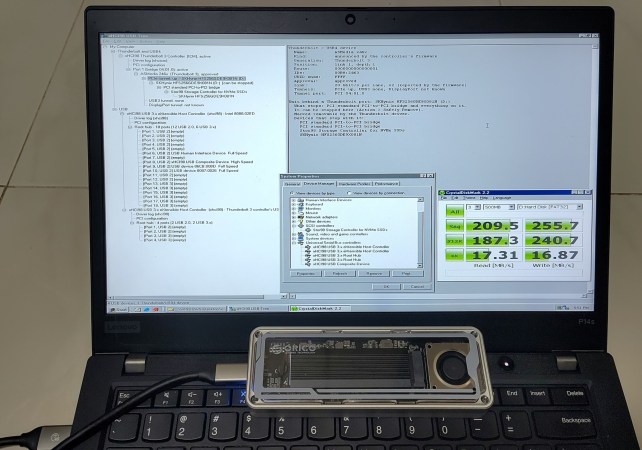
This builds on [Yeo Kheng Meng]’s work on xHCI drivers for USB2.0 support, which we covered at the time. Like that hack, this one applies to Windows 98 through 7, and has a similar level of LLM-wrangling involved. There are actually a few parts to it– one is a USB3.0 driver, which replaces the old xHCI98 driver and is available on GitHub. On Windows98, USB3.0 speed caps out around 200 MB/s, likely restricted by Windows98’s maximum request limit of 64kB on USB transfers. Even with the faster bus in action, it can only gobble those tiny blocks of data so fast.

There’s also experimental USB4.0/Thunderbolt support, as stated above. While not as stable as the USB3.0 portion, we’re kind of impressed it runs at all. Thunderbolt is more than just a faster data bus, after all– you have to support multiple protocols. To handle all that you can install xhcicm.sys and have the surreal experience of accessing an docked NVMe drive from the last century’s best Windows via his Stor98 driver. That’s based largely on [SweetLow]’s NVMe9x project, which he forked but is going to be bundled into the main repo.

What might be more helpful to the community than these drivers is [Yeo Kheng Meng]’s fork of QEMU11 that emulates USB4/Thunderbolt hosts and devices. Having a working emulator seems like it would be a huge boon for this sort of semi-automated development. That’s available in its own repo.

Aside from the already-linked USB2.0 drivers, [Yao Kheng Meng] has an impressive retro-computing record, that includes Swift on the Apple II and turning DOS into llama.c habitat. It should be noted that that llama.c’s TinyStories is not the LLM that assisted with this project.

Thanks to [Yeo Kheng Meng] for the tip!
Modern USB Controllers On Win98 (and Up)

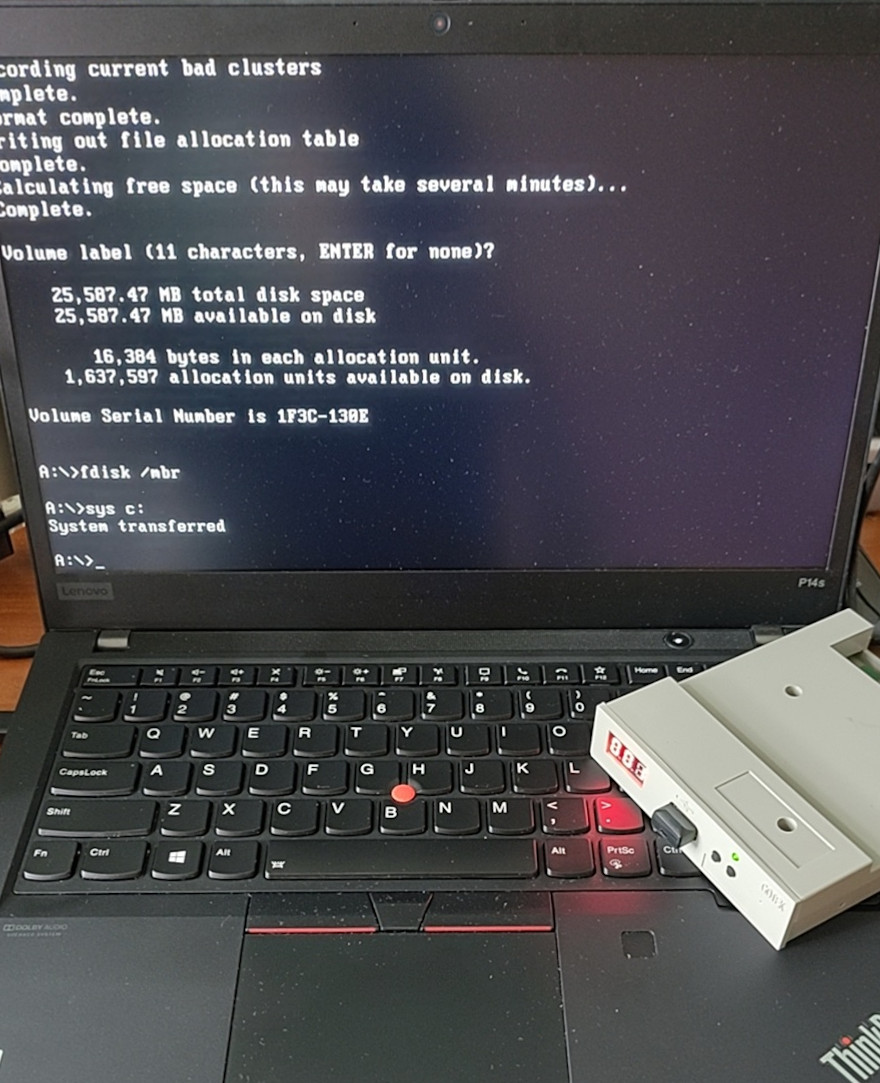
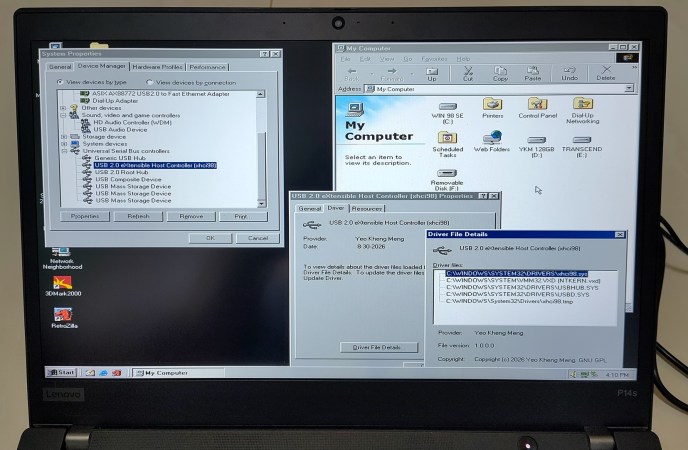
[Yeo Kheng Meng] has a problem: he likes Windows 98, but he also likes his 2020 ThinkPad, which only has an xHCI USB controller– you know, the kind needed for USB 3.0, something that post-dates Windows 98 by a full decade. Drivers? Finding none existed, he decided to do it himself, or at least guide the process of using  LLMs to produce drivers for Windows 98 and up.

Some of you just stopped reading, but can you blame him for making a demonic pact for this project? Driver development isn’t really a one-man show, especially as a part-time hobby project you’re not sure anyone else will ever use. If you do want to use it, you can find the code on GitHub.

It does work, though, he admits it might be buggy. Unlike purely vibe-coded projects, [Meng] intends to address bugs put forth in the repo, at least. If you want to know how he did it, check out the link to [Meng]’s blog– which is human-authored, we can tell– and the videos embedded therein. He demonstrates it working on a 2020 ThinkPad, which should be usable even with Windows 11, and another model from 2016– neither of which have any old-style USB ports. Older laptops might, while any desktop can just use a PCI card with a USB2.0 controller– or you can do like [Meng] did prior to this project, and use the PCI card via adapters. 

[Yeo Kheng Meng] evidently gets as much of a kick out of joining old and new as we do, like running DOS a modern ThinkPad X13, and running Slack on Windows 3.11 For Workgroups on a slightly-less-modern but still 21st Century Thinkpad T400.

A Defrag Simulator In Your Browser

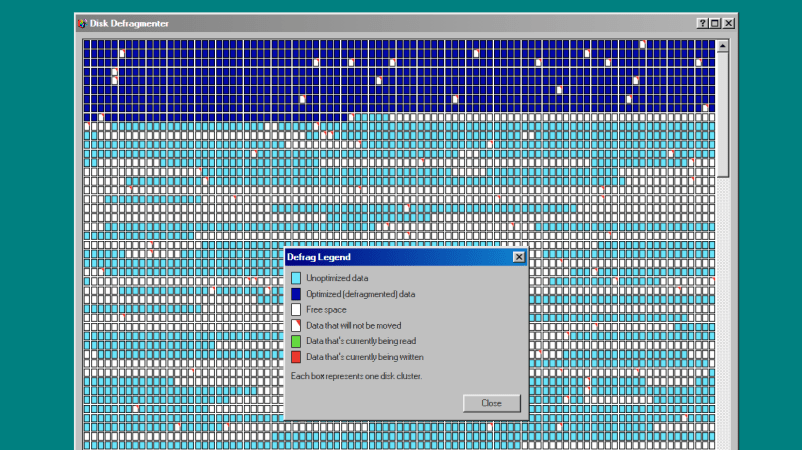
Disk Defragmenter was a wonderful utility that Microsoft included with Windows back in the day. Back then, you’d use it to theoretically speed up disk access. Today, you can run a fun simulation right in your browser thanks to [Dennis Morello].

The theory behind defragmenting hard disks was simple. Your hard drive would store data on spinning magnetic platters. Sometimes, a given file or group of files would end up with their different parts scattered across different parts of a platter, or even multiple platters, as the file system tried to slot everything into the space available over time. On a drive accessed with a literal physical mechanism, this fragmentation of files across multiple areas of a disk could cause functional read speeds to drop. To solve this, you could defragment the drive, wherein a utility would grab disparate bits of different files and put them physically closer together on the drive platters, such that the read heads could access larger contiguous chunks of files more easily.

[Dennis’s] project does none of that. It just simulates the visuals and sound of running Microsoft’s disk defragmenter tool from Windows 98. It’s got the little rows of squares that get rearranged, blue for unoptimized data, dark blue for defragmented data, and white boxes for free space. It’s got the progress bar along the bottom, too, and a nice little simulated sound of a hard disk ca-chunking away as it shuffles little bits of data to and fro. This was the kind of thing you’d do on a rainy Saturday afternoon in the 1990s, just watching your PC make itself a few percent faster while you drank coffee and wondered if your ex-wife Jacinta was ever coming back. She never did, but you did notice that Age of Empires II loaded a fair bit quicker after you ran a full defrag on your main drive. Sometimes, that’s as good as it gets.

Modern file systems are better at managing issues like fragmentation, and the virtually instant seek speeds of solid-state drives essentially eliminated the need for defragmentation for good. Still, it’s fun to visit an ancient tool from yesteryear and remember what it meant to us way back when. Maybe you could give Jacinta a call, too, just for old times sake, and discuss that time a Janet Jackson song started crashing brand-new Windows laptops right out of the box…

WSL9x: Add A Linux Subsystem To Your Windows 9x

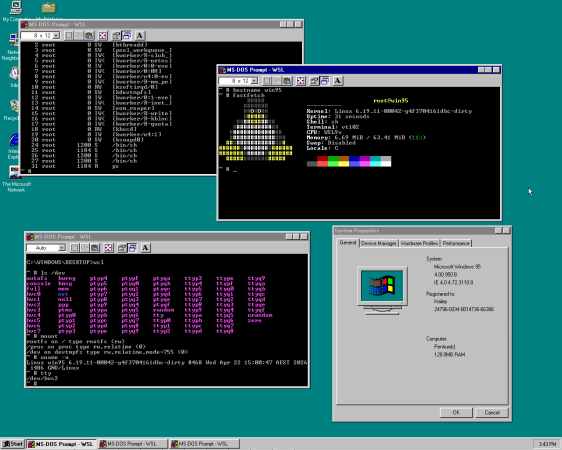
Considering that Windows NT has the concept of so-called ‘subsystems’ whereby you can run different systems side-by-side, starting with the POSIX subsystem and later the Windows Subsystem for Linux (WSL), it was probably only a matter of time before someone figured that doing this with Windows 9x was also completely reasonable. Ergo we now got [Hailey Somerville]’s Linux Subsystem for Windows.

To make running Linux inside Windows 9x work, it was necessary to heavily patch a Linux kernel, as normally there are no provisions for such a subsystems in Windows 9x’s kernel unlike the NT kernel. Correspondingly, the Linux kernel is based on user-mode Linux and hacked to call Windows 9x kernel APIs instead of the POSIX ones.

In order to use WSL9x you thus need to build said modified Linux kernel – currently at version 6.19 – along with a disk image containing an installed copy of Windows 9x. From there WSL9x can be loaded with the wsl command and you’re then free to cooperatively run the Win9x and Linux kernel side-by-side. This is reminiscent of Cooperative Linux (coLinux), which did something similar except with Windows NT and Linux kernels running side-by-side, and of course we have WSL2 with Windows 10+.

Thanks to [adistuder] for the tip.

How Usable Is Windows 98 In 2026?

With the RAM and storage crisis hitting personal computing very hard – along with new software increasingly suffering the effects of metastasizing ‘AI’ – more people than ever are pining for the ‘good old days’. For example, using that early 2000s desktop PC with Windows 98 SE might now seem to be a viable alternative in 2026, because it couldn’t possibly make things worse. Or could it? As a reality check, [SteelsOfLiquid] over on YouTube gave this setup a whirl.

The computer of choice is a very common Dell Dimension 2100, featuring a zippy 1.1 GHz Intel Celeron, 256 MB  of DDR1, and a spacious 38 GB HDD. Graphics are provided by the iGPU in the Intel i810 chipset, all in a compact, 6.9 kg light package. As an early Windows XP PC, this gives Windows 98 SE probably a pretty solid shot at keeping up with the times. At least the early 2000s, natch.

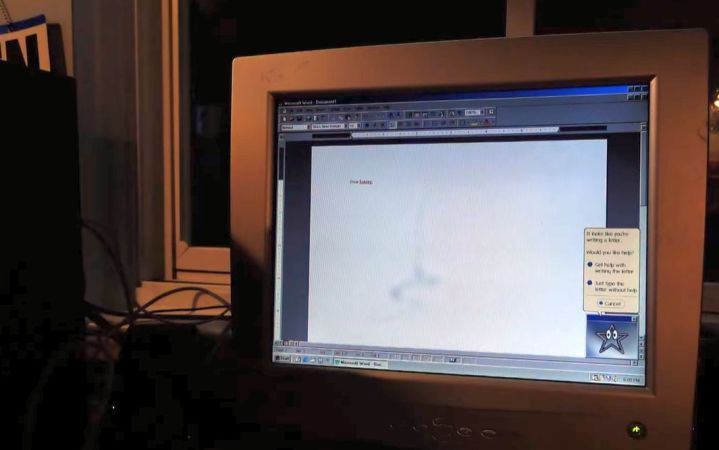
Of course, there is a lot of period-correct software you can install, such as Adobe Photoshop 5, MS Office 97 (featuring everyone’s beloved Clippy), but a lot of modern software also runs, with the Retro Systems Revival blog documenting many that still run on Win98SE in some manner, including Audacity 2.0. This makes it totally suitable for basic productivity things.

Continue reading “How Usable Is Windows 98 In 2026?” →

Windows 98 On A 2020 ThinkPad P14s Gen 1 Laptop

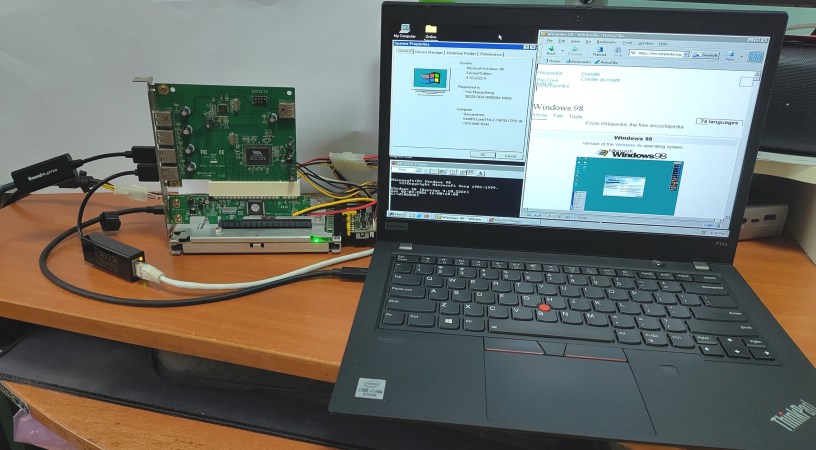
The lovely thing about the x86 architecture is its decades of backwards compatibility, which makes it possible to run 1990s operating systems on modern-day hardware, with relatively few obstacles in the way. Recently [Yeo Kheng Meng] did just that with Windows 98 SE on a 2020 ThinkPad P12s Gen 1, booting it alongside Windows 11 and Linux from the same NVMe drive.

Naturally, after previously getting MS-DOS 6.22 from 1994 running on a 2020 ThinkPad X13, the step to doing the same with Windows 98 SE wasn’t that large. The main obstacles that you face come in the form of UEFI and hardware driver support.

Both ThinkPad laptops have in common that they support UEFI-CSM mode, also known as ‘classical BIOS’, as UEFI boot wasn’t even a glimmer yet in some drunk engineer’s eye when Win98 was released. After this everything is about getting as many hardware drivers scrounged together as possible.

[Yeo] ended up having to bodge on a USB 2.0 expansion card via a Thunderbolt dock as Win98 doesn’t have xHCI (USB 3.0) support. With that issue successfully bodged around using a veritable tower of adapters, installing Windows 98 was as easy as nuking Secure Boot in the BIOS, enabling UEFI-CSM along with Thunderbolt BIOS assist mode and disable Kernel DMA protection.

Because UEFI-CSM implementations tend to be buggy, the CREGFIX DOS driver was used to smooth things over. Another issue is the same that we chuckled about back in the day, as Windows 98 cannot address more than 512 MB of RAM by default. Fortunately patches by [Rudolph Loew] helped to fix this and some other smaller issues.

Unfortunately neither Intel nor NVIDIA have released Win98 drivers for quite some time, so there’s no graphics acceleration beyond basic VESA support and the SoftGPU driver. Disk access goes via the BIOS too rather than using an NVMe driver, so it’s not as zippy as it could be, but for Win9x it’s quite usable.

Finally ACPI wasn’t recognized by Win98, but it’s only fair to blame that on the complete flaming train wreck that is ACPI rather than anything to do with Windows. This particular issue was worked around by configuring the BIOS to support S3 power state and with that making Win98 happy again.

It’s honestly quite a shame that UEFI-CSM is largely ignored by new systems, as it makes installing even Windows 7 basically impossible, and thus creating probably the largest split within the x86 ecosystem since the arrival of AMD64/x86_64.

PCMCIA Flash Card Gives Up Its Secrets Thanks To Retro Gear

There are two ways to recover data from an obsolete storage medium. One way is to pull out all the tools in the hacker’s kit — with logic analyzers, oscilloscopes, and bit-banged software in a desperate attempt to reverse engineer the original protocol. The other way is to have a really, really deep junk bin that just happens to contain exactly the right pieces that would have been used decades ago.

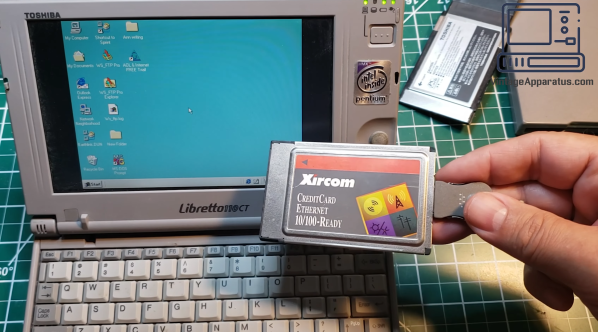
For recovering data from a 25-year-old PCMCIA memory card, [Dave] from Vintage Apparatus chose the latter method. But to be fair, characterizing the stash of gear he had to select from as a “junk bin” is pretty insulting. It’s more like a museum of retro technology, which just so happened to hold  Toshiba Libretto, a subnotebook computer hailing from the late 1990s. The machine sports a pair of PCMCIA slots and was just the thing to read the data from the old 32 MB SanDisk flash card, which once lived in a backpack-mounted GPS system for surveyors.

If this hack sounds as easy as plugging things into an old computer, you’d be right — if you just happen to have a stack of floppies containing the Windows 98 drivers for said things. So [Dave]’s task became a game of finding the right combination of cards that already had the drivers installed and would provide the connectivity needed to get the data off the flash card. Between a suspiciously crunchy-sounding floppy drive and an Ethernet card dongle badly in need of some contact cleaner, cobbling together the right hardware was a bit of a chore. After that, a lot of the hack was [Dave] just remembering how we used to do things back in the day, with the eventual solution being transferring over the files to an FTP server on a Raspberry Pi.

The video below tells the whole saga, but the real treat might just be the Vintage Apparatus collection of gear. Incidentally, we really like [Dave]’s idea for storing associated bits and bobs.

Continue reading “PCMCIA Flash Card Gives Up Its Secrets Thanks To Retro Gear” →