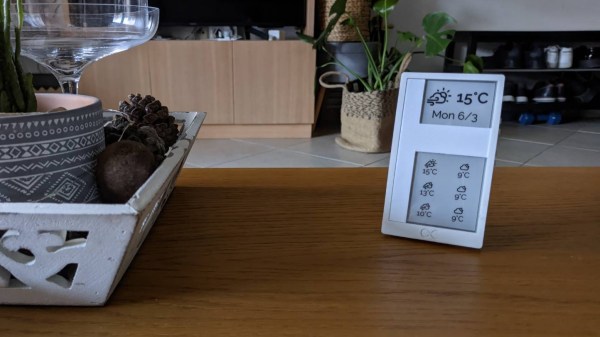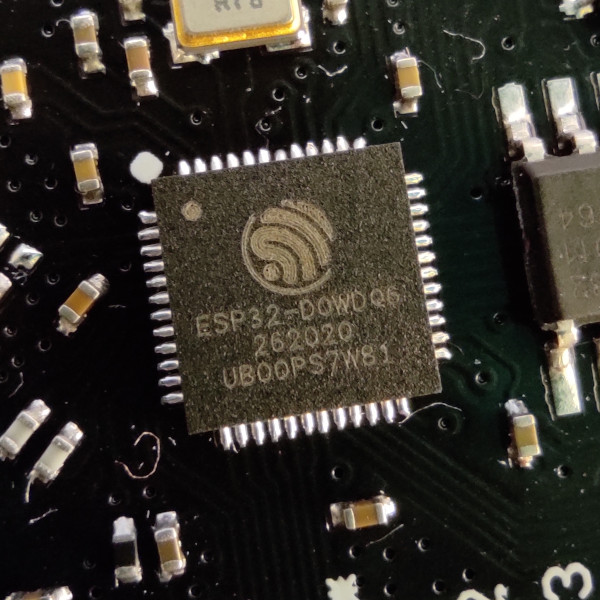
We’ve seen the GeekMagic SmallTV line of devices before — these cheap gadgets combine a microcontroller and a display in a little plastic case that can be used to show the time or weather. Powered by either an ESP8266 or an ESP32, the things could easily pass for a hobby build if it wasn’t for their professionally produced enclosures. In fact, we wouldn’t be surprised if GeekMagic lifted the idea from an existing DIY project.
As you might expect we’ve seen several hacks for these devices already, which usually involves replacing the stock firmware. But this latest approach is unique in that you don’t need to mess with the stock software, nor do you need to break out the soldering iron. By leveraging a built-in photo viewer function of the SmallTV [Yongha Kim] shows how you can get the gadget to display pretty much whatever you want.
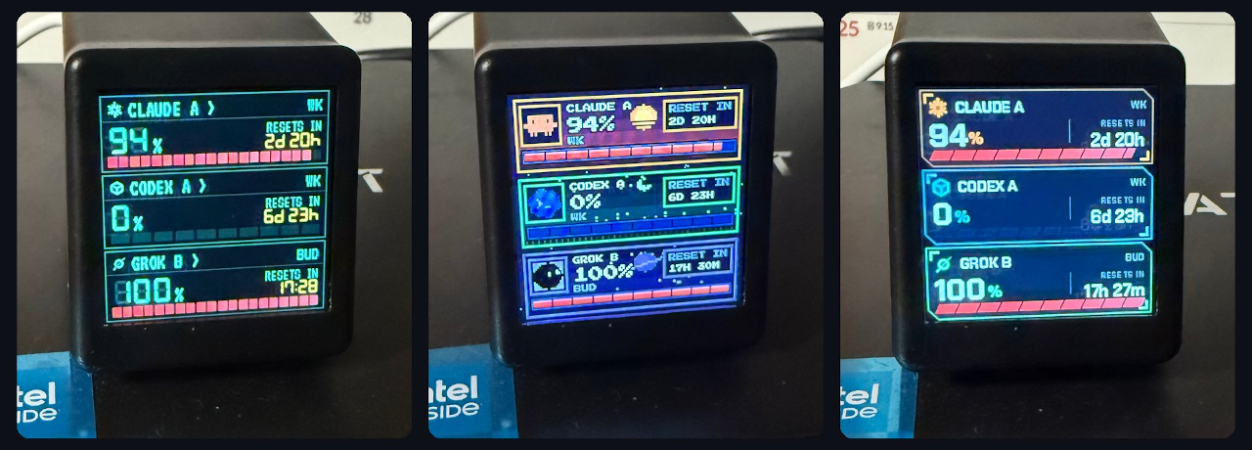
 The trick here is that the image is being generated by a machine on the network, say your desktop or server, and being pushed over to the SmallTV over HTTP. In this example the image is being generated in Python with the Pillow library, and [Yongha] has it showing Claude and Codex usage data, but you could really approach this however you wish.
All you need to do is create a 240×240 image and shoot it over to the device, so you’re free to come up with whatever sort of visuals you’d like. It even supports GIF if you’d like to work animation into it. The content can of course be whatever information you’re interested in showing, and it can be generated by whatever programming language or tool you’re most comfortable with. It’s a fascinating proof of concept, and now that the method has been demonstrated we’re interested to see where the community can take it.
If this all sounds a little too easy for your tastes, don’t worry. There’s a plenty deep rabbit hole you can dive into should you elect to replace the device’s firmware entirely.