All-Screen Keyboard Has Flexible Layouts

Most keyboards are factory-set for a specific layout, and most users never change from the standard layout for their home locale. As a multilingual person, [Inkbox] wanted a more flexible keyboard. In particular, one with the ability to change its layout both visually and logically, on the fly. Thus was born the all-screen keyboard, which can swap layouts on demand. Have a look at the video below to see the board in action.

The concept is simple enough: It’s a keyboard with transparent keys and a screen underneath. The screen displays the labels for the keys, while the transparent plastic keys provide the physical haptic interface for the typist. The device uses a Raspberry Pi to drive the screen. [Inkbox] then designed a plastic frame and transparent keys, which are fitted with magnets, which in turn are read by Hall effect sensors under the display. This eliminates the need for traditional key switches, which would block light from the screen below.

Unfortunately for [Inkbox], the prototype was very expensive (about $1,400 USD) and not particularly functional as a keyboard. However, a major redesign tackled some of these issues. Version two had a smaller screen with a different aspect ratio. It also jettisoned the Hall effect sensors and uses plastic keys capacitively operating a traditional touch screen. Some design files for the keyboard are available on Github for the curious.

An all-screen keyboard is very cool, if very complicated to implement. There are other ways to change your layout that aren’t quite as fancy, of course. You can always just make custom keycaps and remap layouts on a regular mechanical keyboard if desired. Still, you have to admire the work that went into making this thing a reality.
Continue reading “All-Screen Keyboard Has Flexible Layouts”

Building A Ten-Hundred Key Computer Word-Giving Thing

From the styling of this article’s title, some might assume that the Hackaday editors are asleep at the switch this fine day. While that might be true — it’s not our turn to watch them — others will recognize this tortured phrasing as one way to use the 1,000 most commonly used words in the English language to describe a difficult technical project, such as [Attoparsec]’s enormous and enormously impractical ten-hundred word keyboard.

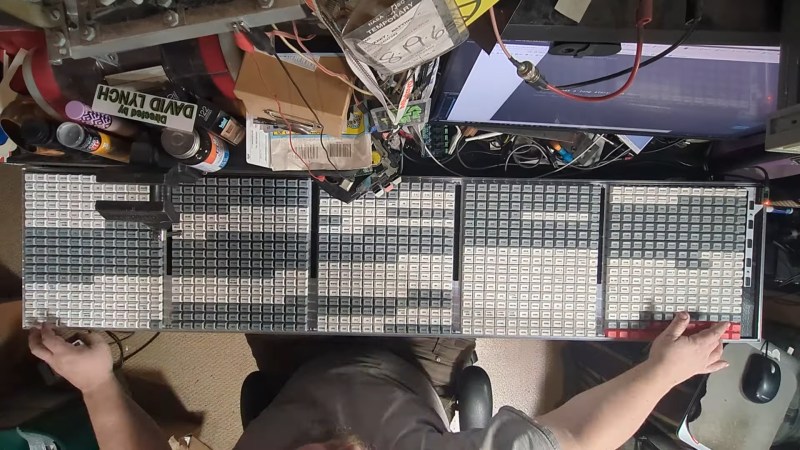
While the scale of this build is overwhelming enough, the fact that each key delivers a full word rather than a single character kind of throws the whole keyboard concept out the window. The 60×17 matrix supports the 1,000 most common English words along with 20 modifier keys, which allow a little bit of cheating on the 1-kiloword dictionary by letting you pluralize a word or turn it into an adjective or adverb. Added complexity comes from the practical limits of PCB fabrication, which forces the use of smaller (but still quite large) PCBs that are connected together. Luckily, [Attoparsec] was able to fit the whole thing on five identical PCBs, which were linked together with card-edge connectors.

The list of pain points on this six-month project is long, and the video below covers them all in detail. What really stood out to us, though, was the effort [Attoparsec] put into the keycaps. Rather than 3D printing his own, he used dye sublimation to label blank keycaps with the 1,000 words. That might sound simple, but he had to go through a lot of trial and error before getting a process that worked, and the results are quite nice. Another problem was keeping the key switches aligned while soldering, which was solved with a 3D printed jig. We also appreciate the custom case to keep this keyboard intact while traveling; we’re going to keep that build-your-own road case service in mind for future projects.

This mega-keyboard is a significant escalation from [Attoparsec]’s previous large keyboard project. The results are pretty ridiculous and impractical, but that’s just making us love it more. The abundance of tips and tricks for managing a physically expansive project are just icing on the cake.

Continue reading “Building A Ten-Hundred Key Computer Word-Giving Thing”

Wrap Your Keyboard With A Vacuum Former

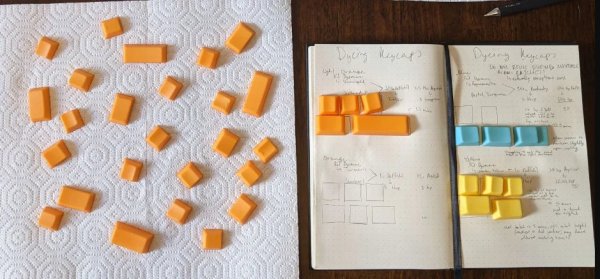
Coloured keycaps are a common customisation when it comes to making your input device special. If you are working with modern tech it’s easy, there are plenty of vendors who can sell you keycaps for any purpose. With retro tech it’s never so simple, if a keycap hasn’t been made for decades you’re out of luck. This doesn’t faze [Drygol] though, who has solved the coloured retro keycap in a unique and non-destructive way. Wrap them in vinyl film using a vacuum former.

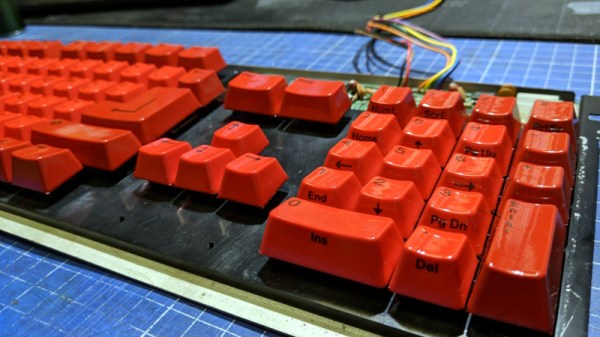
Vacuum formers are an often-underrated tool in the hardware arsenal, but as this project shows, they can produce startlingly good results. Original keycaps are placed on a 3D-printed scaffold before the vinyl is formed over them, then they are carefully cut out and a triangular edge on both sides is folded underneath, The result is an Amiga with a striking orange keyboard, and for us the best bit is that the original key is safely preserved under the vinyl.

[Drygol]’s exceptional work in the retrocomputing sphere has delighted us many times on these pages. There are too many examples to link here, but one we particularly liked was this nearly-all-new Amiga 2000.

Printable Keycaps Keep The AlphaSmart NEO Kicking

Today schools hand out Chromebooks like they’re candy, but in the early 1990s, the idea of giving each student a laptop was laughable unless your zip code happened to be 90210. That said, there was an obvious advantage to giving students electronic devices to write with, especially if the resulting text could be easily uploaded to the teacher’s computer for grading. Seeing an opportunity, a couple ex-Apple engineers created the AlphaSmart line of portable word processors.

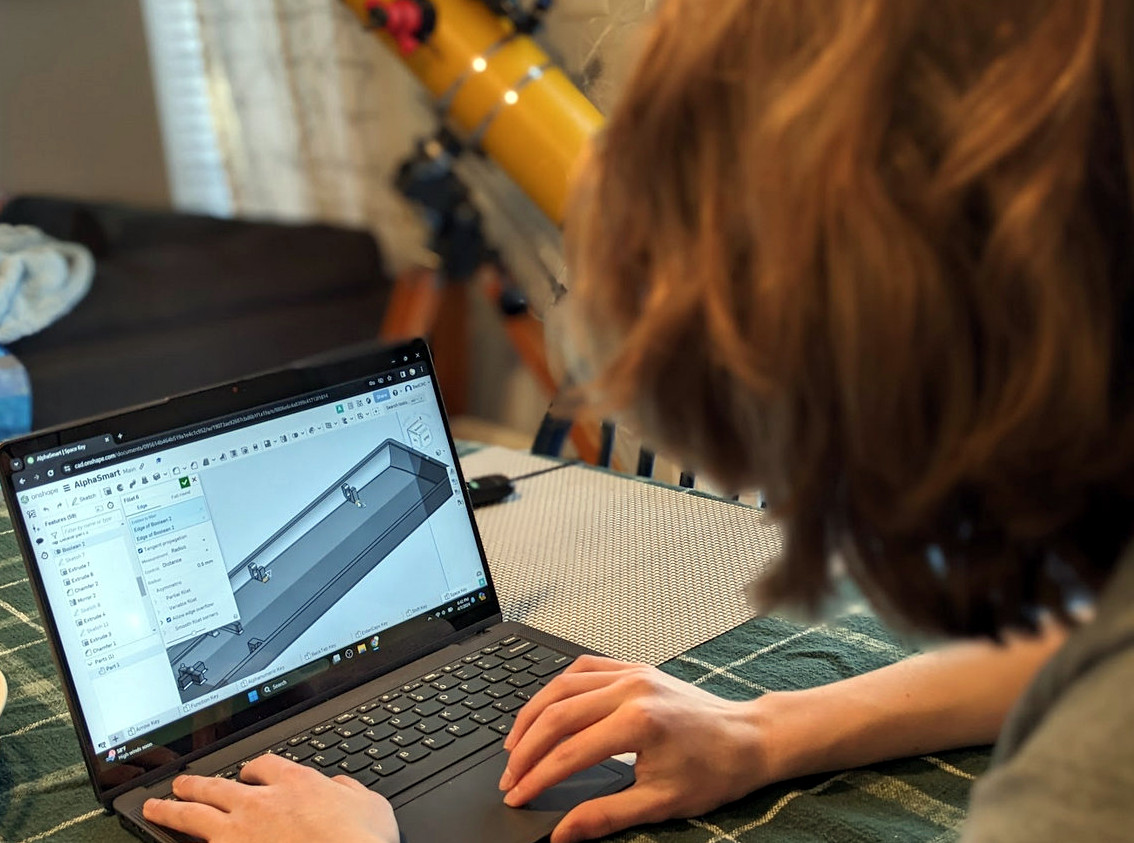
The devices were popular enough in schools that they remained in production until 2013, and since then, they’ve gained a sort of cult following by writers who value their incredible battery life, quality keyboard, and distraction-free nature. But keeping these old machines running with limited spare parts can be difficult, so earlier this year a challenge had been put out by the community to develop 3D printable replacement keys for the AlphaSmart — a challenge which [Adam Kemp] and his son [Sam] have now answered.

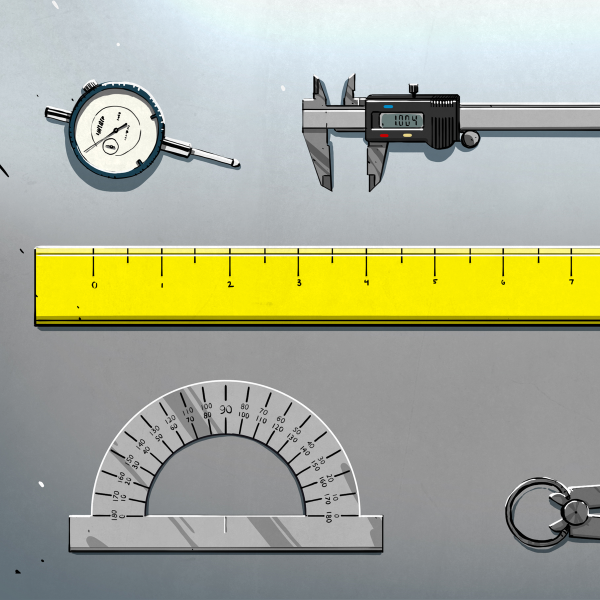
In an article published on KBD.news, [Sam] documents the duo’s efforts to design the Creative Commons licensed keycaps for the popular Neo variant of the AlphaSmart. Those who’ve created printable replacement parts probably already know the gist of the write-up, but for the uninitiated, it boils down to measuring, measuring, and measuring some more.

Things were made more complicated by the fact that the keyboard on the AlphaSmart Neo uses seven distinct types of keys, each of which took their own fine tuning and tweaking to get right. The task ended up being a good candidate for parametric design, where a model can be modified by changing the variables that determine its shape and size. This was better than having to start from scratch for each key type, but the trade-off is that getting a parametric model working properly takes additional upfront effort.

A further complication was that, instead of using something relatively easy to print like the interface on an MX-style keycap, the AlphaSmart Neo keys snap onto scissor switches. This meant producing them with fused deposition modeling (FDM) was out of the question. The only way to produce such an intricate design at home was to use a resin MSLA printer. While the cost of these machines has come down considerably over the last couple of years, they’re still less than ideal for creating functional parts. [Sam] says getting their keycaps to work reliably on your own printer is likely going to involve some experimentation with different resins and curing times.

[Adam] tells us he originally saw the call for printable AlphaSmart keycaps here on Hackaday, and as we’re personally big fans of the Neo around these parts, we’re glad they took the project on. Their efforts may well help keep a few of these unique gadgets out of the landfill, and that’s always a win in our book.

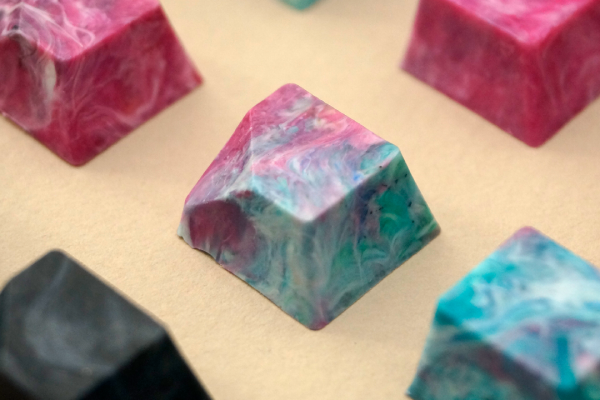
five 100% recycled keycaps, spaced out

These Keycaps Are 100% Recycled Plastic

Artisan keycaps are generally meant to replace your Escape key, though they can be used anywhere you like (as long as they fit, of course). Keycap maker [tellybelly] of jankycaps has been experimenting with making keycaps out of 100% recycled plastic, and offers an interesting post detailing their development and production process.

Animation of injection molding flow into a set of four keycaps.What do you do when normal injection molding tooling is out of your budget, and silicone molds simply won’t do? You turn to 3D printing if you can. In this case, [tellybelly] and company found a resin designed to withstand high temperatures.

[tellybelly] was able to design the mold using a plethora of online resources, and even verified the flow using a special program. Although the first two versions worked, they had some flaws. Third time’s the charm, though, and then it was time to sort plastic and fire up the shredder.

After heating up the shreds to 200 °C or so, it was time to start the injecting. This part isn’t exactly a cakewalk — mixing different plastics together can vary the workable temperature range that doesn’t degrade the plastic. Although it sounds like the end, [tellybelly] reports that they spent just as much time here as they did at the drawing board, experimenting with pressure on the mold, various cool-down methods, and how long to wait before opening the mold.

Via reddit

Illustrated Kristina with an IBM Model M keyboard floating between her hands.

Keebin’ With Kristina: The One With The Mouse-cropad

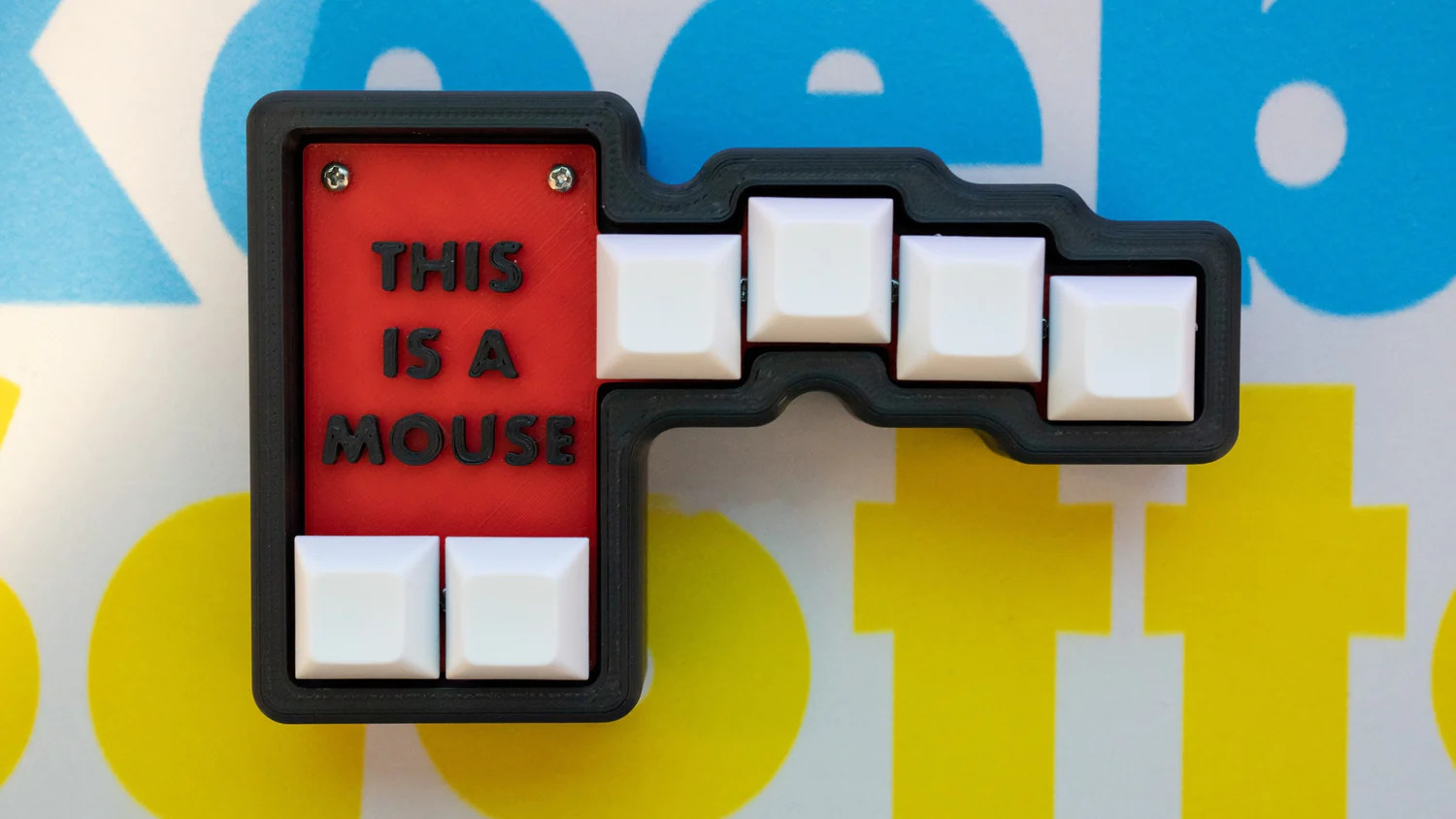
Okay, so you built a macropad or even a keyboard. What now? Well, most people use some kind of mouse to go along with it, but no one uses a mouse like this creation by [Joe_Scotto].

This is the mouse no one asked for, and yet I think it’s pretty awesome for something that’s supposed to be a joke. Maybe it’s in the great execution, I don’t know. I will ignore the suggestion that MX Browns are part of the joke, however. *cries in OG tactility*

Essentially, this is a macropad that uses QMK mouse keys to emulate a mouse. The build itself couldn’t be more straightforward — it’s six MX browns wired up to six pins on a Pico, and they all share a common ground. Keep the joke going by commissioning one from [Joe] or building it yourself.

Via [r/cyberdeck]

News: Microsoft Discontinues Natural Keyboard

Image via Wikipedia

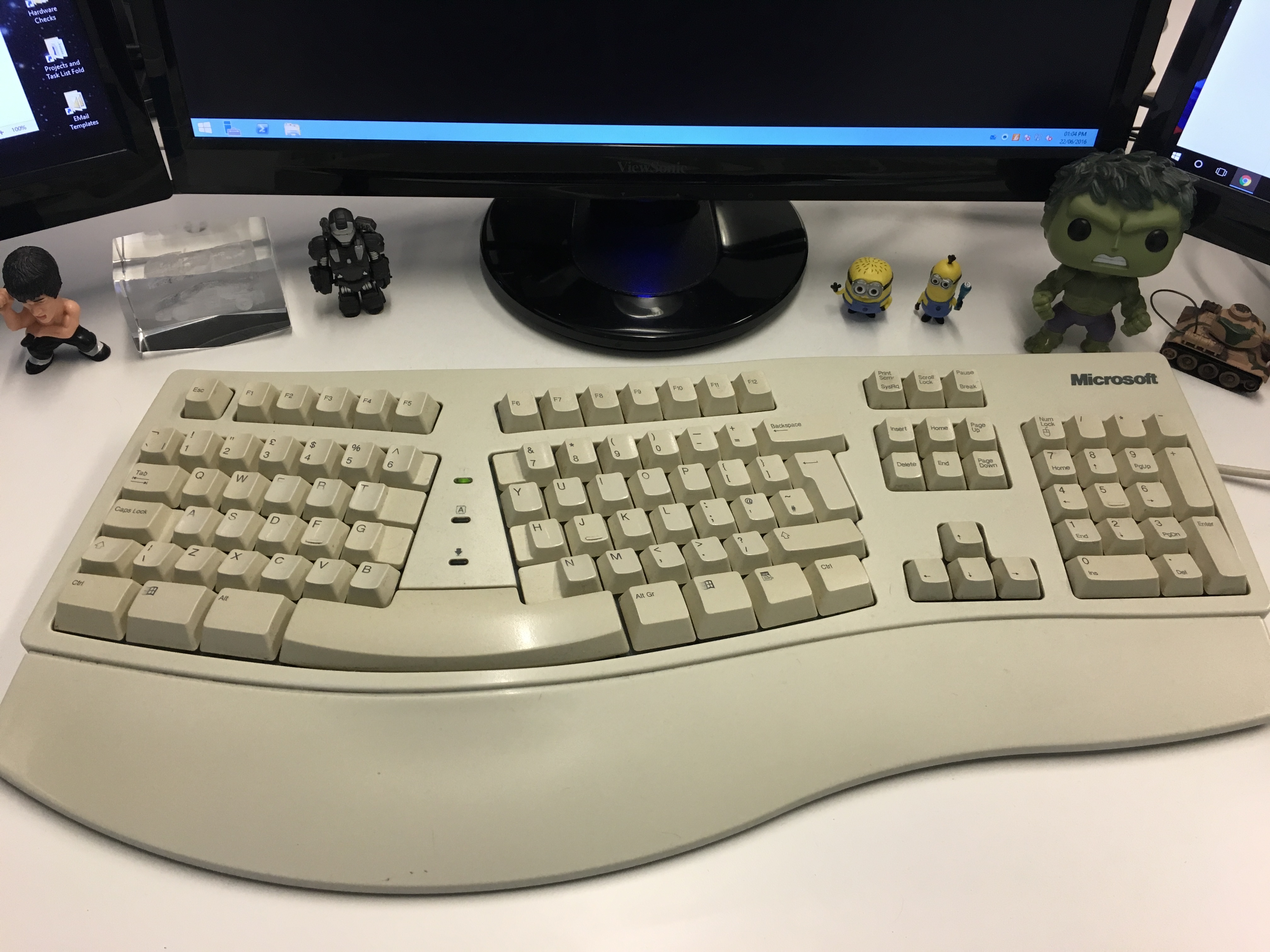
It’s often people’s first ergonomic keyboard — some variation of Microsoft’s Natural keyboard, that 90s split that took up so much real estate on the desk with it’s built-in wrist rest.

I’ll admit that despite using one for years at the office, I went back to whatever clicky rectangles I could get from the IT department. Then came the pain, and I got a Logitech Wave. Then came the surgery, and the Kinesis Advantage.

Well, now it seems that after 30 years and several ergonomic models, Microsoft are exiting the keyboard game. While I don’t personally understand why when there are so many fans, [Jeff Atwood] believes it’s because keyboards are exploding in popularity and tons of people are building their own. While that may be true, there are legions of normies trying to stave off carpal and cubital tunnel syndrome and have absolutely no interest in building anything, much less a keyboard. So, get these things while they’re hot, I guess.

Continue reading “Keebin’ With Kristina: The One With The Mouse-cropad”

Easter’s Over, But You Can Still Dye Keycaps

While it’s true that keycap colorways abound these days, one can’t always find exactly what one is looking for. And once found, the set is often either prohibitively expensive, or it doesn’t come in the desired layout, or both. So, why not color your own keycaps?

That’s exactly what [amphiboi] did, while standing on the shoulders of [CrowningKnight]’s imgur post on the subject. Essentially, you use Rit dye and PBT keycaps for best results. Rit has a comprehensive guide to mixing their dyes to achieve pretty much whatever colors you want. Once that’s all squared away, it’s time to gather your cooking supplies.

Starting with a pot you don’t care about and four cups of boiling water. Add about a teaspoon of dish soap, which helps the dye settle evenly across the keycaps. Then you just add the dye(s) and stir with an expendable spoon, then add your keycaps. 5-10 minutes later, depending on your desired outcome, the ‘caps are ready to be rinsed, dried, and pushed on to your switches.

Satisfied with the color of your keycaps, but wish they had cool legends? Check out this waterslide decal tutorial.