A 1990s VNA Gets An LCD

A Vector Network Analyser, or VNA, is the ultimate multi-tool of RF test equipment. They can now be had in not very capable form for almost pocket money prices, but the professional-grade ones cost eye-watering sums. Enough to make an older VNA for a few hundred on eBay a steal, and [W3AXL] has just such a device in an HP 8714C. It’s the height of 1990s tech with a floppy drive and a green-screen CRT, but he’s homing right in on the VGA monitor port on the back. Time for a colour LCD upgrade!

There are two videos below the break, posted a year apart, because as we’re sure many of you will know, events have a habit of getting in the way of projects. In the first, we see the removal of the CRT module and safe extraction of its electronics, followed by the crafting of a display bezel for the LCD. Meanwhile, the second video deals with the VNA itself, extracting the VGA signal and routing it forward to the new module. Continue reading “A 1990s VNA Gets An LCD”

It’s Not A Leica, It’s A Lumix

There’s an old adage in photography that the best camera in the world is the one in your hand when the shot presents itself, but there’s no doubt that a better camera makes a difference to the quality of the final image. Among decent quality cameras the Leica rangefinder models have near cult-like status, but the problem is for would-be Leica owners that they carry eye-watering prices. [Cristian Băluță] approached this problem in s special way, by crafting a Leica-style body for a Panasonic Lumix camera. Given the technology relationship between the Japanese and German companies, we can see the appeal.

While the aesthetics of a Leica are an important consideration, the ergonomics such as the position of the lens on the body dictated the design choices. He was fortunate that the internal design of the Lumix gave plenty of scope for re-arrangement of parts, given that cameras are often extremely packed internally. Some rather bold surgery to the Lumix mainboard and a set of redesigned flex PCBs result in all the parts fitting in the CNC machined case, and the resulting camera certainly looks the part.

The write-up is in part a journey through discovering the process of getting parts manufactured, but it contains a lot of impressive work. Does the performance of the final result match up to its looks? We’ll leave you to be the judge of that. Meanwhile, take a look at another Leica clone.

How Do PAL And NTSC Really Work?

Many projects on these pages do clever things with video. Whether it’s digital or analogue, it’s certain our community can push a humble microcontroller to the limit of its capability. But sometimes the terminology is a little casually applied, and in particular with video there’s an obvious example. We say “PAL”, or “NTSC” to refer to any composite video signal, and perhaps it’s time to delve beyond that into the colour systems those letters convey.

Know Your Sub-carriers From Your Sync Pulses

A close-up on a single line of composite video from a Raspberry Pi.

A video system of the type we’re used to is dot-sequential. It splits an image into pixels and transmits them sequentially, pixel by pixel and line by line. This is the same for an analogue video system as it is for many digital bitmap formats. In the case of a fully analogue TV system there is no individual pixel counting, instead the camera scans across each line in a continuous movement to generate an analogue waveform representing the intensity of light. If you add in a synchronisation pulse at the end of each line and another at the end of each frame you have a video signal.

But crucially it’s not a composite video signal, because it contains only luminance information. It’s a black-and-white image. The first broadcast TV systems as for example the British 405 line and American 525 line systems worked in exactly this way, with the addition of a separate carrier for their accompanying sound. Continue reading “How Do PAL And NTSC Really Work?”

Hands On WIth The Raspberry Pi Compute Module Zero

We are all familiar enough by now with the succession of boards that have come from Raspberry Pi in Cambridge over the years, and when a new one comes out we’ve got a pretty good idea what to expect. The “classic” Pi model B+ form factor has been copied widely by other manufacturers as has their current Compute Module. If you buy the real Raspberry Pi you know you’ll get a solid board with exceptionally good software support.

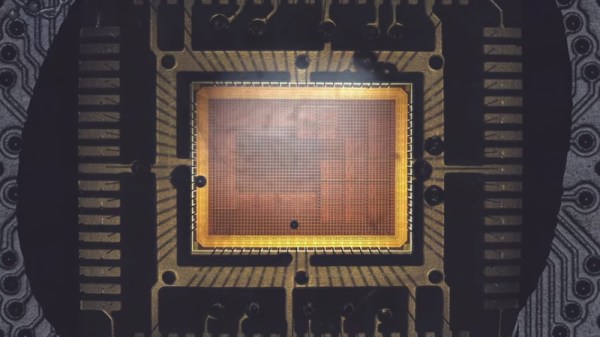
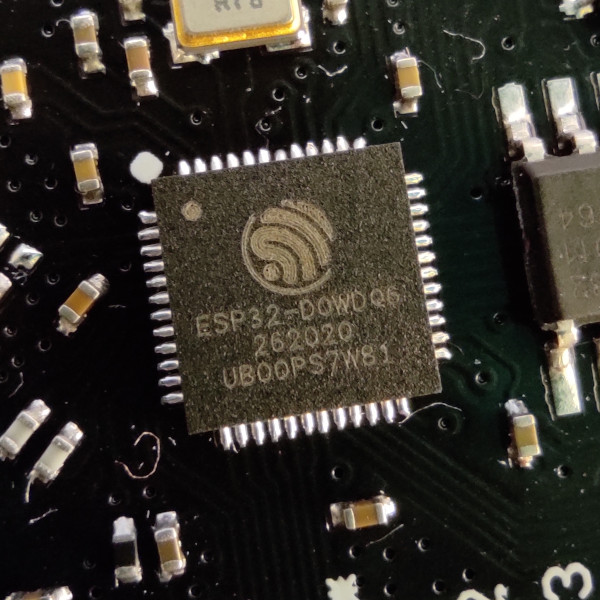
Every now and then though, they surprise us, with a board that follows a completely different path, which brings us to the one on our bench today. The Compute Module Zero packs the same quad-core RP3 system-on-chip (SoC) and Wi-Fi module as the Pi Zero 2 W with 512 MB of SDRAM onto a tiny 39 mm by 33 mm postage-stamp module. It’s a Pi, but not as you know it, so what is it useful for? Continue reading “Hands On WIth The Raspberry Pi Compute Module Zero”

Why Can’t I 3D Print With Rubber?

A friend of mine and I both have a similar project in mind, the manufacture of custom footwear with our hackerspace’s shiny new multi-material 3D printer. It seems like a match made in heaven, a machine that can seamlessly integrate components made with widely differing materials into a complex three-dimensional structure. As is so often the case though, there are limits to what can be done with the tool in hand, and here I’ve met one of them.

I can’t get a good range of footwear for my significantly oversized feet, and I want a set of extra grippy soles for a particular sporting application. For that the best material is a rubber, yet the types of rubber that are best for the job can unfortunately not be 3D printed. In understanding why that is the case I’ve followed a fascinating path which has taught me stuff about 3D printing that I certainly didn’t know.

The extruder unit from a Prusa Mini 3D printer
Newton strikes back, and I can’t force rubber through this thing.

A friend of mine from way back is a petrochemist, so I asked him about the melting points of various rubbers  to see if I could find an appropriate filament His answer, predictably, was that it’s not that simple, because rubbers don’t behave in the same way as the polymers I am used to. With a conventional 3D printer filament, as the polymer is fed into the extruder and heated up, it turns to liquid and flows out of the nozzle to the print. It ‘s then hot enough to fuse with the layer below as it solidifies, which is how our 3D prints retain their shape. This property is where we get the term “plastic” from, which loosely means “Able to be moulded”.

My problem is that rubber doesn’t behave that way. As any casual glance at a motor vehicle will tell you, rubber can be moulded, but it doesn’t neatly liquefy and flow in the way my PLA or PET does. It’s a non-Newtonian fluid, a term which I was familiar with from such things as non-drip paint, tomato ketchup, or oobleck, but had never as an electronic engineer directly encountered in something I am working on. Continue reading “Why Can’t I 3D Print With Rubber?”

The Confusing World Of Bus Mice

The USB port which first appeared on our computers some time in the mid-1990s has made interfacing peripherals an easy task, save for the occasional upside down connector. But in the days before USB there were a plethora of plugs and sockets for peripherals, often requiring their own expansion card. Among these were mice, and [Robert Smallshire] is here with a potted history of the many incompatible standards which confuse the retrocomputing enthusiast to this day.

The first widely available mice in the 1980s used a quadrature interface, in which the output from mechanical encoders coupled to the mouse ball is fed directly to the computer interface which contains some form of hardware or microcontroller decoder. These were gradually superseded by serial mice that used an RS-232 port, then PS/2 mice, and finally the USB variant you probably use today.

Among those quadrature mice — or bus mice, as early Microsoft marketing referred to them — were an annoying variety of interfaces. Microsoft, Commodore, and Atari mice are similar electrically and have the same 9-pin D connector, yet remain incompatible with each other. The write-up takes a dive into the interface cards, where we find the familiar 8255 I/O port at play. We’d quite like to have heard about the Sun optical mice with their special mouse pad too, but perhaps their omission illustrates the breadth of the bus mouse world.

This piece has certainly broadened our knowledge of quadrature mice, and we used a few of them back in the day. If you only have a USB mouse and your computer expects one of these rarities, don’t worry, there’s an adapter for that.

Know Audio: Microphone Basics

A friend of mine is producing a series of HOWTO videos for an open source project, and discovered that he needed a better microphone than the one built into his laptop.  Upon searching, he was faced with a bewildering array of peripherals aimed at would-be podcasters, influencers, and content creators, many of which appeared to be well-packaged versions of very cheap genericised items such as you can find on AliExpress.

If an experienced electronic engineer finds himself baffled when buying a microphone, what chance does a less-informed member of the public have! It’s time to shed some light on the matter, and to move for the first time in this series from the playback into the recording half of the audio world. Let’s consider the microphone.

Background, History, and Principles

A microphone is simply a device for converting the pressure variations in the air created by sounds, into electrical impulses that can be recorded. They will always be accompanied by some kind of signal conditioning preamplifier, but in this instance we’re considering the physical microphone itself. There are a variety of different types of microphone in use, and after a short look at microphone history and a discussion of what makes a good microphone, we’ll consider a few of them in detail. Continue reading “Know Audio: Microphone Basics”