Styrofoam watercraft, PCB hydrofoil

A PCB Can Be A Hydrofoil, If It Really Wants To

You know those old cliche that the younger generations have begun to cynically despise: “follow your dreams!” “You can be anything you put your mind to!” — well, perhaps they are true on occasion. For instance when [rctestflight] had PCBs that dreamed of becoming a hydrofoil, he found a way to make that dream come true.

It’s kind of obvious in retrospect: printed circuit boards are made of FR4, which is a form of fiberglass, and you know what else is commonly made of fiberglass? Boats. So yes, the material is suited for this task. The fact that solder joints hold up to use in a little remote-control hydrofoil is less obvious, but good to know. It certainly makes for easier assembly for those of us who have developed an allergy to epoxy.

Ease of assembly wasn’t really the point here: the point was that by making the “mast” of the hydrofoil out of PCB– that’s the part that holds the underwater wing– [rctestflight] figured he could (shock!) print a circuit onto it. Specifically, a liquid-level sensor, and because microcontrollers are so cheap these days he went the “total overkill” route of embedding an ESP32 on each mast. He started with a resistive sensor, but since those self-corrode too quickly, the team switched to a capacitive sensor that doesn’t need to form a galvanic cell in salt water. Come to think of it, that might still be a problem with the solder joint between the PCBs. Good thing nobody will be riding this one.

Having such a sensor and brain close-coupled allows for a faster control loop than the sonar [rctestflight] had previously been using to control his hydrofoil’s altitude.. Pivoting each mast with its own servo made for a smooth flight over the water— well, once they got the PID tuning set, anyway. Check it out in the video embedded below.

We’ve seen PCB used for enclosures before, and even the chassis of a rover, but using it for a hydrofoil is a new hack. Continue reading “A PCB Can Be A Hydrofoil, If It Really Wants To”
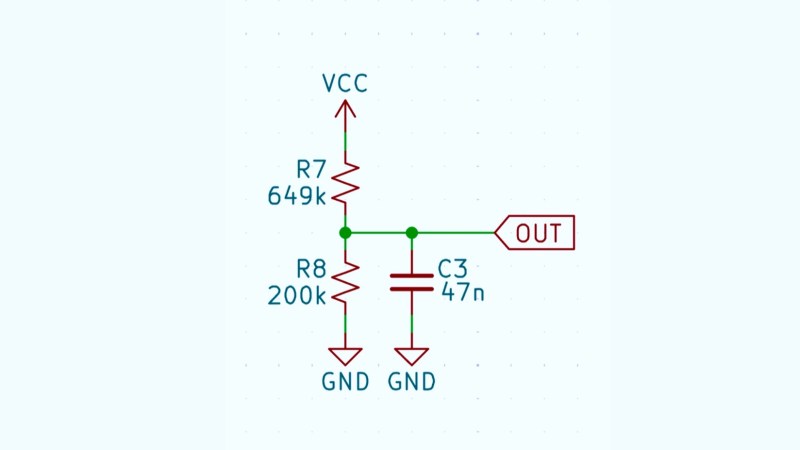
Schematic of a voltage divider

Making Actually Useful Schematics In KiCad

[Andrew Greenberg] has some specific ideas for how open-source hardware hackers could do a better job with their KiCad schematics.

In his work with students at Portland State University, [Andrew] finds his students both reading and creating KiCad schematics, and often these schematics leave a little to be desired.

To help improve the situation he’s compiling a checklist of things to be cognisant of when developing schematics in KiCad, particularly if those schematics are going to be read by others, as is the hope with open-source hardware projects.

Continue reading “Making Actually Useful Schematics In KiCad”

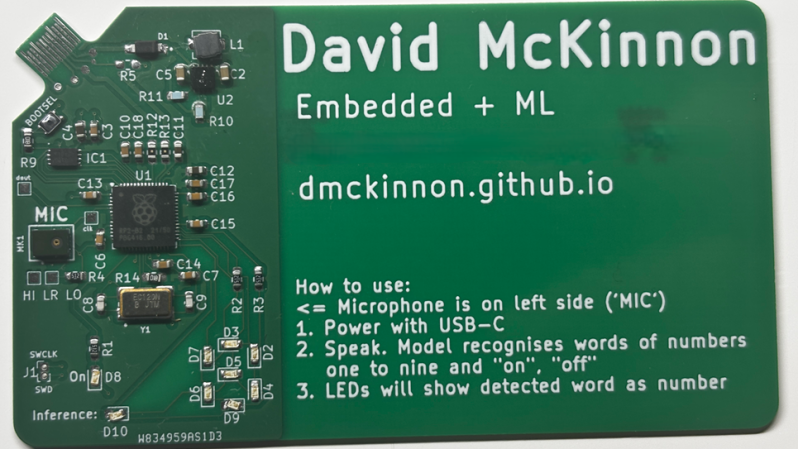
A circuit board in the shape of a business card is shown. The circuitry is confined to the left side of the board, and the rest is used for text.

(Neural) Networking With A Business Card

A PCB business card is a great way for electrical engineers to impress employers with their design skills, but the software they run can be just as impressive as the card itself. As a programmer with an interest in embedded machine learning, [Dave McKinnon] wanted a card that showcased his skills, so he designed one that runs voice recognition.

[Dave] specifically wanted to run a neural network on his card, but needed to make it small enough to run on a microcontroller. Voice recognition looked like a good fit for this, since audio can be represented with relatively little data, a microphone is cheap and easy to add to a circuit board, and there was already an example of someone running such a voice recognition network on an Arduino. To fit the neural network into 46 kB, it only distinguishes the words “one” through “nine,” and displays its guess on an LED seven-segment display. [Dave] first prototyped the system with an Arduino, then designed the circuit board around an RP2040.

Continue reading “(Neural) Networking With A Business Card”

The Value Of A Worked Example

I was looking over the week’s posts on Hackaday – it’s part of my job after all – and this gem caught my eye: a post about how to make your own RP2040 development board from scratch. And I’ll admit that my first thought was “why would you ever want to do that?” (Not a very Hackaday-appropriate question, honestly.) The end result will certainly cost more than just buying a Pi Pico off the shelf!

Then it hit me: this isn’t a project per se, but rather [Kai] was using it as an test run to learn the PCB-production toolchain. And for that, replicating a Pico board is perfect, because the schematics are easily available. While I definitely think that a project like this is a bit complicated for a first PCB project – I’d recommend making something fun like an SAO – the advantage of making something slightly more involved is that you run into all of the accompanying problems learning experiences. What a marvelous post-complete-beginner finger exercise!

And then it hit me again. [Kai]’s documentation of everything learned during the project was absolutely brilliant. It’s part KiCAD tutorial, part journal about all the hurdles of getting a PCB made, and just chock-full of helpful tips along the way. The quality of the write-up turns it from being just a personal project into something that can help other people who are in exactly the same boat, and I’m guessing that’s a number of you out there.

In the end, this was a perfect Hackaday project. Yes, it was “too simple” for those who have made their 30th PCB design. (Although I’d bet you could still pick up a KiCAD tip or two.) And yes, it doesn’t make economic sense to replicate mass-market devices in one-off. And of course, it doesn’t need that fun art on the board either. But wrap all these up together, and you get a superbly documented guide to a useful project that would walk you through 95% of what you’ll need to make more elaborate projects later on. Superb!

Surely you do “finger exercises” too. Why not write them up, and share the learning? And send them our way – we know just the audience who will want to read it.

DIY RP2040 Dev Board

RP2040 From Scratch: Roll Your Own Dev Board Magic

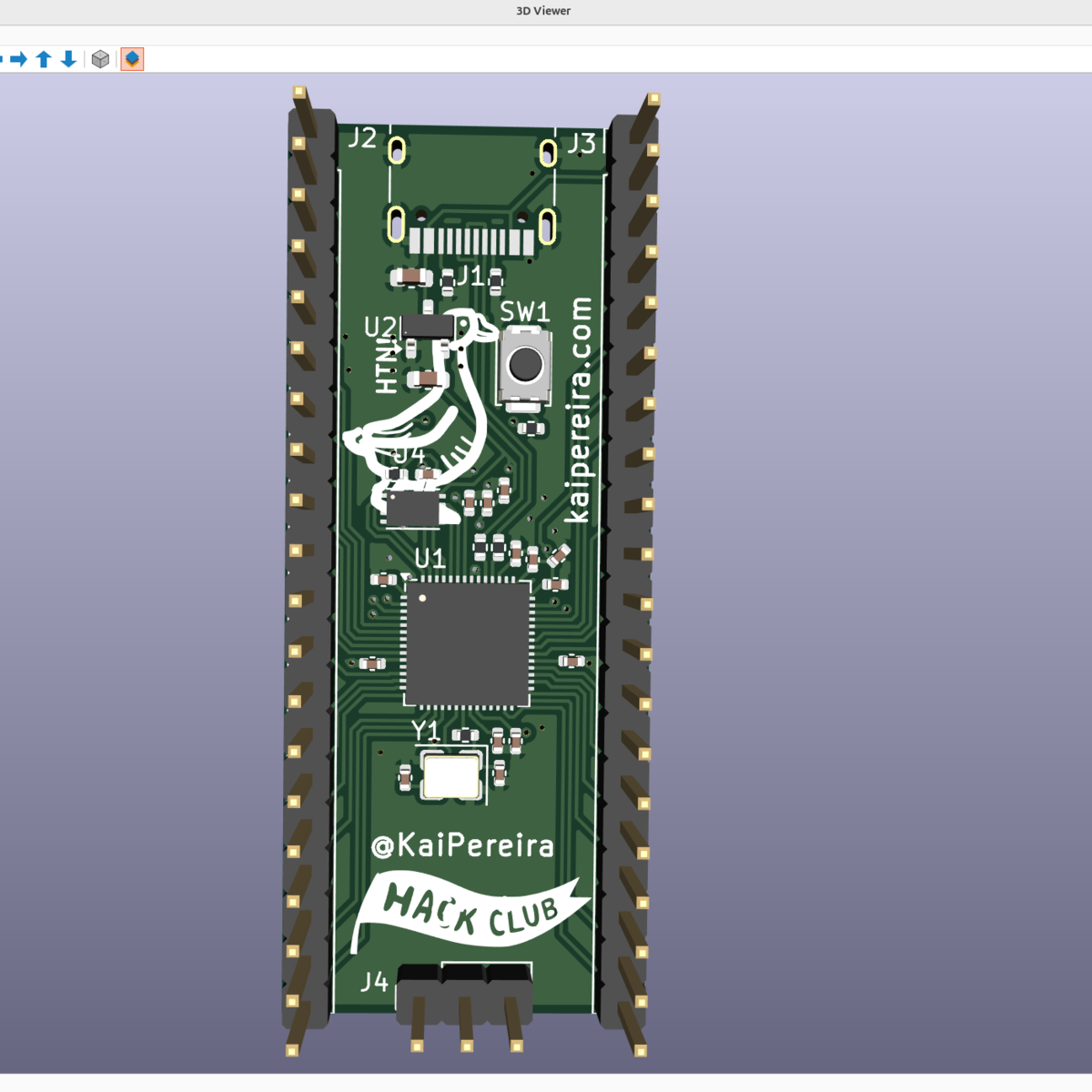
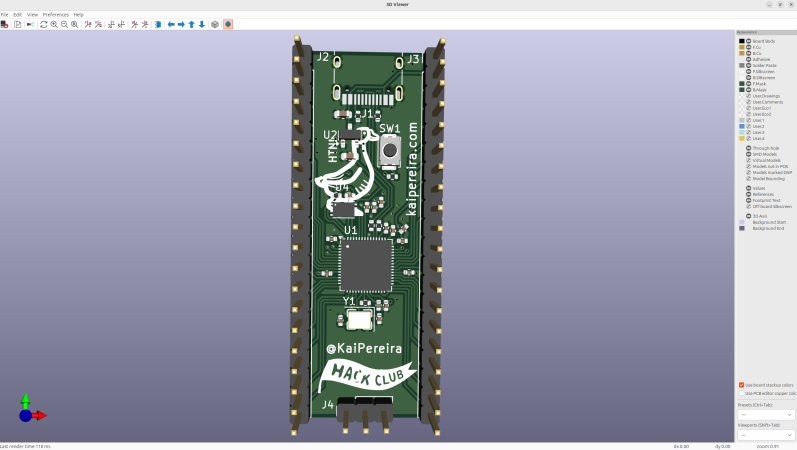
Have you ever looked at a small development board like an Arduino or an ESP8266 board and thought you’d like one with just a few different features? Well, [Kai] has put out a fantastic guide on how to make an RP2040 dev board that’s all your own.

Development boards are super useful for prototyping a project, and some are quite simple, but there’s often some hidden complexity that needs to be considered before making your own. The RP2040 is a great chip to start your dev-board development journey, thanks to its excellent documentation and affordable components. [Kai] started this project using KiCad, which has all the features needed to go from schematics to final PCB Gerber files. In the write-up, [Kai] goes over how to implement USB-C in your design and how to add flash memory to your board, providing a place for your program to live. Once the crystal oscillator circuit is defined, decoupling capacitors added, and the GPIO pins you want to use are defined, it’s time to move to the PCB layout.

In the PCB design, it starts with an outside-in approach, first defining the board size, then adding the pins that sit along the edges of that board, followed by the USB connector, and then moving on to the internal components. Some components, such as the crystal oscillator, need to be placed near the RP2040 chip, and the same goes for some of the decoupling capacitors. There is a list of good practices around routing traces that [Kai] included for best results, which are useful to keep in mind once you have this many connections in a tight space. Not all traces are the same; for instance, the USB-C signal lines are a differential pair where it’s important that D+ and D- are close to the same length.

Finally, there is a walk-through on the steps needed to have your boards not only made at a board house but also assembled there if you choose to do so. Thanks [Kai] for taking the time to lay out the entire process for others to learn from; we look forward to seeing future dev-board designs. Be sure to check out some of our other awesome RP2040 projects.

Is This The Last PCB You’ll Ever Buy?

Breadboards are great, but as the world moves more and more to having SMD as a standard, prototyping straight PCBs is becoming more common. If you’re mailing off to China for your PCBs, it’s shockingly quick for what it is, but a one-week turnaround is not “rapid prototyping”. [Stephen Hawes] has been on a quest on his YouTube channel for the ideal rapid-prototyping PCB solution, and he thinks he’s finally got it.

Now, if you’re only doing single-layer PCBs, this is a solved problem. You can mechanically mill, or laser cut, or chemically etch your way to PCB perfection, far faster than the Chinese fabs can get you a part. If you want a double-sided board, however, vias are both a pain in the keister to do yourself, and a rate-limiting step.

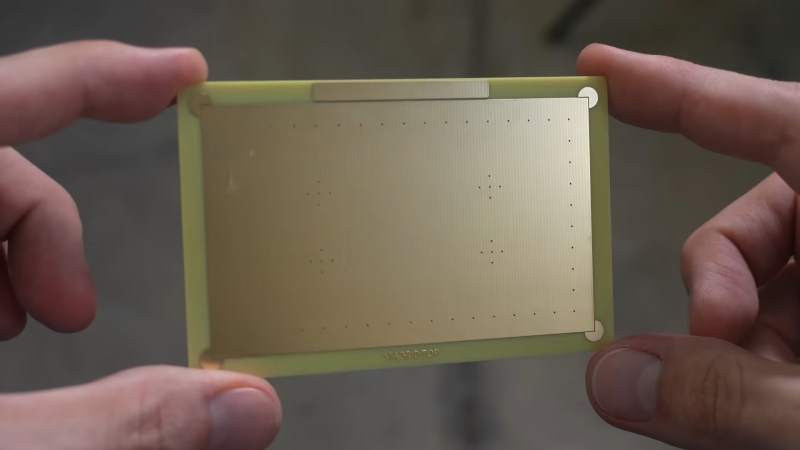
[Stephen Hawes] hit on the idea of buying a bulk set of PCBs from the usual vendors. The boards will be simple copper pours with vias in a grid with just a bit of etching. PCB Vendors are good at that, after all, and it’s not going to cost much more than raw copper. [Stephen] then uses the template of this “viagrid” board to lay out the circuit he’s prototyping, and it’s off to the races. Continue reading “Is This The Last PCB You’ll Ever Buy?”

PCB Edge USB-C

Connector-Free Zone: PCB Edge As USB-C Interfaces

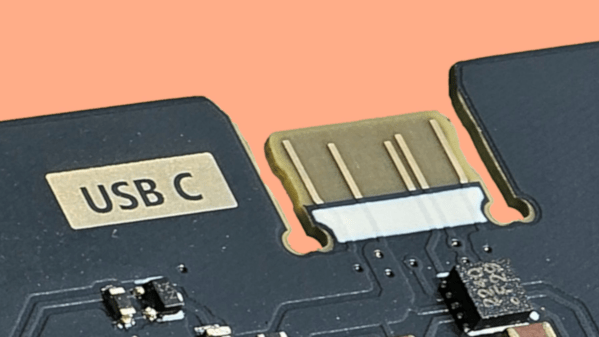
Sometimes when you’re making a PCB that you plan on programming over USB, but you only plan on plugging in a couple of times, it would be nice to make that connection without another BOM item. Over on GitHub [AnasMalas] has released a PCB edge USB-C connection symbol/footprint to do just that!

This isn’t the first PCB edge USB-C connector we’ve seen, but this one has some nice features. It’s available in both KiCad and EasyEDA formats, allowing you to easily add it into your preferred ECAD software. As well as supporting multiple software packages, there are two versions included: a 10-pin and 14-pin version. The 10-pin version has, on each side, 2 USB voltage pins, 2 ground pins, and a CC1 or CC2 pin on its respective side; this version is ideal if you’re looking to just supply power via the connector. The 14-pin version has all the pins of the 10-pin version with the addition of four data-positive and data-negative pins needed to relay information to the board, ideal if you’re planning on programming a microcontroller with this connection.

One important note is that, while most PCBs default to 1.6 mm thickness, if you use this connector you’ll need to drop that down to ~0.8 mm to properly interface with a common USB cable. [AnasMalas] also suggests using ENIG board finish to preserve the connectors on your USB cable.

For such a small and common connector, USB-C holds a ton of potential. Be sure to check out our series all about USB-C for more details.

Thanks to [Ben] for the tip.