Using GPS To Stay Aware Of Red Light Cameras

red-light-camera-alerter

Depending on how you view them, red light cameras are a great way to get people to drive carefully, or an utter nuisance. We agree with the latter opinion, as does [Dave], so he built a handy little device that alerts him when he’s about to approach one of these intersections.

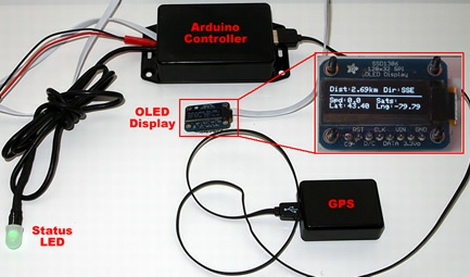
His Red Light Camera Alerter is based around an Atmega 328P sporting the Arduino bootloader. The micro obtains GPS coordinates while [Dave] is driving, comparing his current location with a table of all known red light intersections in the area. As he nears a red light camera, the status LED changes colors from blue to yellow to red as he gets closer, making it easy to keep aware of his situation. He also included an Adafruit OLED display in his device, which relays his speed, GPS coordinates, heading, and actual distance from the red light in real time.

While [Dave] admits that he doesn’t really have a need for the alerter as there are only a couple located in his immediate vicinity, he says it was a fun and easy way to get some experience with using GPS sensors in his projects. He doesn’t have any video of it in action, but you can find the code he uses to drive the alerter on his blog.

Building A Game Clock For Go Or Chess

[Matias] is just getting into hobby electronics and decided to push the limits of his skill by building this game clock (site dead try Internet Archive). He comes from a software design background and that really shows through in the UI design seen in the video after the break. We enjoy the journey through his prototyping process which started with an Arduino and a breadboard, and ended with this standalone timer.

After building the first working prototype with four buttons and a character LCD, he migrated to a plastic ice cream container as an enclosure. This worked well enough, but the flimsy case needed an upgrade. As he looked toward the next version he decided to move to an Arduino Nano board to save on space. The rest of the components were soldered to some protoboard, with a pair of pin headers to receive the Nano. The finished board is the same length as the Nano and only about twice as wide.

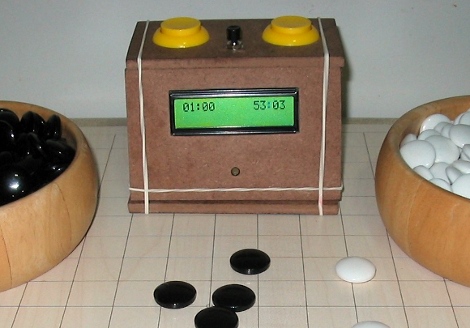
The box was modeled on the computer (it looks like SketchUp to us be we could be wrong) then cut from pieces of Masonite. It hosts the character LCD with a pair of arcade buttons for each player to shift the time burden to his or her opponent. The middle button pauses the game, and there’s a trimpot on the back to adjust the screen contrast. [Matias] managed to include a surprising number of settings which will make this little box useful for a wide range of game types.

Continue reading “Building A Game Clock For Go Or Chess”

Adding An Electronic Lock To A DIY Book Safe

electronic-book-safe

DIY book safes are well and good, but if you give someone enough time to peruse your book collection, the 3-inch thick “Case study on Animal Husbandry Techniques during the 14th Century” is likely to stand out among your collection of hand-bound “Twilight” fan fiction. In an attempt to teach his friend a bit about microcontrollers and circuits, [Jonathan] spent some time adding a bit more security to your run of the mill book safe.

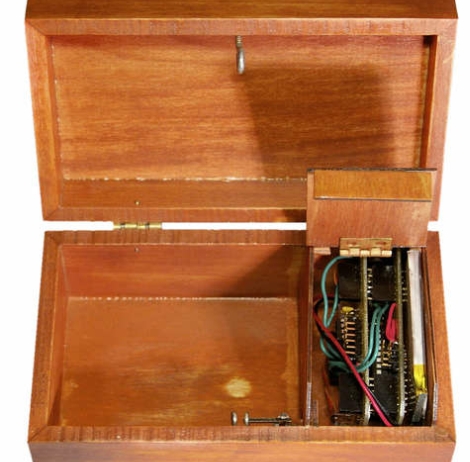
The pair started out with the time-consuming process of gluing the book’s pages together and creating enough hollow space for both storage and the electronics. With that out of the way, they installed a latch and servo motor inside the cavity, the latter of which is controlled using an Atmega328p with the Arduino bootloader. To gain access to the goodies stashed away inside, Jonathan hooks up a small PS/2 keypad and enters a passcode. This triggers the servo motor, opening the latch.

While the latch likely only adds a nominal bit of security to the book safe, it’s a fun enough learning exercise to justify the time spent putting it together.

Continue reading to see a short video of [Jonathan’s] electronic latching book safe in action.

Continue reading “Adding An Electronic Lock To A DIY Book Safe”

HTML Based AVR Compiler Aims To Make Arduino Development On IOS Possible

It’s surprising what lengths people will go to in order to bring functionality to their smart phones. In this case, [Tadpol] wanted a way to develop for his Arduino on an iOS device like an iPad or iPhone. He figures it’s possible to rewrite the IDE as HTML5, but since that’s a pretty large mountain to climb, he started by building a browser-based AVR compiler. It’s an interesting concept, and he’s got a working prototype up on Github for you to test. Perhaps you can throw your hat in the ring and help him with development?

The web interface uses boxes to add to the code. What you see above is three sets of commands which will blink an LED. The project, named Avrian Jump, uses a simple ladder language to feed the compiler, with several different options for output. The most interesting in our mind is a WAV file which can be used to program an AVR from the audio out of your device. That would make programming as simple as connecting the specially modified AVR to your headphone jack. There’s also an ASCII output which allows you to save your programs for later alteration, S19 output for AVRdude programming, and an assembler output for debugging purposes. It’s hard to see where this project might go, but we have to admit that the concept is intriguing.

Playing Chiptunes With A YM2149 And Optimizing An Arduino

[Oryx] grew up with the bleeps and bloops of an Atari ST, so it comes as no surprise he would want to relish in his nostalgia by playing with the YM2149 sound generator he recently picked up on eBay. Like most of us, [Oryx] went to his old standby, the Arduino, when it came to connect this bare chip to his computer. The first circuit didn’t work, so after a lot of poking around the firmware, [Oryx] discovered the benefits of hand-optimizing software.

There are a lot of sound files available for the YM2149 floating around on the Internet. These files are just dumps of the 16 registers at 50Hz, so it’s very easy to send these from a computer to an Arduino over a serial connection. Unfortunately, when [Oryx] got his breadboard set up nothing happened. After breaking out the ‘scope, he discovered the Arduino was switching pins 100 times slower than the YM2149 data sheet called for.

[Oryx] remembered seeing a great blog post going over the speed at which the digitalWrite() function changes pin states. We’ve seen this before, and the fastest way to change pin states on the Arduino is with the ugly bitwise manipulation. After changing a few lines of code, [Oryx] was switching two pins nearly simultaneously.

Now that the YM2149 chip is working correctly, [Oryx] is planning to make a MIDI synth out of his project. You can get an idea of how that will sound with the demo video he put up after the break.

Continue reading “Playing Chiptunes With A YM2149 And Optimizing An Arduino”

Measuring The Capacities Of Different Battery Brands

Being the smart consumer he is, [Denis] usually looks at the price per pound when comparing similar products at the grocery store. When it came time to buy a few AA batteries, he didn’t have any data to go on. To solve his little conundrum, [Denis] decided he would test several brands of batteries and see which one gives him the most bang for the buck.

After bringing home a haul of a dozen different brands of AA cells, [Denis] broke out the Arduino and starting designing a circuit. To test how much energy each brand provides, the Arduino measures the voltage across a load every second until the battery reaches 0.2V. The elapsed time, as well as the voltage, Watt hours, Joules, and ambient temperature are logged on an attached LCD screen and sent over a USB serial link to automate the data collection process.

What’s the verdict? Unsurprisingly, words like ‘super,’ ‘max,’ and ‘ultra’ didn’t connotate a better battery. The best bang for the buck came from an off-brand called RS Power Ultra. The worst battery was the Panasonic Evolta cells that came in at about $1.50 USD per watt-hour.

If you’d like to verify [Denis]’ work, all the code is up on Github along with the schematic.

Displaying Bubbles In Mineral Oil

After he saw a ‘falling water display,’ [Matt] figured he could turn that idea on its head. He built a display that uses bubbles for pixels. Even though the build isn’t complete, we love the results so far.

[Matt] began his build constructing a tall, thin water tank out of acrylic. Eight solenoids were mounted in the base of the tank, attached to an aquarium air supply, plastic tubing, and one way valves. The first run of the bubble display didn’t go too well, but after adding dividers between each column the display started working.

With the dividers, [Matt] no longer had to worry about bubbles colliding or moving any direction but up. The bubbles weren’t moving consistently, so he replaced the water with mineral oil. Oil made a huge improvement, but the bubbles still float up at different speeds. [Matt] ascribes this to the unregulated air supply, but we’re thinking this problem could be mitigated with glycerine like the previous bubble display we saw.

It may still have some problems, but we love the result. Check out the video of bubbles in mineral oil after the break.

Continue reading “Displaying Bubbles In Mineral Oil”