A Little Simon Clone Named [Nomis]

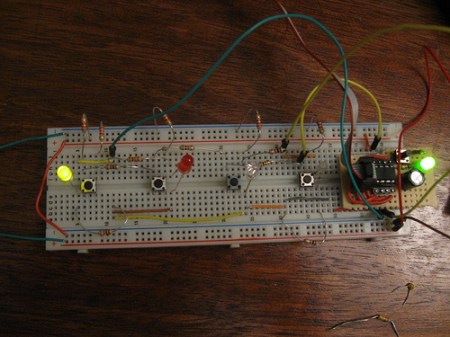
[Chris] has been hard at work building his own version of Simon called [Nomis]. Although [HAD] has featured an ATiny Simon clone before, the article does an excellent job explaining how the system works.

The ATTiny85 is used to control this game, which, for now is laid out on a simple breadboard. A PCB version of this game has been ordered from [Seeed], so be sure to check back to see the results of this forthcoming upgrade. It’s really cool that this kind of small scale manufacturing is available to the masses.

A parts list is provided as well as a code overview and schematic. To see it in action, check out the video after the break. There’s an explanation at the beginning, but skip to 1:55 if you’d rather just see the machine in action. The game can reportedly run until a 100 “move” limit is reached. This was arbitrary, but it should be enough for most people! Continue reading “A Little Simon Clone Named [Nomis]”
Simple PCB Vise

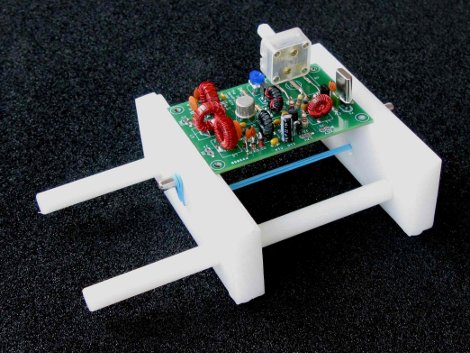
This one almost got relegated to a links post, but [Ken’s] simple PCB vise (PDF) is just so useful we had to give it a standalone feature. It works so well because he made every design feature count.

For instance, the groove the holds the PCB (almost impossible to see here but look at the diagrams in the PDF linked above) is cut with a dovetail bit, rather than just being a square rabbit. The clamping force is provided by that blue rubber band which simply hooks on a metal shelf peg on each side of the clamping plates. Those plates are machined out of polyethylene and slide nicely along the two nylon rods which keep them aligned. There’s really nothing to break or wear out here, except the rubber band with is easily replaceable. The rubber feet keep it from sliding across the bench as you work.

This is great for soldering, and would go right along with those diy smd parts clamps you made. It’s also a great way to hold onto your prototype boards when you’re working out the firmware.

Etching Your Own PCBs

When [Adr1an] wrote in to share a link to his PCB etching tutorial he mentioned that he knew we had already covered a ton of these guides. He’s absolutely right, not only have we featured a great number of them, but we also wrote our own quite a while ago. But that doesn’t mean we ignore them when they come in on the tips line. In fact, we read all of them that have something to offer and are pleased to feature the ones that are well presented… like this one!

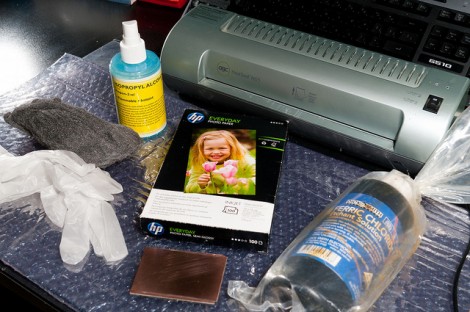
[Adr1an] went all out with his writeup. He not only covers all of the elements that go into this, but discusses where to purchase them and his thoughts on how he arrived at the choice. He’s using the toner transfer method and prefers Brother branded toner for its coverage and resistance to over-etching. He prints on HP Everday Photopaper, then uses a laminator to transfer to the copper clad board. For this guide he used 2oz copper but prefers 1oz copper as it etches faster. His etchant of choice is Ferric Chloride, which can be ordered as a dry powder. He uses the direct etch method of loading etchant into a sponge an applying that to the board.

The board he makes in the guide looks great, and it only took him 28 minutes!

Gridrunner: A Custom Part For Measuring In Eagle CAD

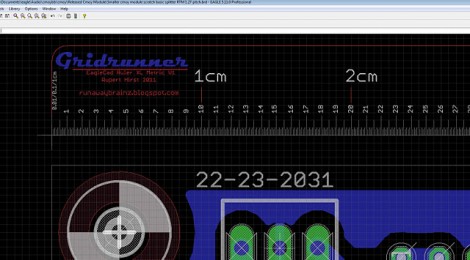
[Koogar] came up with a useful tool for checking the measurements of your layouts in Eagle CAD. He calls it the Gridrunner; a custom part that adds a 200mm ruler to your design. Tick marks are in 1/10th of a millimeter increments for great accuracy when used with the zoom feature of Eagle. Once you’ve got the layout just right, delete the ruler from your design and export it for fabrication. [Koogar] does mention that the beta version of Eagle 6 has a new measuring tool, but he still thinks the Gridrunner offers some things that the built-in tool doesn’t. See just how handy it is in the video after the break. The measuring starts about 1:40 into it.

We found it interesting that [Koogar] is using Eagle for quite a bit more than PCB design. We’ve used it for laying out a drilling template for face plates before, but he’s going far beyond that. He uses the library editor to recreate the parts of his CNC machine which he says are then really easy to align. From there, he exports the CAM files for mounting brackets. Do you use Eagle for something other than PCB design? Let us know about it by leaving a comment. Continue reading “Gridrunner: A Custom Part For Measuring In Eagle CAD”

EagleUp Pulls Your PCBs Into SketchUp

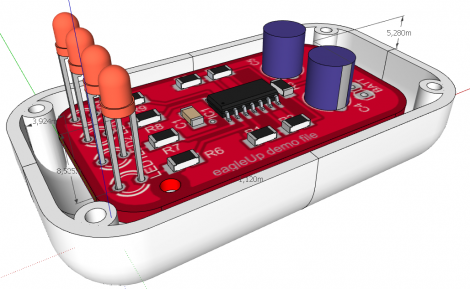
[Karl] wrote in to tell us about a software package called EagleUp that will import your Eagle CAD PCB designs into Google SketchUp. It bridges the gap between the two using the open source image processing software ImageMagick.

As you can see above, you’ll end up with a beautifully rendered 3D model of your hardware. This is a wonderful way to make sure that your enclosure designs are going to work without needing to wait for the PCBs to arrive from the fab house. It is available for Windows, OSX and Linux (although the last time we tried to run Sketchup under Wine nothing good came of it — perhaps it’s time to try again).

In [Karl’s] case, he’s working on an Arduino compatible board based around the Xmega. He mentions that EagleUp is a great way to get an idea of how component placement will end up, and to see if the silk screen layer is going to turn out well or not. Here’s a link to one of his test designs.

CadSoft’s EAGLE 6 Hits Beta And Packs Goodies

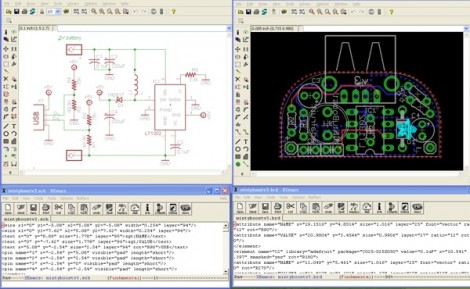
Version 6 of the popular schematic and PCB layout software EAGLE is now in beta testing. The most notable change is the migration to XML file formats that we looked at last month.

[PT] didn’t waste any time getting his hands on the software and giving it a thorough test drive. The image seen above shows the files of a MintyBoost. It’s impossible to make out at this resolution, but it is indeed spitting out human-readable (well maybe) XML in the windows below instead of the ‘no trespassing’ binaries they used to use.

Earlier today when working on a feature we had to jump on a different computer that had EAGLE installed in order to look at a .SCH file. We wonder if someone will put out a rendering package that can parse the new format and spit out a quick PNG? At the very least, we expect to see some useful hacks for part replacement or pin swapping. It shouldn’t be too hard to poke around and figure out what happens when changing some of the stored values. Got anything in mind that you can do by editing these by hand?

Oh, we almost forgot! The biggest benefit you get from this is the increased version control compatiblity since programs like git will be able to perform diff functions on the files.

LCD Backpack: From Arduino Board To Homemade Pcb

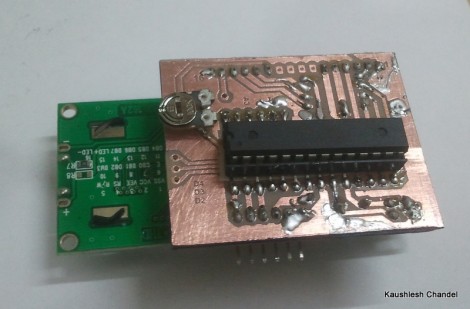
[Kaushlesh Chandel] prototyped a few projects on his Arduino that use an HD44780 Character LCD. Wanting to keep these projects in one piece, but not sacrifice his Arduino board, so he etched his own LCD backpack that is Arduino compatible. If you’ve never made it past the Arduino board to build a module that only uses the parts you need for a project, this is a great source of inspiration for you to give it a try.

The design that [Kaushlesh] drew up is quite simple. It connects directly to the single in-line header of the character LCD. It looks like he’s using the 4-bit mode for addressing that display, which leaves you with quite a few pins (both digital and analog) to work with in the future. The important components rolled into his design are the chip itself, an ATmega8/168/328, the crystal to make sure it is running at the correct speed for Arduino timing, and a trimpot for adjusting the contrast on the display. The final feature you’ll want to be sure to include in your own design is a pin header for programming the chip via an FTDI cable.

Never etched your own PCB before? Give our PCB fab tutorial a try.