Roving Hexapod Poops Out 3D Prints

[Jia Wu, Mary Sek, and Jeff Maeshiro], students  at the California College of the Arts (CCA) in San Francisco, took on the task of developing a walking 3D printer. The result is Geoweaver, a hexapod robot with a glue gun extruder system. Hackaday has seen walking CNC machines before, but not a 3D printer. Geoweaver uses two servos on each of its six legs to traverse the land. The team was able to program several gaits into the robot, allowing it to traverse uneven terrain. Walking is hard enough on its own, but Geoweaver also uses a glue gun based extruder to make 3D prints. The extruder head uses two servos to swing in a hemispherical arc. The arc is mapped in software to a flat plain plane, allowing the robot to drop a dollop of glue exactly where it is programmed to. Geoweaver doesn’t include much in the way of on board processing – an Arduino Uno is used to drive the 15 servos. Those servos coupled with a glue gun style heater pull quite a bit of power, which has earned Geoweaver nicknames such as Servo Killer, Eater of Shields, Melter of Wires, and Destroyer of Regulators.

Geoweaver’s prints may not be much to look at yet, however the important thing to remember is that one of the future visions for this robot is to print on a planetary scale. Geoweaver currently uses reacTIVision to provide computer control via an “eye in the sky”. ReacTIVision tracks a fiducial marker on the robot, and applies it to a topographical map of the terrain. This allows Geoweaver to change its height and print parameters depending on the flatness of the ground it is printing on. On a scaled up Geoweaver, reacTIVision would be replaced by GPS or a similar satellite based navigation system.  Most of the software used in Geoweaver is opensource, including Grasshopper and Firefly, written by the team’s professor, [Jason Kelly Johnson]. The exception is Rhino 5. We would love to see an option for a free or open source alternative to laying out ~$1000 USD in software for our own Geoweaver.

Continue reading “Roving Hexapod Poops Out 3D Prints”

Jello Shot Printer

While inspecting some jello shots for a friend’s upcoming 25th birthday, [Sprite_tm] had an epiphany. What if you could print designs inside the jello shots? He quickly grabbed a syringe and proceeded to inject food dye into one of the jello shots — it worked. Unfortunately, his friend pointed out that it would take far too long to do each jello shot by hand, to which [Sprite] responded:

Never mind that, I’ll just whip up  a 3D printer that can make nice figures in the jelly for you.

Classic. The great thing about the hacker-mindset is that you never say no when confronted with a problem!

To achieve this printer, [Sprite_tm] has taken a handful of old CD-ROM drives to create a three axis moving platform. He’s using a forth drive’s ejector assembly to depress a syringe which pushes a concoction of banana liquor, green food colouring and cornstarch through medical tubing to the ink-head. To control it, he’s just using an ATTiny2313 with a mere 2K of memory. It took a bit of fiddling with to find the right flow, but works surprisingly well. Stick around after the break to see its printing capabilities.

Continue reading “Jello Shot Printer”

3DMonstr Printer: 8 Cubic Feet Of Build Volume

3D Monster

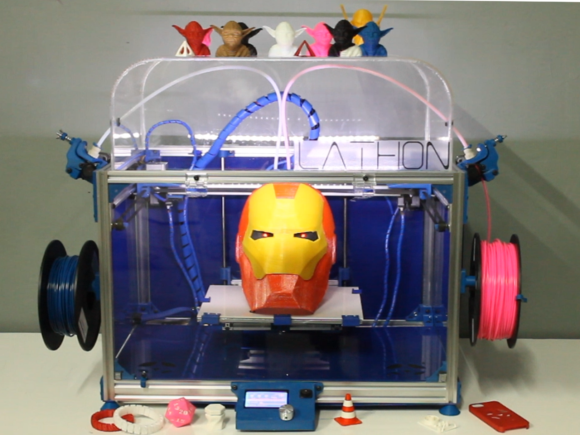
So you’re looking at 3D printers, but the build volumes for the current offerings just aren’t where you’d like them to be. [Ben Reylblat] had the same problem and came up with the 3DMonstr, an enormous printer that has (in its biggest configuration) a two foot cubed build volume, four extruders, and the mechanical design to make everything work.

Most of the ginormous 3D printers we’ve seen are basically upgraded versions of the common table-top sided models. This huge Ultimaker copy uses the same rods as its smaller cousin, and LeBigRap also uses woefully undersized parts. The 3DMonstr isn’t a copy of smaller machines, and instead uses very big motors for each axis, ball screws, and a proper welded frame. It’s highly doubtful anyone will call this printer a wobblebot.

The 3DMonstr comes in three sizes: 12 inches cubed, 18 inches cubed, and 24 inches cubed, with options for two to four extruders.  We caught up with the 3D Monstr team at the NYC Maker Faire, and from first impressions we have to say this printer is freakin’ huge and impeccably designed.

3D Printering: Making A Thing In AutoCAD, Part II

printering

It’s time once again for another part in 3D Printering’s series of Making A Thing. Last week was a short tutorial on the beginnings of making a thing in AutoCAD. This is an extremely complex software package, and in a desire to make things short and sweet, I broke this AutoCAD tutorial into two parts.

Since we already covered the 2D design portion of AutoCAD, part II of this tutorial is going to turn our 2D part into a three-dimensional object. Check out the rest of the tutorial below.

Continue reading “3D Printering: Making A Thing In AutoCAD, Part II”

Trainable Robotic Arm

customer_projects_arm-learning

When [Robert] realized Adafruit is now selling analog feedback servos, he decided he just had to make a programmable robot arm that could be trained like the commercially available Baxter robot.

The neat thing with the analog feedback servos is it takes all the complexity out of training a robot. All you have to do is put the robot in teach mode, physically move the robot’s joints to the positions you want, and save your program! Depending on your application, it certainly beats trying to work out the fun kinematics equations…

Anyway, the full guide available on Adrafuit’s learning system provides instructions on how to build your own arm from scratch (well, with a 3D printer) or how to replace the servos in a pre-made toy robotic arm you might already have sitting around. It’s very thorough and includes all the code you need for your Arduino too.

Stick around after the break to see how the robot works!

Continue reading “Trainable Robotic Arm”

From CT Scans To 3D Prints

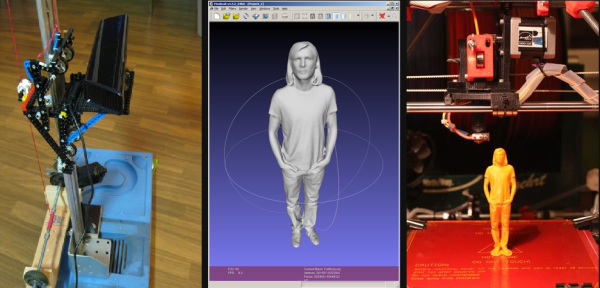
[the_digital_dentist] had a CT Scan done back in 2007 for treatment using orthodontics. Some how, he managed to get a copy of the CT Scan data from the lab, and has been playing around with it lately.

Since he has a 3D printer, the obvious end goal was to print his face using some of the data extracted from the CT Scan. This required a lot of manipulation to get it to the finished model you see above. He used an open source software called DeVIDE to process the data and export the STL. Not much information on this is given on his site, but in our research we managed to find another video documenting the process in DeVIDE on extracting the STL model from DICOM CT scan data.

5eachUnfortunately, the STL is far from being ready to print after being extracted; there is a lot of extraneous data that needs to be cleaned up. He used mesh editing software to help blow away the unnecessary details. We don’t know for sure what software [the_digital_dentist] used, but MeshLab is a good one.

After that, it was just a matter of printing the STL file. But the really cool thing about using data from CT scans is the amount of detail it captures… Stick around after the break to see an animated GIF demonstrating this.

Anyone want to print a copy of their own skull? It’d look great with a plating of Adamantanium…

3D Printering: Making A Thing With AutoCAD, Part I

printering

Octopodes and useless plastic baubles begone. It’s time yet again for another installment of learning how to make a thing with 3D design tools. This week, we’re making something with AutoCAD. It’s an amazing piece of software that costs $4000 per seat. Hilariously expensive for any home tinkerer, but if you go to a university with an engineering program, there’s a computer lab with machines running AutoCAD somewhere on campus.

Last week we took a look at making something with OpenSCAD. AutoCAD is much, much different. Where OpenSCAD is sorta, kinda like programming, AutoCAD is just a digital version of t-squares, triangles, straight edges, and people getting uppity when you don’t call their drawing device a ‘lead holder’.

I’ve broken this tutorial down into two parts: right now you’re reading the tutorial on drawing 2D objects in AutoCAD. This weekend I’ll publish the transformation of 2D objects into a 3D printable part. Read on for how to create a 2D object in AutoCAD.

Continue reading “3D Printering: Making A Thing With AutoCAD, Part I”