BingGPT Brings AI Chat To The Desktop

Interested in AI, but sick of using everything in a browser? Miss clicking on a good old desktop icon to open a local bit of software? In that case, BingGPT could be just the thing for you.

It’s nothing too crazy—just a desktop application that gives you access to Bing’s AI-powered chatbot. It’s available on a range of platforms, from Windows, to Apple, and Linux, and binaries are available for Intel, Apple Silicon, and ARM processors.

Using BingGPT is simple. Sign in with your Microsoft account, and away you go. There’s no need to use Microsoft Edge or any ugly browser plugins, and you can export your conversations to Markdown, PNG, and PDF for sharing beyond the program. It’s also complete with a range of keyboard shortcuts to speed your interaction with the large language model when it gets off track. There’s also the Compose button which can actually go ahead and write stuff for you.

Fundamentally, all the cool stuff is still coming in via the web, but it’s nice to be able to use Bing’s chatbot without having to succumb to the horrors of a Microsoft browser. It’s interesting to see how large language models are becoming an all-pervasive tool of late. If you’re building your own nifty projects in this area, don’t hesitate to let us know!


Balloon-Eye View Via Ham Radio

If you’ve ever thought about launching a high-altitude balloon, there’s much to consider. One of the things is how do you stream video down so that you — and others — can enjoy the fruits of your labor? You’ll find advice on that and more in a recent post from [scd31]. You’ll at least enjoy the real-time video recorded from the launch that you can see below.

The video is encoded with a Raspberry Pi 4 using H264. The MPEG-TS stream feeds down using 70 cm ham radio gear. If you are interested in this sort of thing, software, including flight and ground code, is on the Internet. There is software for the Pi, an STM32, plus the packages you’ll need for the ground side.

We love high-altitude balloons here at Hackaday. San Francisco High Altitude Ballooning (SF-HAB) launched a pair during last year’s Supercon, which attendees were able to track online. We don’t suggest you try to put a crew onboard, but there’s a long and dangerous history of people who did.

Continue reading “Balloon-Eye View Via Ham Radio”

Jenny’s Daily Drivers: Raspberry Pi Desktop

One of the more exciting prospects upon receiving one of the earliest Raspberry Pi boards back in 2012 was that it was a fully-functional desktop computer in the palm of your hand. In those far-off days, the Debian OS distro for the board wasn’t even yet called Raspbian, but it would run a full-on desktop on your TV and you could use it after a fashion to browse the web or do wordprocessing. It wasn’t in any way fast, but it was usable enough to be more than a novelty. I’ve said before on these pages that the Raspberry Pi folks’ key product is their OS rather than their computers. While they rarely have the fastest or highest spec hardware, you can depend on Raspberry Pi OS being updated and supported through the life of the board unlike many of their competitors. I can download their latest OS image and still run it on that 2012 board, which to me ranks as a very laudable achievement.

The OS They Don’t Really Tell You About

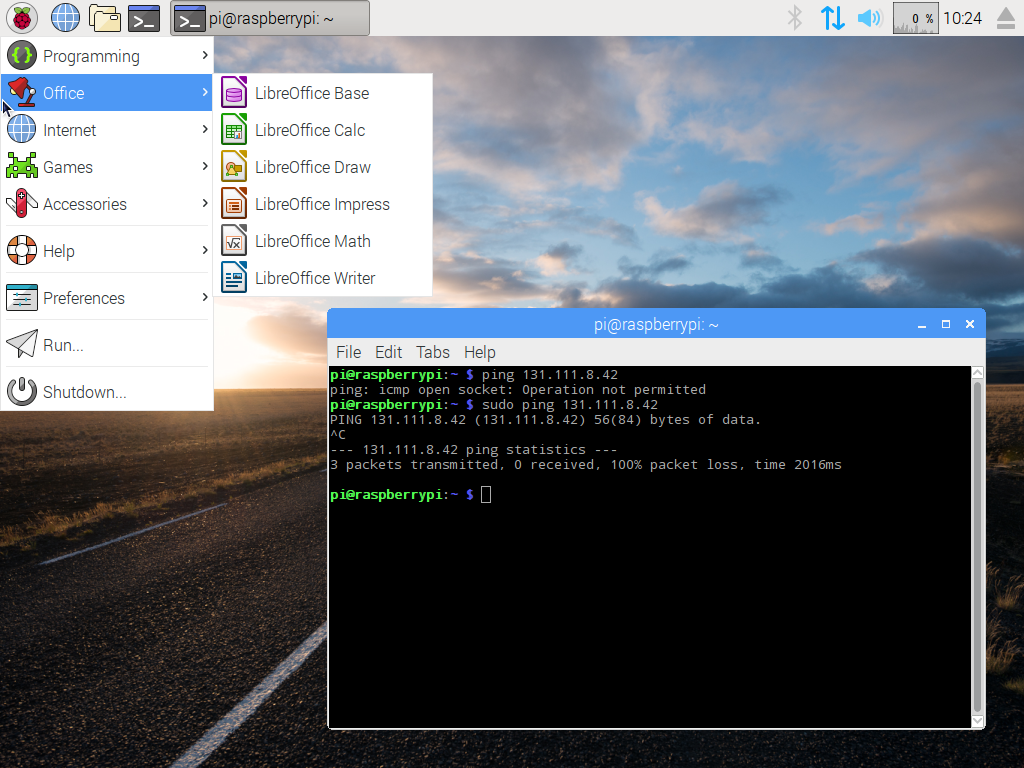
Screenshot of the first i386 Pi desktop
The background image may have changed since the first release back in 2016, but the UI hasn’t.

Raspberry Pi OS doesn’t run on any other ARM single board computers but their own, but it’s not quite accurate to say that it only runs on Raspberry Pi hardware. Since 2016 when it was launched as PIXEL, the folks in Cambridge have also maintained a PC version for 32-bit i386 computers, now called Raspberry Pi Desktop. It may be the Pi product they don’t talk about much, but  you can still find it on their downloads page.

Like the ARM version, it’s based on Debian and presents as close as possible to the environment you’d find on your Pi. I’m interested to see whether it still lives up to the claim of being usable on older hardware, so I’ve downloaded a copy and installed it on my trusty 2007 Dell Inspiron 640. It rocks a 1.6 GHz Core Duo with 4 GB of memory and a SATA SSD so it’s not the lowest spec hardware on the block, but by 2023’s standard it represents a giveaway-spec old laptop. Can I use it as a daily driver? Let’s find out! Continue reading “Jenny’s Daily Drivers: Raspberry Pi Desktop”

AI Assistant Translates Your Every Request For The Command Line

If you don’t live on the command line, it can be easy to forget the exact syntax of commands. It often leaves you running to the “/?” or “–help” switches, or else a quick Google search to find the proper incantations. Shell-AI is a machine-learning assistant that could change all that by helping you find the proper command for the job, right on the command line!

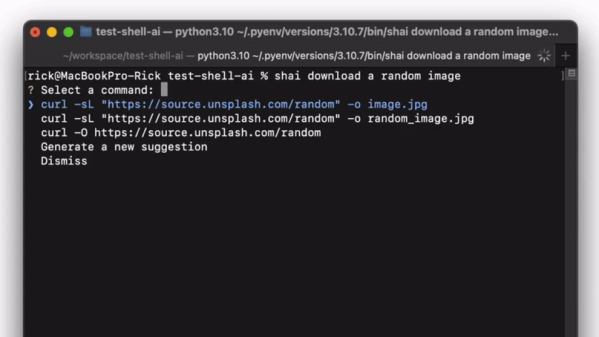
Shell-AI accepts natural-language inputs — simply type in “shai” followed by what you’re trying to do. It will then take in your request, run it through an OpenAI language model like GPT-3.5-Turbo, and then present you with three (or more) potential commands. You can then select which command to use and get on with your day.

As demonstrated, it’s more than capable of following commands like “download a random image” or “show only image files ls.” And, hilariously, it responds to the request “do something crazy” with just one suggestion: “rm -rf”. That seems rather fitting.

We wouldn’t blindly follow any commands coming out of a large language model, of course. But, if you know what you’re doing, it could prove a useful little tool to ease your regular duties on the command line.

Text Compression Gets Weirdly Efficient With LLMs

It used to be that memory and storage space were so precious and so limited of a resource that handling nontrivial amounts of text was a serious problem. Text compression was a highly practical application of computing power.

Today it might be a solved problem, but that doesn’t mean it doesn’t attract new or unusual solutions. [Fabrice Bellard] released ts_zip which uses Large Language Models (LLM) to attain text compression ratios higher than any other tool can offer.

LLMs are the technology behind natural language AIs, and applying them in this way seems effective. The tradeoff? Unlike typical compression tools, the lossless decompression part isn’t exactly guaranteed when an LLM is involved. Lossy compression methods are in fact quite useful. JPEG compression, for example, is a good example of discarding data that isn’t readily perceived by humans to make a smaller file, but that isn’t usually applied to text. If you absolutely require lossless compression, [Fabrice] has that covered with NNCP, a neural-network powered lossless data compressor.

Do neural networks and LLMs sound far too serious and complicated for your text compression needs? As long as you don’t mind a mild amount of definitely noticeable data loss, check out [Greg Kennedy]’s Lossy Text Compression which simply, brilliantly, and amusingly uses a thesaurus instead of some fancy algorithms. Yep, it just swaps longer words for shorter ones. Perhaps not the best solution for every need, but between that and [Fabrice]’s brilliant work we’re confident there’s something for everyone who craves some novelty with their text compression.

[Photo by Matthew Henry from Burst]

Explore FFmpeg From The Comfort Of Your Browser

If you’re looking to manipulate video, FFmpeg is one of the most powerful tools out there. But with this power comes a considerable degree of complexity, and a learning curve that looks suspiciously like a brick wall. To try and make this incredible tool a bit less obtuse, [Sam Lavigne] has developed a web interface that lets you play around with FFmpeg’s vast collection of audio and video filters.

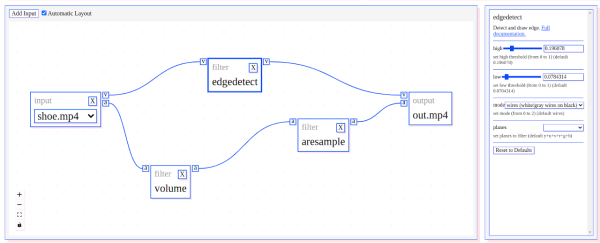
To try out a filter, you just need to select one from the window on the left and it will pop up in the central workspace. Here, the input, output, and any enabled filters will show up as boxes that can be virtually “wired” together. Selecting a filter will populate its options on the right hand side, with sliders and input boxes that allow you to play around with their parameters. When you want to see the final result, just click “Render Preview” and wait a bit.

If there was any downside, it seems like whatever box the site is running on the overhead of running in the browser doesn’t provide it a lot of horsepower. Even with the relatively low resolution of the demo videos available, the console output at the top of the page shows FFmpeg sometimes flirts with a processing speed measured in single-digit frames per second. Still, for a filter playground, it gets the job done. Perhaps the best part of the whole tool is that you can then copy your properly formatted command right out of the browser window and into your terminal so you can put it to work on your local files.

FFmpeg is one of those programs you should really be familiar with because it often proves useful in unexpected ways. The ability to manipulate audio and video with just a few keystrokes can really come in handy, and we’ve seen this open-source tool used for everything from compressing podcasts onto floppy disks to overlaying real-time environmental data onto a video stream.

Bypassing Bitlocker With A Logic Analzyer

Security Engineer [Guillaume Quéré] spends the day penetration testing systems for their employer and has pointed out and successfully exploited a rather obvious weakness in the BitLocker full volume encryption system, which as the linked article says, allows one to simply sniff the traffic between the discrete TPM chip and CPU via an SPI bus. The way Bitlocker works is to use a private key stored in the TPM chip to encrypt the full volume key that in turn was used to encrypt the volume data. This is all done by low-level device drivers in the Windows kernel and is transparent to the user.

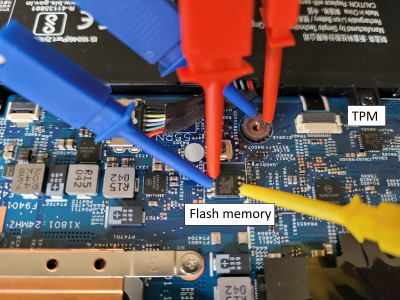
TPM chip pins too small? Just find something else on the bus!

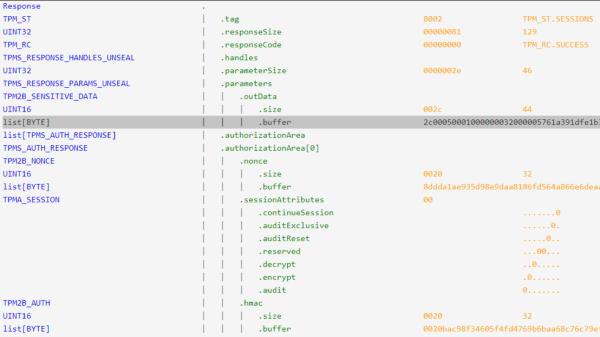
The whole point of BitLocker was to prevent access to data on the secured volume in the event of a physical device theft or loss. Simply pulling the drive and dropping it into a non-secured machine or some other adaptor would not provide any data without the key stored by the TPM. However, since that key must pass as plaintext from the TPM to the CPU during the boot sequence, [Guillaume] shows that it is quite straightforward — with very low-cost tools and free software — to simply locate and sniff out this TPM-to-CPU transaction and decode the datastream and locate the key. Using little more than a cheapo logic analyser hooked up to some conveniently large pins on a nearby flash chip (because the SCK, MISO, and MOSI pins are shared with the TPM) the simple TIS was decoded enough to lock onto the bytes of the TPM frame. This could then be decoded with a TPM stream decoder web app, courtesy of the TPM2-software community group. The command to look for is the TPM_CC.Unseal which is the request from the CPU to the TPM to send over that key we’re interested in. After that just grabbing and decoding the TPM response frame will immediately reveal the goods.

Continue reading “Bypassing Bitlocker With A Logic Analzyer”