Using WebSocket With PIC Microcontrollers

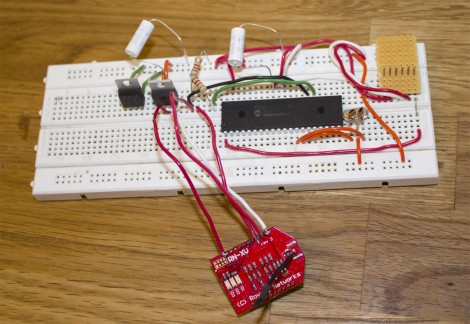
[Blaise Jarrett] has been grinding away to get the WebSocket protocol to play nicely with PIC microcontrollers. Here he’s using the PIC 18F4620 along with a Roving Networks RN-XV WiFi module to get the device on the network. He had started with a smaller processor but ran into some RAM restrictions so keep that in mind when choosing your hardware.

This project was spawned after seeing the mBed feature a few days back which combined that board along with a WebSocket library and HTML5 to pull off some pretty amazing stuff. [Blaise] doesn’t have quite as much polish on the web client yet, but he has recreated the data transfer method and improved on that project by moving to the newer version 13 of WebSockets. The protocol is kind of a moving target as it is still in the process of standardization.

The backend is a server called AutoBahn which is written in python. It comes along with client-side web server examples which gave him a chance to get up and running quickly. From there he got down to work with the WebSocket communications. They’re a set of strings that look very much like HTML headers. He outlines each command and some of the hangups one might run into with implementation. After reading what it takes to get this going it seems less complicated than we thought, but it’s obvious why you’ll need a healthy chunk of RAM to pull it off.
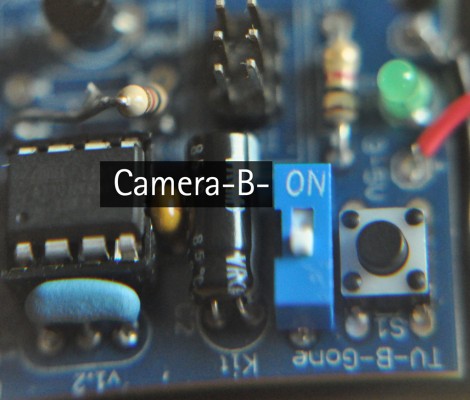

TV-B-Gone Can Double As A Camera Remote Control

[Christopher] found a way to get a bit more mileage out of his TV-B-Gone kit. The little device is intended to turn off every television in range with the push of a button. But at its core it’s really just a microcontroller connected to some infrared LEDs. Instead of sending codes to shut of televisions, you can rewrite the firmware to send a camera remote shutter release code.

It doesn’t take too much to pull this off. You need a way to flash new firmware to the device, and you need to know the new code timing that you want to send. Since the firmware is open source it’s easy enough to make code changes, and there are several easy methods of flashing AVR devices (like the tiny85 used here), including using an Arduino as an ISP.

But [Christopher] did more than just add the Nikon code for his camera. He realized that there’s a jumper to select between European or American television codes. Since he wasn’t using the foreign option, he replace that pin header with a switch that selects between normal TV-B-Gone operation and camera shutter release modes. Nice.

Interactive Digital Fireplace Is Great For Those Chilly Winter Evenings

video-fireplace

We’ve all seen them – those fireplace DVDs that seem to pop up on grocery store endcaps and get traded in white elephant gift exchanges. If you don’t happen to have a fireplace in your home they might make a reasonable solution, but [Nick] from the Gadget Gangster thought it would be far better if you could create your own interactive digital fireplace instead.

Using the Gadget Gangster Propeller USB platform and ProtoPlus board, his fireplace merges various video segments together based on user input, and plays them on any TV that comes equipped with RCA jacks. The process is fairly straightforward, and involves wiring up switches along with audio and video output to the Propeller board via the ProtoPlus board. The remainder of the work is done using software, requiring the user to select and encode video segments for storage on an SD card. [Nick] does however provide a whole set of clips for download, should you want to take the quicker route.

After encoding and categorizing the video clips to coincide with the “stoke” and “add wood” user input buttons, the Propeller does the rest of the work, randomly selecting clips from the appropriate category when requested.

The result is admittedly a bit Lo-Fi, though we thinks it’s cool and prefer to call it “retro” instead. It might not be a Hi-Def fireplace recording, but it’s far nicer to snuggle up to a hand made fireplace rather than a DVD you picked up as an afterthought.

Continue reading to see a quick demo video of the digital fireplace in action.

Continue reading “Interactive Digital Fireplace Is Great For Those Chilly Winter Evenings”

ChipKIT Temperature Shield Supports A Dozen Sensors

chipkit_temp_board

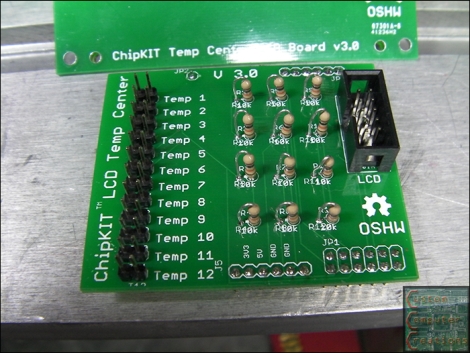
[Will] wrote in to share a useful add-on he designed for the ChipKIT UNO 32, a 12-port temperature sensor board.

Constructed for one of his customers, the shield accepts any 2-wire 10k thermistor sensors, outputting the readings to a small LCD screen. The screen is supported by some code put together by his associate [crenn], but you are not limited to solely displaying the temperatures there. Since this module piggybacks on top of the ChipKIT the same fashion as any standard shield, you clearly have the ability to use and manipulate the data at will. With 12 ports on board this would work well for a house-wide temperature monitoring system, or perhaps in a complex brewing setup.

Both the temperature shield and LCD boards have been released under the Open Source Hardware License, so you can easily build your own if you have the means, though [Will] has a few extras he’s willing to sell if you need one quickly.

Say Hello To Our Little Friend, The BeagleBone

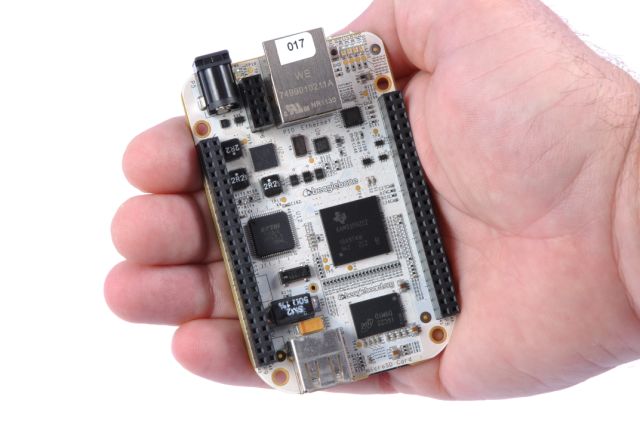
Small and more powerful… what more can you want? This is the newest BeagleBoard offering, called the BeagleBone. It’s packed with some pretty intriguing features, but let’s take a tour of the hardware first.

Like its predecessors, the BeagleBone sports an ARM processor. This time around it’s a TI AM3358 ARM Cortex-A8. It will ship with a 2 GB microSD card and has an Ethernet port and USB connection. The dual pin headers on either side of the board are designed to receive ‘Capes’ for expansion. Currently a DVI cape is in the works, with HDMI and others to follow.

Linux is running on board and one of the best features we see in the video after the break is the browser-based programming interface. When connected to a network, the BeagleBone serves HTML5 web pages. One of these is an IDE that lets you write and execute code directly from your browser.

Now, can we finally have our open-hardware set top box (hopefully running XBMC)?? At an MSRP of $89 this should be able to give AppleTV 2 a run for its money as an easy way to get your television some network connectivity. Continue reading “Say Hello To Our Little Friend, The BeagleBone”

Do You Know What You’re Doing When Integrating PC-side Apps With USB Microcontrollers?

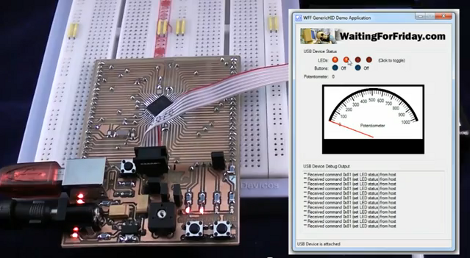
The advent of integrated USB peripherals in microprocessors (PIC, AVR, etc.) has certainly taken a lot of the work out of developing USB devices, not to mention reducing the silicon parts in these designs. But do you know what you’re doing when it comes to controlling them with user-friendly applications? [Simon Inns] is lending a hand with this in his recent tutorial. He shows how to use USB capable AVR chips along with your own Windows applications.

After the break you can see the video from which the above screenshot was captured. That’s a development board of his own making which hosts an ATmega32U4, as well as a USB-B port, LEDs, potentiometer, and a few switches. Taking a closer look, we love the breadboard friendly headers he used on the bottom of the board to break out all of the pins.

His demo shows the Windows app turning LEDs on the board on and off, as well as ADC data displaying the current potentiometer position with the onscreen dial. His code package includes the hardware design, firmware, and app software needed to follow along with what he’s doing.

Continue reading “Do You Know What You’re Doing When Integrating PC-side Apps With USB Microcontrollers?”

The Basics Of Reading Data From Resistive Touchscreens

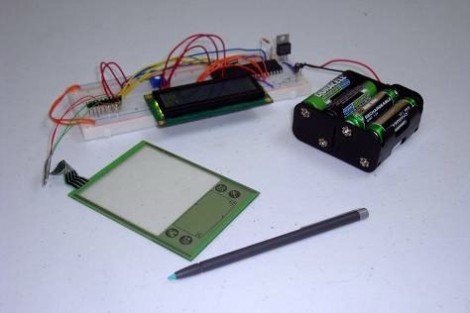
[Chris] just posted his latest tutorial which shows you how to read position data from a resistive touchscreen. These devices are fairly simple, and since they’re used in a lot of consumer electronics you can pick one up for a few bucks. This looks like it is overstock for an old Palm device.

The interface is simple, there’s just four conductors on the tab at the top of the overlay. But connecting to these is a bit of an issue since you can’t really solder directly to them. [Chris] ended up using scotch-tape to hold wires in place, with a paperclip to keep them presses against the conductors. Those conductors are used in pairs, with a positive and negative lead for the X and Y axis. To take a measurement you use I/O pins to connect voltage and ground, then read the voltage that makes it to the gound side using an ADC. This works because the point that’s being pressed on the screen acts as a variable resistor for the circuit. Data for the two axes must be read in separate operations so that the positive voltages don’t interfere with each other.

The nice thing is that once you’ve got it working with a small screen it is easily scaled up. In fact, the 23″ touchscreen used on this Android hack is just another 4-wire resistive device.

You can see a video demonstration of [Chris’] test rig embedded after the break.

Continue reading “The Basics Of Reading Data From Resistive Touchscreens”