Learn GPU Programming With Simple Puzzles

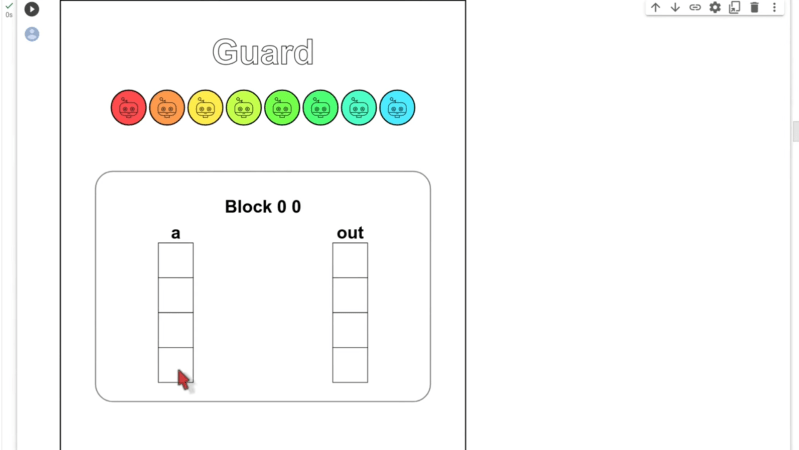
Have you wanted to get into GPU programming with CUDA but found the usual textbooks and guides a bit too intense? Well, help is at hand in the form of a series of increasingly difficult programming ‘puzzles’ created by [Sasha Rush]. The first part of the simplification is to utilise the excellent NUMBA python JIT compiler to allow easy-to-understand code to be deployed as GPU machine code. Working on these puzzles is even easier if you use this linked Google Colab as your programming environment, launching you straight into a Jupyter notebook with the puzzles laid out. You can use your own GPU if you have one, but that’s not detailed.

The puzzles start, assuming you know nothing at all about GPU programming, which is totally the case for some of us! What’s really nice is the way the result of the program operation is displayed, showing graphically how data are read and written to the input and output arrays you’re working with. Each essential concept for CUDA programming is identified one at a time with a real programming example, making it a breeze to follow along. Just make sure you don’t watch the video below all the way through the first time, as in it [Sasha] explains all the solutions!

Confused about why you’d want to do this? Then perhaps check out our guide to CUDA first. We know what you’re thinking: how do we use non-nVIDIA hardware? Well, there’s SCALE for that! Finally, once you understand CUDA, why not have a play with WebGPU?

Continue reading “Learn GPU Programming With Simple Puzzles”
Hacking An NVIDIA CMP 170HX Crypto GPU For EM Sim Work

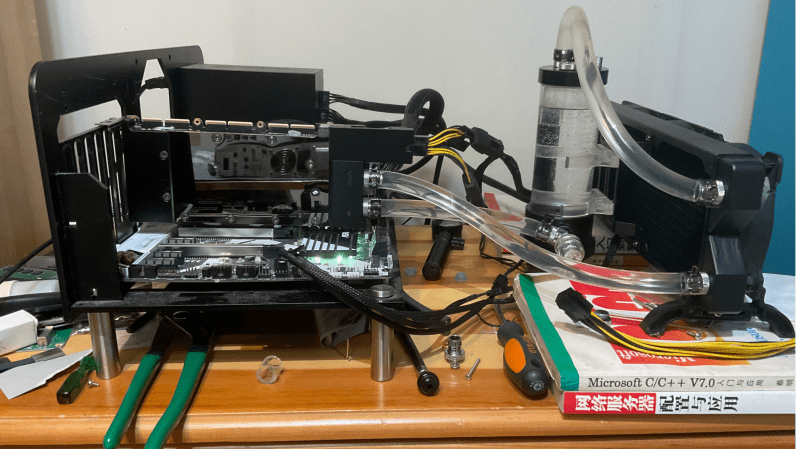
A few years back NVIDIA created a dedicated cryptocurrency mining GPU, the CMP 170HX. This was a heavily restricted version of its flagship A100 datacenter accelerator, using the same GA100 chip. It was intended for accelerating Ethash, the Etherium proof-of-work algorithm, and nothing else. [niconiconi] bought one to use for accelerating PCB electromagnetic simulations and put a lot of effort into repairing the card, converting it to water-cooling, and figuring out how best to use this nobbled GPU.

Typically, the GA100 silicon sits in the center of the mighty A100 GPU card and would be found in a server rack, cooled by forced air. This was not an option at home, so an off-the-shelf water-cooling block was wedged in. During this process, [niconconi] found that the board wouldn’t power on, so they went on a deep dive into the power supply tree with the help of a leaked A100 schematic. The repair and modifications can be found in the appendix, right down to the end of the article. It is a long read to get there.

Continue reading “Hacking An NVIDIA CMP 170HX Crypto GPU For EM Sim Work”

Las Vegas’ Sphere: Powered By Nvidia GPUs And With Impressive Power Bill

A daytime closeup of the LED pucks that comprise the exosphere of the Sphere in Paradise, Nevada (Credit: Y2kcrazyjoker4, Wikimedia)

As the United States’ pinnacle of extravaganza, the Las Vegas Strip and the rest of the town of Paradise are on a seemingly never-ending quest to become brighter, glossier and more over the top as one venue tries to overshadow the competition. A good example of this is the ironically very uninspiredly named Sphere, which has both an incredibly dull name and yet forms a completely outrageous entertainment venue with a 54,000 m2 (~3.67 acre) wrap-around interior LED display (16 x 16K displays) and an exterior LED display (‘Exosphere’) consisting out of 1.23 million LED ‘pucks’. Although opened in September of 2023, details about the hardware that drives those displays have now been published by NVidia in a recent blog post.

Driving all these pixels are around 150 NVidia RTX A6000 GPUs, installed in computer systems which are networked using NVidia BlueField data processing units (DPUs) and NVidia ConnectX-6 NICs (up to 400 Gb/s), with visual content transferred from Sphere Studios in California to the Sphere. All this hardware uses about 45 kW of power when running at full blast, before adding the LED displays and related hardware to the total count, which is estimated to be up to 28 MW of power and causing local environmentalists grief despite claims by the owner that it’ll use solar power for 70% of the power needs, despite many night-time events. Another item that locals take issue with is the amount of light pollution that the exterior display adds.

Although it’s popular to either attack or defend luxurious excesses like the Sphere, it’s interesting to note that the state of Nevada mostly gets its electricity from natural gas. Meanwhile the 2.3 billion USD price tag for the Sphere would have gotten Nevada 16.5% of a nuclear power station like Arizona’s Palo Verde (before the recurring power bill), but Palo Verde’s reactor spheres are admittedly less suitable for rock concerts.

Try Image Classification Running In Your Browser, Thanks To WebGPU

When something does zero-shot image classification, that means it’s able to make judgments about the contents of an image without the user needing to train the system beforehand on what to look for. Watch it in action with this online demo, which uses WebGPU to implement CLIP (Contrastive Language–Image Pre-training) running in one’s browser, using the input from an attached camera.

By giving the program some natural language visual concept labels (such as ‘person’ or ‘cat’) that fit a hypothetical template for the image content, the system will output — in real-time — its judgement on the appropriateness of such labels to what the camera sees. Again, all of this runs locally.

It’s maybe a little bit unintuitive, but what’s happening in the demo is that the system is deciding which of the user-provided labels (“a photo of a cat” vs “a photo of a bald man”, for example) is most appropriate to what the camera sees. The more a particular label is judged a good fit for the image, the higher the number beside it.

This kind of process benefits greatly from shoveling the hard parts of the computation onto compatible graphics cards, which is exactly what WebGPU provides by allowing the browser access to a local GPU. WebGPU is relatively recent, but we’ve already seen it used to run LLMs (Large Language Models) directly in the browser.

Wondering what makes GPUs so very useful for AI-type applications? It’s all about their ability to work with enormous amounts of data very quickly.

Homebrew GPU Tackles Quake

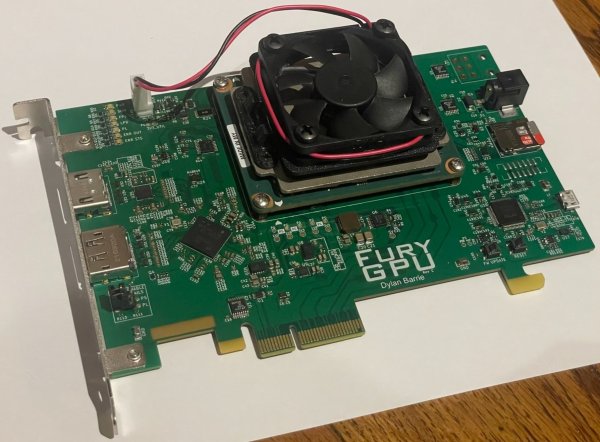
Have you ever wondered how a GPU works? Even better, have you ever wanted to make one? [Dylan] certainly did, because he made FuryGPU — a fully custom graphics card capable of playing Quake at over 30 frames per second.

As you might have guessed, FuryGPU isn’t in the same league as modern graphics card — those are made of thousands of cores specialized in math, which are then programmed with whatever shaders you want. FuryGPU is a more “traditional” GPU, it has dedicated hardware for all the functions the GPU needs to perform and doesn’t support “shader code” in the same way an AMD or NVIDIA GPU does. According to [Dylan], the hardest part of the whole thing was writing Windows drivers for it.

On his blog, [Dylan] tells us all about how he went from the obligatory [Ben Eater] breadboard CPU to playing with FPGAs to even larger FPGAs to bear the weight of this mighty GPU. While this project isn’t exactly revolutionary in the GPU world, it certainly is impressive and we impatiently wait to see what comes next.

Continue reading “Homebrew GPU Tackles Quake

The IMac GPU Becomes Upgradeable, With PCIe

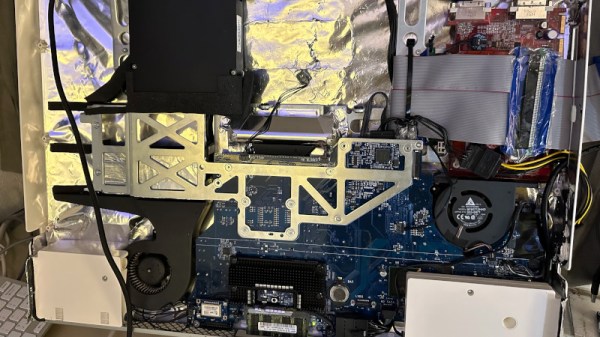
Over its long lifetime, the Apple iMac all-in-one computer has morphed from the early CRT models through those odd table-lamp machines into today’s beautiful sleek affairs. They look pretty, but is there anything that can be done to upgrade them? Maybe not today’s ones, but the models from the mid-2000s can be given some surprising new life. [LowEndMac] have featured a 2006 24″ model that’s received a much more powerful GPU, something we’d have thought to be impossible.

The iMacs from that era resemble a monitor with a slightly chunkier back, in which resides the guts of the computer. By then the company was producing machines with an x86 processor, and their internals share a lot of similarities with a laptop of the period. The card is a Mac Radeon model newer than the machine would ever be used with, and it sits in a chain of mini PCIe to PCIe adapters. Even then it can’t drive the original screen, so a replacement panel and power supply are taken from another monitor and grafted into the iMac case. This along with a RAM and SSD upgrade makes this about the most upgraded a 2006 iMac could be.

Of course, another approach is to simply replace the whole lot with an Intel NUC.

Overclocking Raspberry Pi 5’s SoC To 3 GHz And 1 GHz GPU

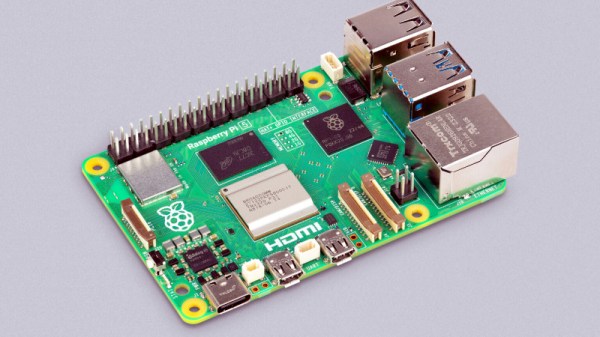
Overclocking computer systems is a fun way to extract some free performance, or at least see how far you can push the hardware before you run into practical limitations. The newly released Raspberry Pi 5 with BCM2712 SoC is no exception here, with Tom’s Hardware having a go at seeing how far both the CPU and GPU in the SoC can be pushed. The BCM2712’s quad Cortex-A76 CPU is normally clocked at 2.4 GHz and the VideoCore VII GPU at 800 MHz. By modifying some settings in the /boot/config.txt configuration file these values can be adjusted.

In order to verify that an overclock was stable, the Stressberry application was used, which fully loads the CPU cores. Here something like a combination of stress-ng and glxgears could also be used, to stress both the CPU and GPU. With the official actively cooled heatsink the CPU reached a temperature of 74°C with a whole board power usage of about 10 Watts. At idle this dropped to 3 Watts at 46°C. At these speeds, the multiple Raspberry Pi 5 units OCed by Tom’s Hardware were mostly stable, though one of the team’s boards experienced a few crashes. This suggests that this level of OCing could still be subject to luck of the draw, and long-term stability would have to be investigated as well.

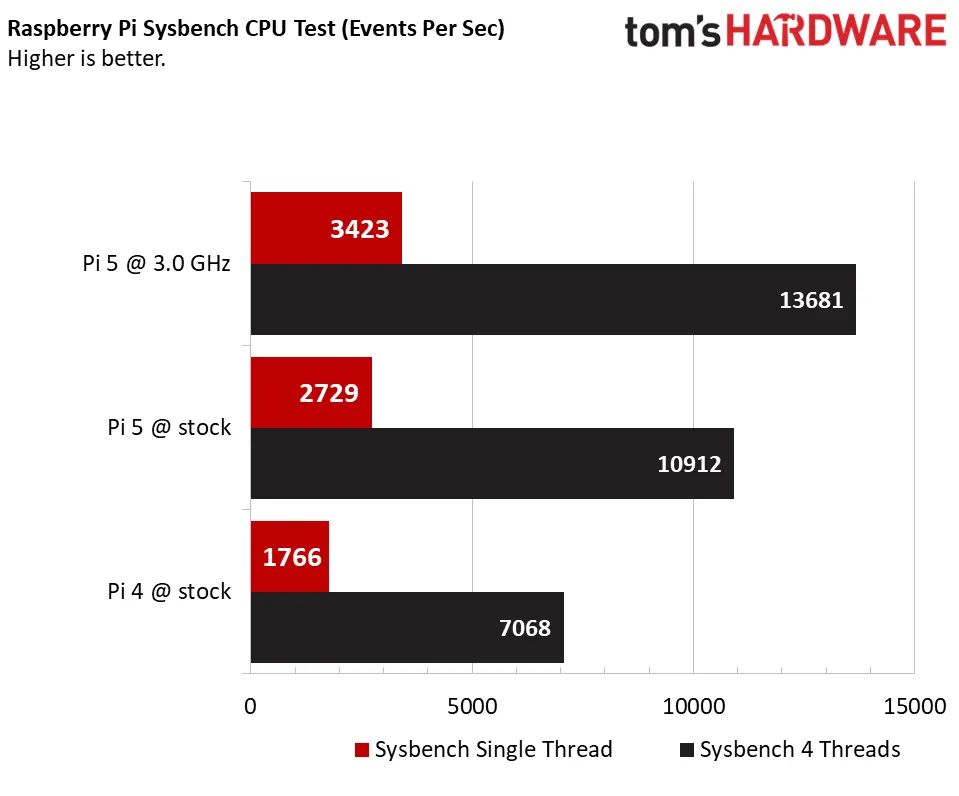
As for the practical use cases of OCing your Raspberry Pi 5, benchmarks showed a marked uplift in compression and Sysbench benchmark scores, but OCing the GPU had no real positive impact on YouTube or 3D performance, leading even to a massive increase in dropped frames with video playback. This probably means that increasing the CPU clock may be beneficial, but OCing the GPU could be futile without also OCing the RAM frequency, if at all possible.

Realistically, the Raspberry Pi SoCs never were speed monsters, with even the Raspberry Pi 4B’s SoC being beaten handily in 2020 by a budget dual-core Intel CPU.  The current Intel Alder-Lake-N-based N100 SoC has a 6 Watt TDP and boosts up to 3.4 GHz while its Xe-LP-based iGPU (with AV1 decoding support) makes for a decent gaming experience within a ~16 Watt power envelope. Clearly, any OCing of the Raspberry Pi boards is more for the challenge of it, but then so is running the latest Intel CPU at 10 GHz with liquid nitrogen cooling.