KiCad, the open source EDA software, is popular with Hackaday readers and the hardware community as a whole. But it is not immune from the most common bane of EDA tools. Managing your library of symbols and footprints, and finding new ones for components you’re using in your latest design is rarely a pleasant experience. Swooping in to help alleviate your pain, [twitchyliquid64] has created KiCad Database (KCDB). a beautifully simple web-app for searching component footprints.
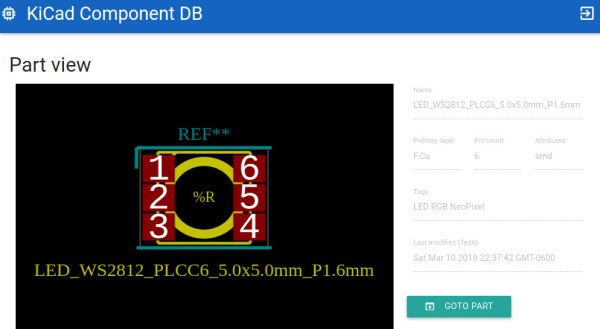
The database lets you easily search by footprint name with optional parameters like number of pins. Of course it can also search by tag for a bit of flexibility (searching Neopixel returned the footprint shown above). There’s also an indicator for Kicad-official parts which is a nice touch. One of our favourite features is the part viewer, which renders the footprint in your browser, making it easy to instantly see if the part is suitable. AngularJS and material design are at work here, and the main app is written in Go — very trendy.
The database is kindly publicly hosted by [twitchyliquid64] but can easily be run locally on your machine where you can add your own libraries. It takes only one command to add a GitHub repo as a component source, which then gets regularly “ingested”. It’s great how easy it is to add a neat library of footprints you found once, then forget about them, safe in the knowledge that they can easily be found in future in the same place as everything else.
If you can’t find the schematic symbols for the part you’re using, we recently covered a service which uses OCR and computer vision to automatically generate symbols from a datasheet; pretty cool stuff.

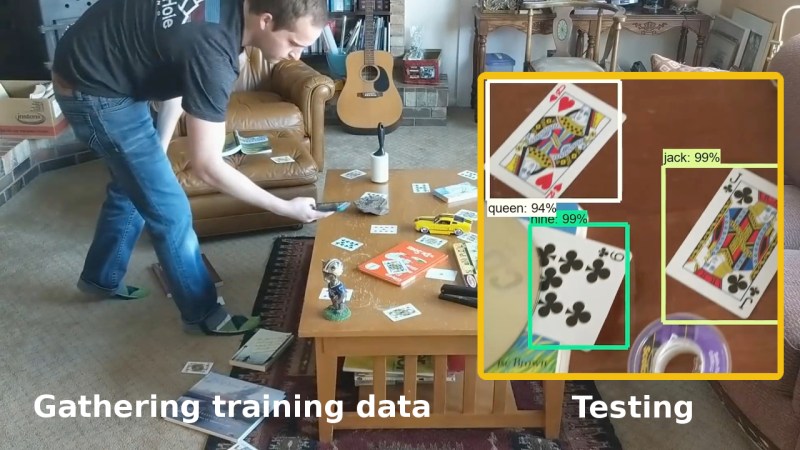
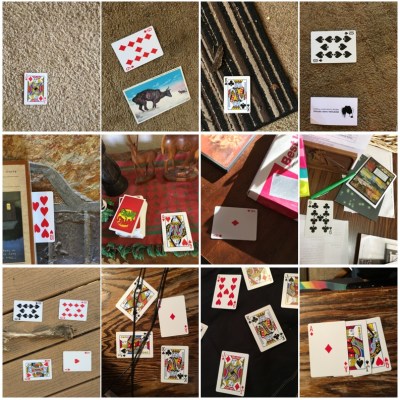 You’ll need a few hundred images of your objects. These can either be scraped from an online source like Google’s images or you get take your own photos. If you use the latter approach, make sure to shoot from various angles, rotations, and with different lighting conditions. Fill your background with various other things and even have some things partially obscuring your objects. This may sound like a long, tedious task, but it can be done efficiently. [Edje Electronics] is working on recognizing playing cards so he first sprinkled them around his living room, added some clutter, and walked around, taking pictures using his phone. Once uploaded, some easy-to-use software helped him to label them all in around an hour. Note that he trained on 24 different objects, which are the number of different cards you get in a