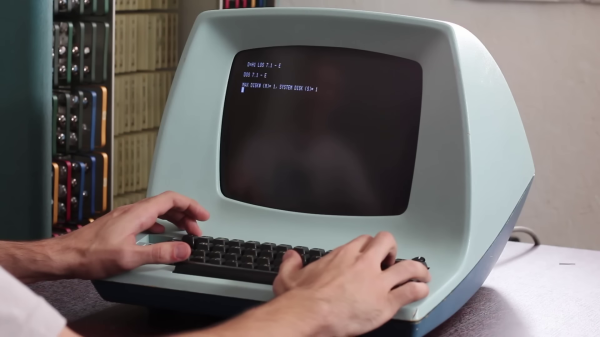
Bringing An ADM-3A Back To Life

[David] at Usagi Electric ended up with an old Lear Siegler ADM-3A terminal in a trade a couple of years ago. But the CRT face was plagued with so-called cataracts, and the condition of the insides was unknown. The video ( below the break ) shows the restoration process, which went quite smoothly. [David] was relieved that the CRT repair in particular was easy, a fact he attributes to the Texas weather —
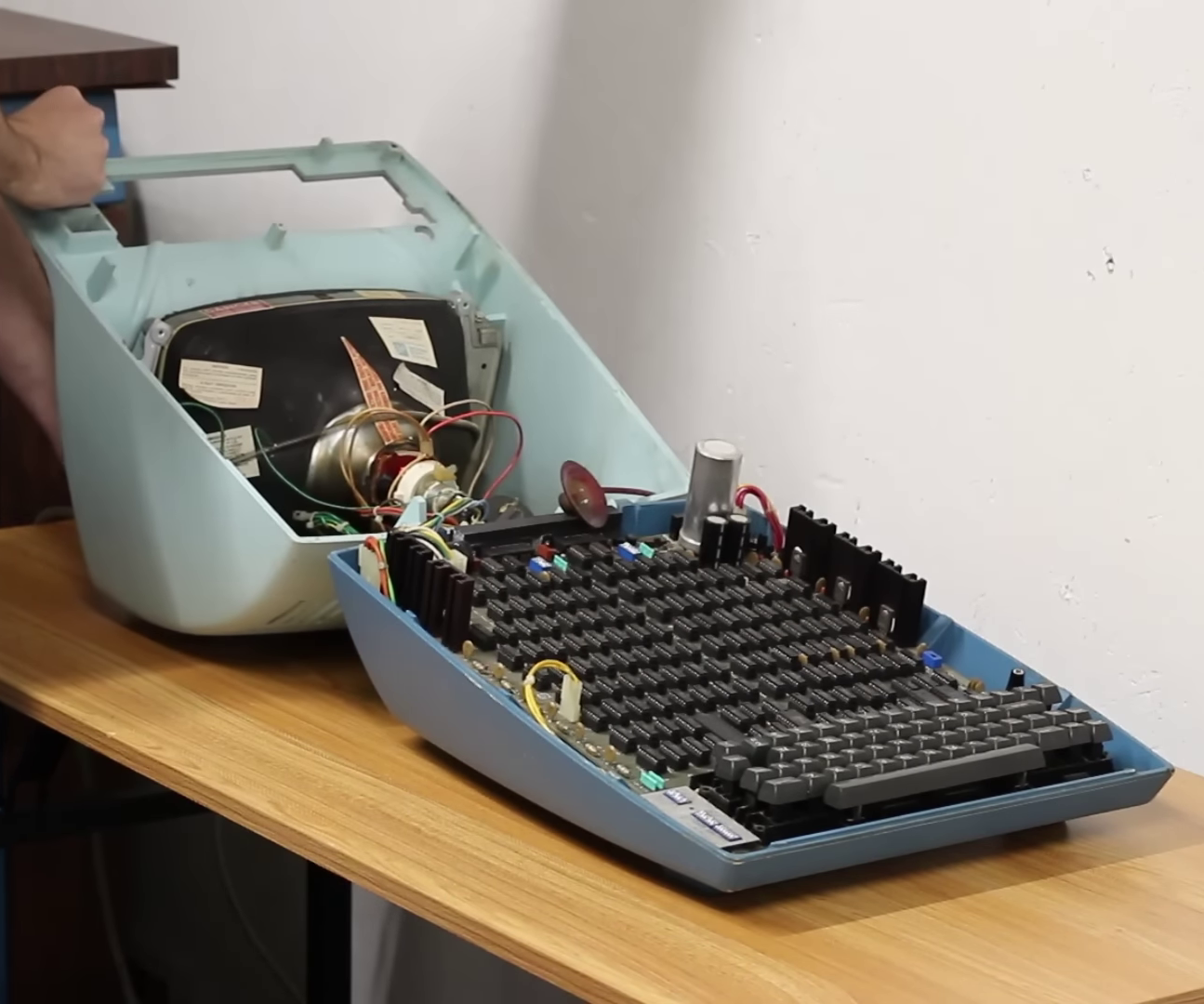
ADM-3A Under the Hood

The temperature was 110 F / 43 C when he set the CRT outside to bake in the sun for a few hours. Afterwards, removing the “integral implosion protection” plastic screen went better than expected. Everything cleaned up nicely and the screen reinstalled. Introduced in 1976, the main electronics board is chock full of TTL chips with nary a microprocessor in sight. Fortunately the board was substantially intact, and a single missing chip was found hidden underneath the board. [David] gets the terminal up and running in short order, and is confronted with an annoyance familiar to gray-haired programmers who grew up in this era. Most terminals had different sets of commands to control features such as cursor control and clearing parts or all of the screen. Programs often assumed a certain type of terminal. Some terminals could be configured to behave in different ways, and some programs offered the user a choice of terminals. Today your terminal emulator probably still has a few choices of which kind of terminal to emulate, VT-100 being the most common. And eventually some operating systems provided a terminal abstraction, like Unix’s termcap for example.

If you were around in the era where terminals like the ADM-3A were scattered everywhere, what was your favorite terminal and/or terminal feature? And today, do you have any favorite terminal emulator to recommend? Let us know in the comments below.
Continue reading “Bringing An ADM-3A Back To Life”

Ask Hackaday: Why Retrocomputing?

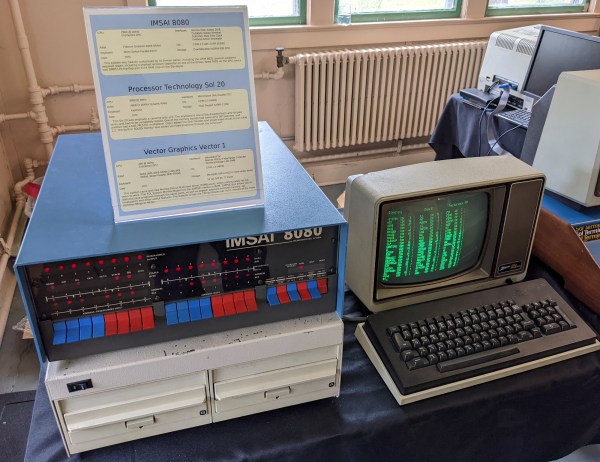
I recently dropped in on one of the Vintage Computer Festival events, and it made me think about why people — including myself — are fascinated with old computer technology. In my case, I lived through a lot of it, and many of the people milling around at VCF did too, so it could just be nostalgia. But there were also young people there.

Out of curiosity, I asked people about the appeal of the old computers on display there. Overwhelmingly, the answer was: you can understand the whole system readily. Imagine how long it would take you to learn all the hardware and software details of your current desktop computer CPU. Then add your GPU, the mass storage controllers, and your network interface. I don’t mean knowing the part numbers, specs, and other trivialities. I mean being able to program, repair, and even enhance it.

Continue reading “Ask Hackaday: Why Retrocomputing?”

Stuffing A 32-Pin Chip Into A 28-Pin Socket

What’s the difference between a 64k ROM in a 28-pin DIP and a 128k ROM in a 32-pin DIP? Aside from the obvious answers of “64k” and “four pins,” it turns out that these two chips have a lot in common, enough so that it only takes a little bodging to make them interchangeable — more or less.

For a variety of reasons revealed in the video below, [Anders Nielsen] use the SST39SF010, a Flash ROM in a 32-pin DIP, in place of the old standby W27C512, an EEPROM in a 28-pin DIP. To deal with those pesky extra pins on the Flash ROM, [Anders] dug into the data sheets and found that thanks to JEDEC standards, almost everything about the pinouts of the two chips is identical. The only real difference is the location of Vcc, plus the presence of a 16th address bus line on the more capacious Flash ROM.

Willing to sacrifice the upper half of the Flash chip’s capacity, [Anders] set about bodging the 32-pin chip to work in a 28-pin socket. The mods include a jumper from pin 32 to pin 30 on the Flash chip, which puts Vcc in the right place, and adding a couple of pull-up resistors for write-enable and A16. Easy enough changes, but unfortunately, [Anders] chose a Flash ROM with heavily oxidized pins, leading to some cold solder joints and intermittent problems while testing. There’s also the fact that not all boards have room for overhanging pins, a problem solved by adding a socket to create a little vertical clearance.

We found this to be a neat little hack, one that should make it a bit easier to use the wrong chip for the job. If you want to see where [Anders] is using these chips, check out his 6502 in an Arduino footprint or the bring-up of an old XT motherboard.

Continue reading “Stuffing A 32-Pin Chip Into A 28-Pin Socket”

Modern Demo For A Casio PB-700 Pocket Computer Plotter

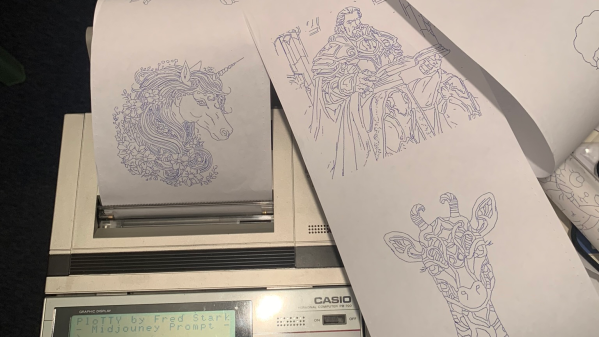
[Fred] has a Casio PB-700 pocket calculator / computer, complete with the companion docking station featuring a four-color pen plotter, model FA-10, and a microcassette tape recorder, model CM-1. He really wanted to see what this plotter could do, but there were no demos that he could find. So despite only having one working pen, [Fred] took matters into his own hands and proceeded to make his own.

What if I made a program where I type what I want to draw and the PB-700 just draws it?

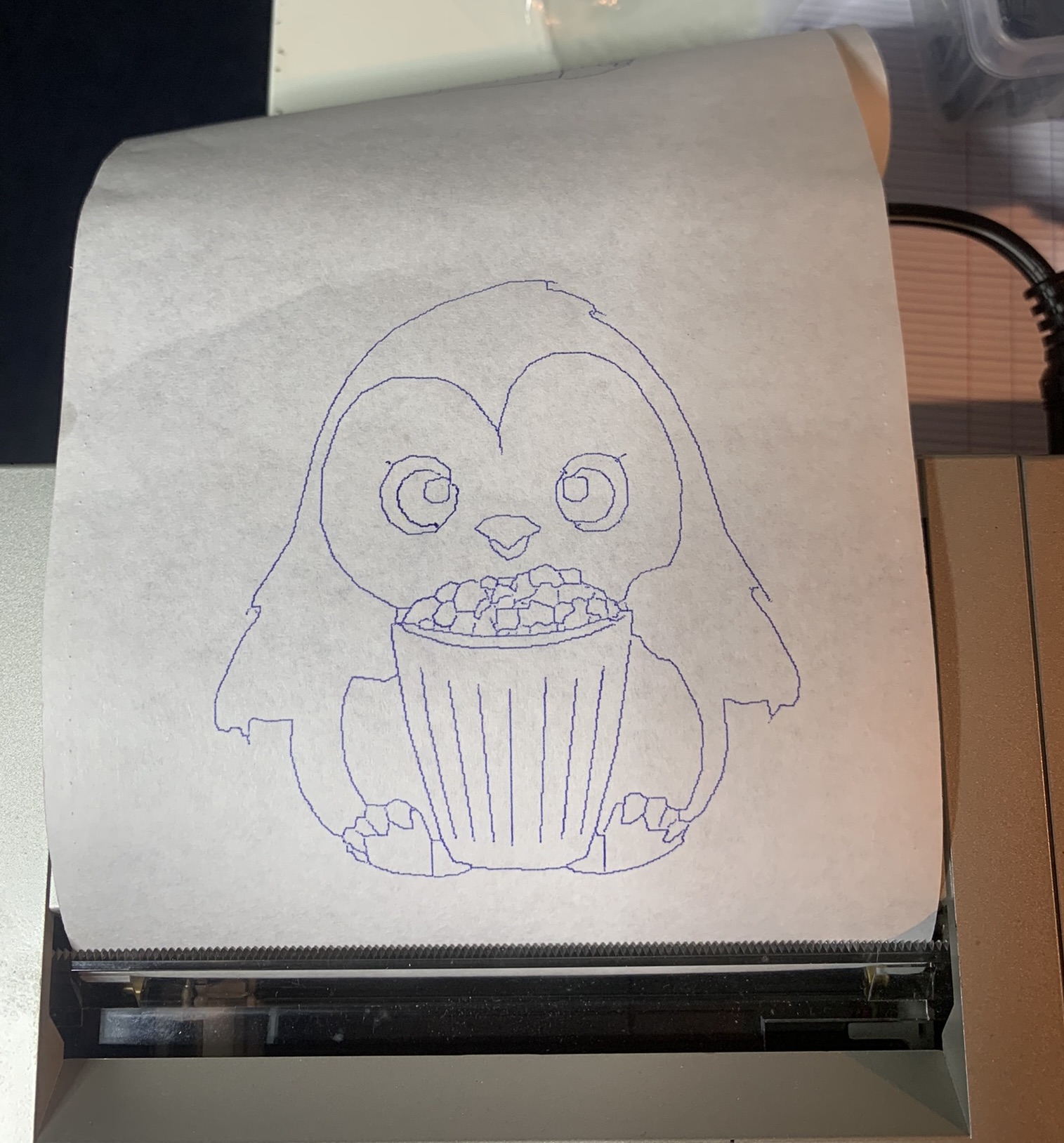
Penguin from Penguindrum eating Popcorn

[Fred] succeeds, shoehorning several sub-projects into a single convoluted work flow: request an image from the PB-700 and after a long pause the plot emerges. The cute microcassette recorder is too much of a hassle, so he emulates the audio interface on a PC using a utility called casutil that reads and writes .wav files in PB-700 format. Much of his effort is spent figuring out how to request an image from Midjourney without being banned, but eventually comes up with a workable but shaky solution. The last steps are to convert the image into a line drawing, and then wrap up all those X-Y coordinates into a Basic program and send it back down to the PB-700 for plotting.

You can read more details in the PloTTY GitHub repository. There were several of these pocket computers with plotters coming out of Japan in the 1980s. In addition to this Casio, the Radio Shack TRS-80 PC-1 and PC-2 come to mind, which were re-branded versions of the Sharp PC-1211 and PC-1500 models. We wrote about them last year. This author had a PC-2 in 1985 and used it to plot antenna patterns at his desk, bypassing the IT department’s red tape. Have you ever used any of these pocket plotters? If so, let us know in the comments below. Thanks to [Altomare] for send us the tip.

Myth Tested: DOS Can’t Multitask

It’s a piece of common knowledge, that MS-DOS wasn’t capable of multitasking. For that, the Microsoft-based PC user would have to wait for the 80386, and usable versions of Windows. But like so many such pieces of received Opinion, this one is full of holes. As [Lunduke] investigates, there were several ways to multitask DOS, and they didn’t all depend on third-party software.

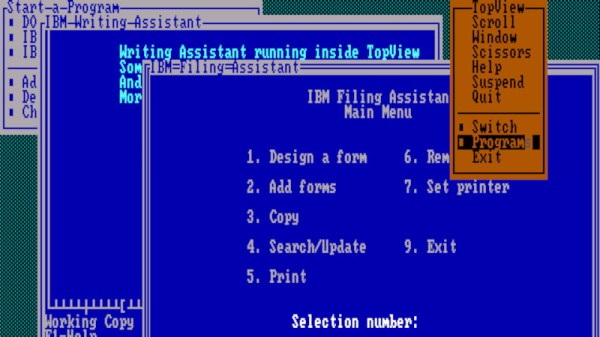
A quick look at DESQview and Concurrent DOS was expected from this article, but of more surprise is that IBM had a multitasking DOS called TopView, or even that Microsoft themselves released the fully multitasking MS-DOS 4.0. We remember DOS 4 as being less than sparkling, but reading the article it’s obvious that we’re thinking of the single-tasking version 4.01.

From 2023 it seems obvious that multitasking is a fundamental requirement of PC use, but surprisingly back in the 1980s a PC was much more a single-application device. On one hand it’s surprising given the number of multitasking DOS products on the market that none of them became mainstream, but perhaps the best evidence of the PC market simply not being ready for it comes in the fact that they didn’t.

If you fancy experimenting with DOS multitasking, at least machines on which to do it can still be found.

MS-DOS Meets The Fediverse

By now, most Windows users are set up with decently functional machines running Windows 10 or 11. Of course there are a few legacy machines still lagging behind on Windows 7 or 8 and plenty of computers in industrial settings running ancient proprietary software on Windows XP. But only the most hardcore of IBM PC users are still running DOS, and if you have eschewed things like Unix for this command-line operating system this long you might want to try using it to get online in the Fediverse with Mastodon.

The first step is getting DOS 6.22, the most recent version released in 1994, set up with all the drivers and software needed to access the Internet. At the time of its release there were many networking options so the operating system didn’t include these tools by default. [Stephen] first sets up an emulated NE2000-compatible networking card and then installs the entire TCP/IP stack and then gets his virtual machine set up with an IP address.

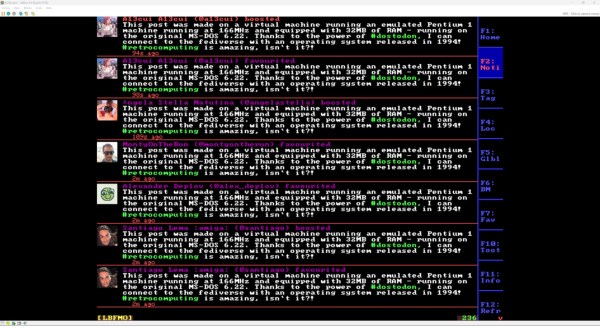
With a working Internet connection set up, the next step on the path of exploring federated social media is to install DOStodon (although we might have favored the name “MastoDOS”) which is a Mastodon client specifically built for MS-DOS by [SuperIlu]. There are pre-compiled packages available on its GitHub page for easy installation in DOS but the source code is available there as well. And, if this is your first time hearing about the Fediverse, it is mostly an alternative to centralized social media like Facebook and Reddit but the decentralization isn’t without its downsides.

Inside The PET Keyboard

These days, you have a certain expectation for computer keys on a keyboard. Of course, there are variations and proponents of different mechanisms and noise levels. However, back in the late part of the 20th century, it was a different world. Computers came with a bewildering and sometimes befuddling array of keyboards. Since the IBM Selectric was the king of typewriters, we assumed the IBM PC keyboard would be spectacular, but it wasn’t. The PC Jr was even worse! Atari experimented with flat keyboards to save costs, and many computers had keys more reminiscent of calculator keys than you would imagine. The market voted. In general, a keyboard that wasn’t really a keyboard was the kiss of death for a computer. Case in point: the Commodore PET with its infamous chicklet keyboard, which gets a detailed examination in a recent post from [Norbert Landsteiner].

The PET keyboard gets some bad rap due to software limitations. Because of this, some games would use their own scan routines, and [Norbert] has worked on emulation able to accommodate software that wants to read the hardware directly. The resulting insights into the old keyboard is very interesting. For example, you can press more than one key at once. The result? The answer to that question takes up about half the post.

Continue reading “Inside The PET Keyboard”