Media formats have come a long way since the early days of computing. Once upon a time, the very idea of even playing live audio was considered a lofty goal, with home computers instead making do with simple synthesizer chips instead. Eventually, though, real audio became possible, and in turn, video as well.
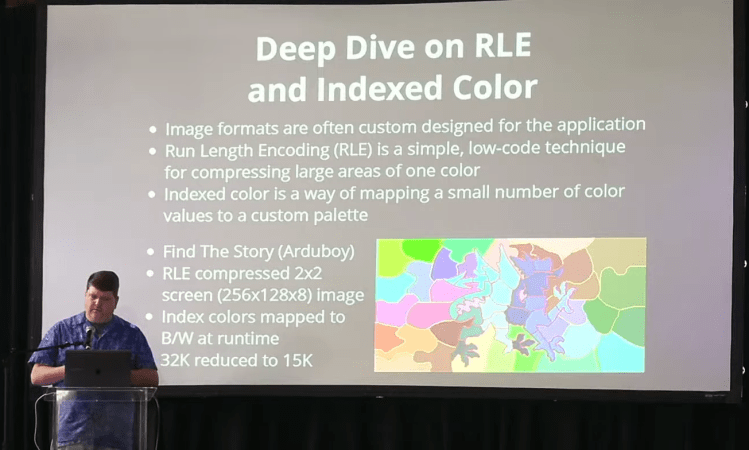
But what of the formats in which we store this media? Today, there are so many—from MP3s to MP4s, old-school AVIs to modern *.h264s. Senior software engineer Ben Combee came down to the 2023 Hackaday Supercon to give us all a run down of modern audio and video formats, and how they’re best employed these days.
The Hackaday comments section is generally a lively place. At its best, it’s an endless wellspring of the combined engineering wisdom of millions of readers which serves to advance the state of the art in hardware hacking for all. At its worst — well, let’s just say that at least it’s not the YouTube comments section.
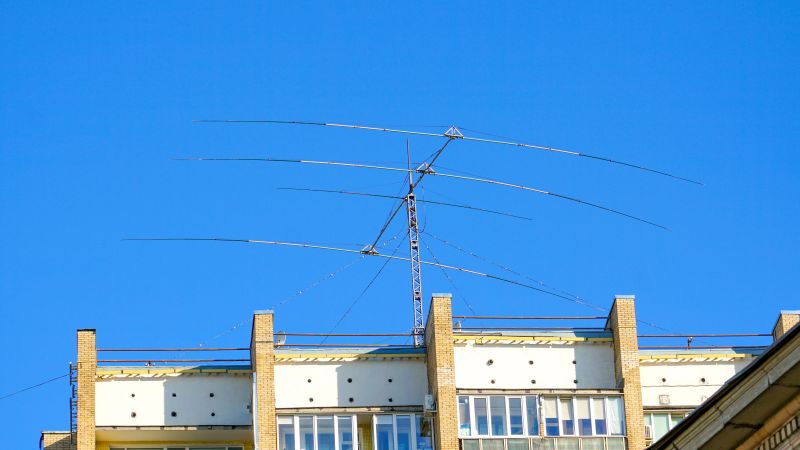
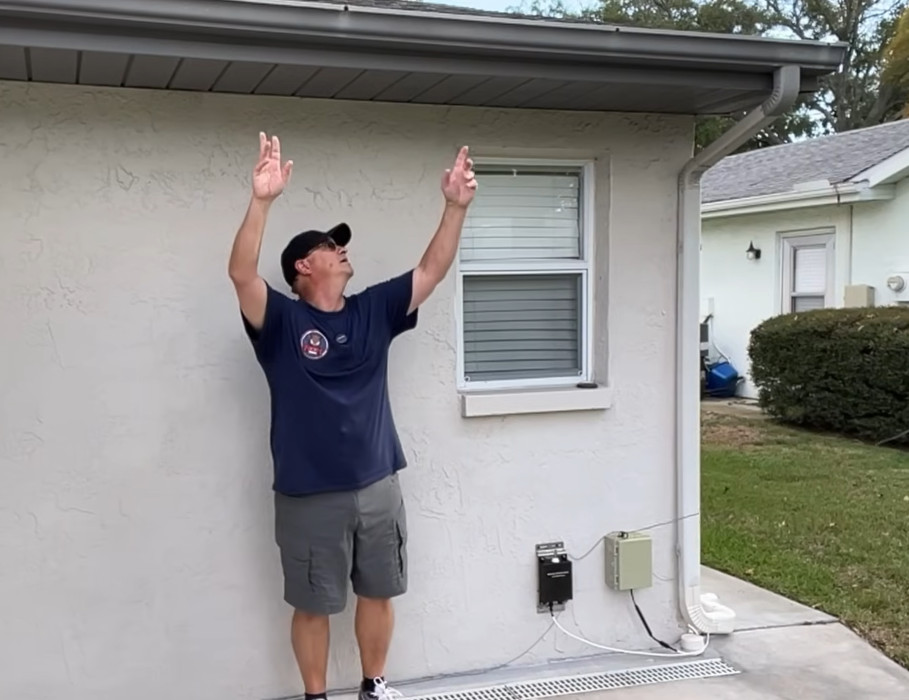
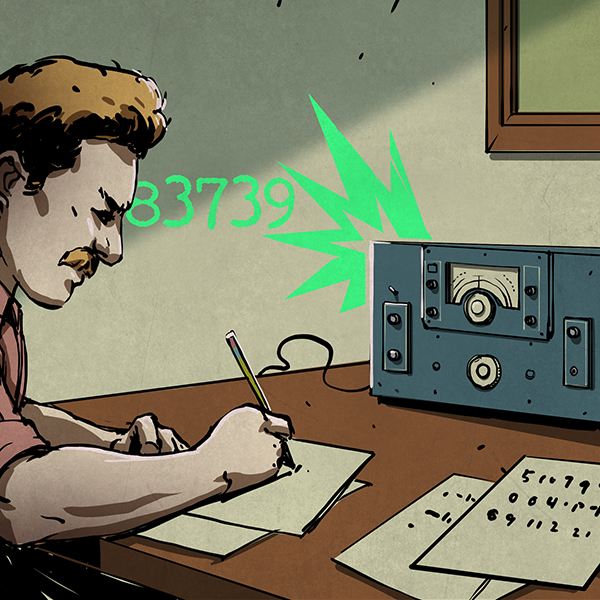
Unfortunately, there’s also a space between the best and the worst where things can be a bit confusing. A case in point is [Bryan Cockfield]’s recent article on a stealth antenna designed to skirt restrictions placed upon an amateur radio operator by the homeowners’ association (HOA) governing his neighborhood.
Hiding an antenna in plain sight.
Putting aside the general griping about the legal and moral hazards of living under an HOA, as well as the weirdly irrelevant side-quest into the relative combustibility of EVs and ICE cars, there appeared to be a persistent misapprehension about the reality of the US Federal Communications Commission’s “Over-the-Air Reception Devices” rules. Reader [Gamma Raymond] beseeched us to clarify the rules, lest misinformation lead any of our readers into the unforgiving clutches of the “golf cart people” who seem to run many HOAs.
According to the FCC’s own OTARD explainer, the rules of 47 CFR § 1.400 are intended only to prevent “governmental and nongovernmental restrictions on viewers’ ability to receive video programming signals” (emphasis added) from three distinct classes of service: direct satellite broadcasters, broadband radio service providers, and television broadcast services.
Specifically, OTARD prevents restrictions on the installation, maintenance, or use of antennas for these services within limits, such as dish antennas having to be less than a meter in diameter (except in Alaska, where dishes can be any size, because it’s Alaska) and restrictions on where antennas can be placed, for example common areas (such as condominium roofs) versus patios and balconies which are designated as for the exclusive use of a tenant or owner. But importantly, that’s it. There are no carve-outs, either explicit or implied, for any other kind of antennas — amateur radio, scanners, CB, WiFi, Meshtastic, whatever. If it’s not about getting TV into your house in some way, shape, or form, it’s not covered by OTARD.
It goes without saying that we are not lawyers, and this is not to be construed as legal advice. If you want to put a 40′ tower with a giant beam antenna on your condo balcony and take on your HOA by stretching the rules and claiming that slow-scan TV is a “video service,” you’re on your own. But a plain reading of OTARD makes it clear to us what is and is not allowed, and we’re sorry to say there’s no quarter for radio hobbyists in the rules. This just means you’re going to need to be clever about your antennas. Or, you know — move.
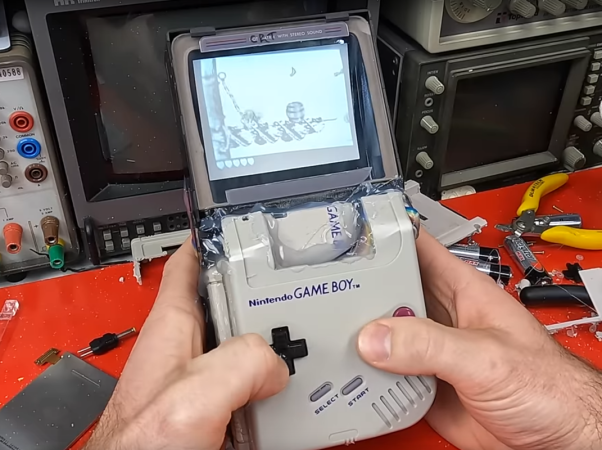
Before LCD and LED screens were ubiquitous, there was a time when the cathode ray tube (CRT) was essentially the only game in town. Even into the early 2000s, CRTs were everywhere and continuously getting upgrades, with the last consumer displays even having a semi-flat option. Their size and weight was still a major problem, though, but for a long time they were cutting edge. Wanting to go back to this time with their original Game Boy, [James Channel] went about replacing their Game Boy screen with a CRT.
The CRT itself is salvaged from an old video conferencing system and while it’s never been used before, it wasn’t recently made. To get the proper video inputs for this old display, the Game Boy needed to be converted to LCD first, as some of these modules have video output that can be fed to other displays. Providing the display with power was another challenge, requiring a separate boost converter to get 12V from the Game Boy’s 6V supply. After getting everything wired up a few adjustments needed to be made, and with that the CRT is up and running.
Unfortunately, there was a major speed bump in this process when [James Channel]’s method of automatically switching the display to the CRT let the magic smoke out of the Game Boy’s processor. But he was able to grab a replacement CPU from a Super Game Boy, hack together a case, and fix the problem with the automatic video switcher. Everything now is in working order for a near-perfect retro display upgrade. If you’d like to do this without harming any original hardware, we’ve seen a similar build based on the ESP32 instead.
While 3D printer hardware has come along way in the past decade and a half, the real development has been in the software. Open source slicers are constantly improving, and OctoPrint can turn even the most basic of printers into a network-connected powerhouse. But despite all these improvements, there’s still certain combinations of hardware that require a bit of manual work.
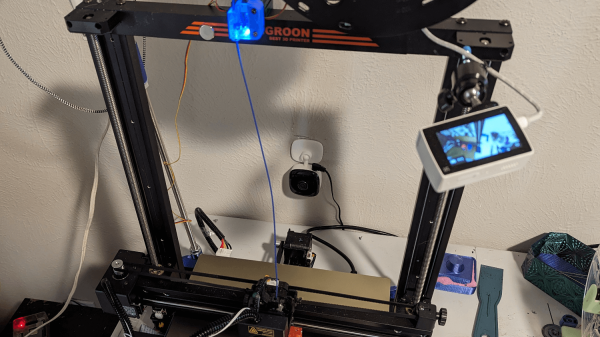
[Reticulated] wanted an easy way to monitor his prints over streaming video, but didn’t have any of the cameras that are supported by OctoPrint. Of course he could just point a cheap network-connected camera at the printer and be done with it, but he was looking for a bit better integration than that. In the process, he demonstrates how to unlock some features hidden in inexpensive webcams.
He set about building something that wouldn’t require buying more equipment or overloading the limited hardware responsible for the actual printing. A few of his existing cameras have RTMP support, which allows a fairly straightforward setup with YouTube Live once Monaserver is set up to handle the RTMP feeds from the cameras and OBS Studio is configured to stream it out to YouTube. Using the OctoPrint API, he was able to pull data such as the current extruder temperature and overlay it on the video.
One of the other interesting parts of this build is that not all of [Reticulated]’s cameras have built-in RTMP support but following this guide he was able to get more of them working with this setup than otherwise would have had this capability by default. Even beyond 3D printing, this is an excellent guide (and tip) for getting a quick live stream going for whatever reason. For anything more mobile than a working 3D printer, though, you might want to look at taking your streaming setup mobile instead.
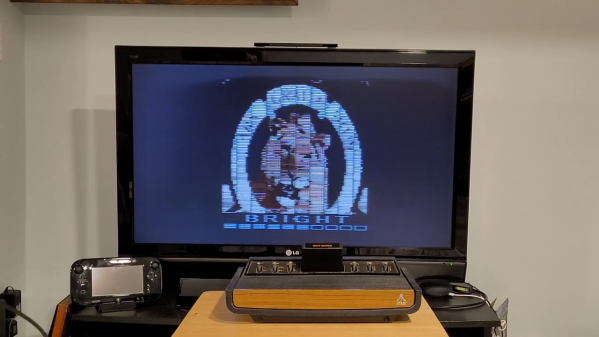
The original Xbox and PlayStation 2 both let you watch DVD movies in addition to playing games. Seldom few consoles before or since offered much in the way of media, least of all the Atari 2600, which was too weedy to even imagine such feats. And yet, as covered by TechEBlog, [Lodef Mode] built a cartridge that lets it play video.
It’s pretty poor quality video, but it is video! The MovieCart, as it is known, is able to play footage at 80×192 resolution, with a color palette limited by the capabilities of the Atari 2600 hardware. It’s not some sneaky video pass-through, either—the Atari really is processing the frames.
To play a video using the MovieCart, you first have to prepare it using a special utility that converts video into the right format for the cart. The generated video file is then loaded on a microSD card which is then inserted into the MovieCart. All you then have to do is put the MovieCart into the Atari’s cartridge slot and boot it up. Sound is present too, in a pleasingly lo-fi quality. Control of picture brightness and sound volume is via joystick. You could genuinely watch a movie this way if you really wanted to. I’d put on House of Gucci.
Thanks to the prodigious storage available on microSD cards, you can actually play a whole feature length movie on the hardware this way. You can order a MovieCart of your very own from Tindie, and it even comes with a public domain copy of Night of the Living Dead preloaded on a microSD card.
[Adam Conway] wanted to store files in the cloud. However, if you haven’t noticed, unlimited free storage is hard to find. We aren’t sure if he wants to use the tool he built seriously, but he decided that if he could encode data in a video format, he could store his files on YouTube. Does it work? It does, and you can find the code on GitHub.
Of course, the efficiency isn’t very good. A 7 K image, for example, yielded a 9-megabyte video. If we were going to store files on YouTube, we’d encrypt them, too, making it even worse.
The first attempt was to break the file into pieces and encode them as QR codes. Makes sense, but it didn’t work out. To get enough data into each frame, the modules (think pixels) in the QR code were small. Combined with video compression, the system was unreliable.
Simplicity rules. Each frame is 1920×1080 and uses a black pixel as a one and a white pixel as a zero. In theory, this gives about 259 kbytes per frame. However, to help avoid problems decoding due to video compression, the real bits use a 5×5 pixel block, so that means you get about 10 kbytes of data per frame.
The code isn’t perfect. It can add things to the end of a file, for example, but that would be easy to fix. The protocol could use error correction and compression. You might even build encryption into it or store more data — old school cassette-style — using the audio channel. Still, as a proof of concept, it is pretty neat.
This might sound like a new idea, but people way back in the early home computer days could back up data to VCRs. This isn’t even the first time we’ve seen it done with YouTube.
The first thing that strikes you upon watching this 1982 gem is just how physical a job it is to stand behind a studio camera. Part of the physicality came from the sheer size of the gear being used. Not only were cameras of that vintage still largely tube-based and therefore huge — the EMI-2001 shown has four plumbicon image tubes along with tube amplifiers and weighed in at over 100 kg — but the pedestal upon which it sat was a beast as well. All told, a camera rig like that could come in at over 300 kg, and dragging something like that around a studio floor all day under hot lights had to be hard. It was a full-body workout, too; one needed a lot of upper-body strength to move the camera up and down against the hydropneumatic pedestal cylinder, and every day was leg day when you had to overcome all that inertia and get the camera moving to your next mark.
Operating a beast like this was not just about the bull work, though. There was a lot of fine motor control needed too, especially with focus pulling. The video goes into a lot of detail on maintaining a smooth focus while zooming or dollying, and shows just how bad it can look when the operator is inexperienced or not paying attention. Luckily, our hero Allan is killing it, and the results will look familiar to anyone who’s ever seen any BBC from the era, from Dr. Who to I, Claudius. Shows like these all had a distinctive “Beeb-ish” look to them, due in large part to the training their camera operators received with productions like this.
There’s a lot on offer here aside from the mechanical skills of camera operation, of course. Framing and composing shots are emphasized, as are the tricks to making it all look smooth and professional. There are a lot of technical details buried in the video too, particularly about the pedestal and how it works. There are also two follow-up training videos, one that focuses on the camera skills needed to shoot an interview program, and one that adds in the complications that arise when the on-air talent is actually moving. Watch all three and you’ll be well on your way to running a camera for the BBC — at least in 1982.