Is Your Wireless Charger Working?

It’s that time of year at which the Christmas lights are coming out of storage, isn’t it. Some modern seasonal rituals: untangling half a mile of fairy lights, and replacing a pile of CR2032 cells in LED candles.

[RobBest] had a solution to the latter, owning a set of nifty rechargeable LED candles that came with their own wireless charger. Sadly the charger wasn’t working quite as intended, as the indicator light to show when it had finished its cycle was always on. How could he indicate that the induction system was in operation?

His answer was to take a non-functioning candle and strip it down to expose its induction pick-up coil. He could have simply hooked it up to an LED for a quick result, but since the device in question was a candle it made sense to give it a candle effect. A PIC microcontroller was therefore pressed into service to drive the LED with its PWM output, giving a pleasing flickering effect.

You don’t have to own a set of electronic candles to have a go at wireless charging. Instead you could try a trip to IKEA.

Stepper Driver Module With Swappable Heatsinks

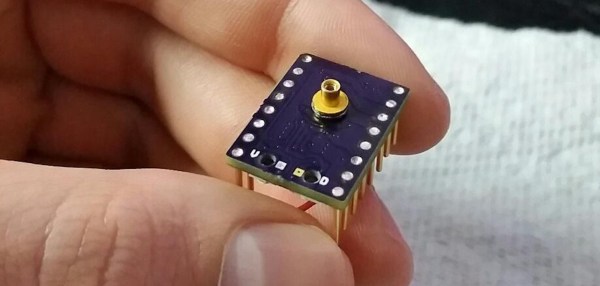
At first glance, [Dean Gouramanis]’s stepper driver module for 3D printers looks like just another RAMPS-compatible stepper board. Except, what could that gold-plated copper peg sticking out of the PCB possibly be? That would be [Dean]’s PowerPeg Thermal Management System that he built and entered in the Hackaday Prize competition for 2015, where it rocked its way into the Finals. It’s a thermal connector peg that attaches to a variety of heatsinks so you can swap in whatever sink fits the bill.

In the case of this project, [Dean] created a custom PCB that accommodates the PowerPeg connector, onto which the heat sink screws. Needless to say, he machined his own heatsinks to go with the pegs, though it looks like you could use any sink with enough surface contact that can be secured by the same #0-80 screw.

You shouldn’t be surprised that hackers obsess over heatsinks. This heatsink tester project we published helps determine which sink  to use. Another post gives all the ins and outs of ordering a custom heatsink.

Racing Simulator Built From Scrapheap Finds

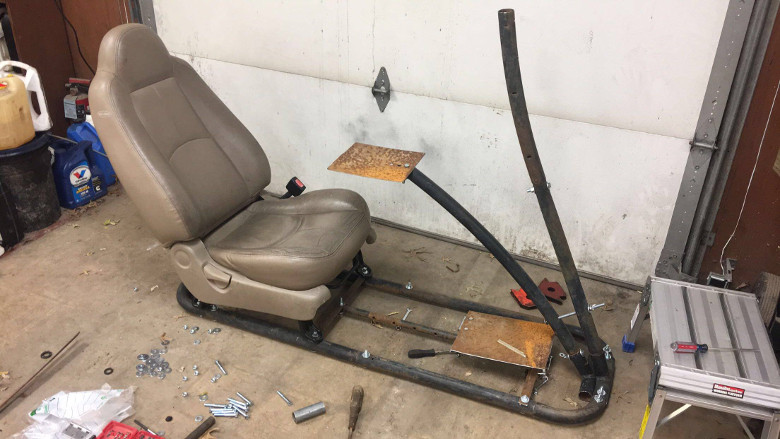
Paradise means something different for everyone, it could be a sitting by a fire on a rainy night or lying on a sun-kissed beach. But for us, and makers like [liltreat4you], it’s a well stocked scrap pile out behind the house. After buying a racing wheel and pedals for his Xbox, he took a trip out to his little slice of paradise and found nearly all the hardware he needed to build a professional looking race simulator. According to his breakdown, most of the money he spent on this build ended up going into that sweet red paint job and the speed-enhancing stickers.

Everything the light touches is our kingdom.

Not all of us are as lucky as [liltreat4you], and we probably won’t just happen upon a driver’s seat out of a Mazda, or a bunch of perfectly bent metal pipes from an old trampoline out on the back forty. But trolling Craigslist or cruising around for flea markets can still get you parts like these for cheap, so try not to be too discouraged if your backyard isn’t quite as well stocked.

Once he had the metal pipes and seat from the car, the rest of the build came together pretty quickly. After building an oval out of his salvaged pipes, he attached the seat and the arms that would eventually hold the steering wheel and display. A plate was also added at the bottom for the pedals to sit on. By using long bolts, [liltreat4you] was even able to add a degree of adjustment to the wheel position. Being that he got his seat out of a real car, there’s the usual adjustment you’d expect there as well.

Speaking of which, [liltreat4you] casually mentions that you should disconnect the battery of the donor vehicle before taking out the seat, as it’s possible that the removal of the seat or the disconnection of the seat harness can cause the airbags to deploy. We can neither confirm nor deny this, but it’s probably safe advice to follow.

The purists out there may claim that what [liltreat4you] has put together doesn’t quite meet the definition of simulator in its current form. But with the addition of some instrumentation and just a bit of physical feedback, he’ll be well on his way to the complete driving experience.

Precision Voltage Reference Source

[barbouri] found a few old (vintage?) parts from the early ’80’s while rummaging through his parts bin, and quickly spun out a small PCB to build a 10.000 V reference using these old ICs. Throwing together a small number of parts, he was able to build a source which might be good enough to use as a reference for another circuit or provide a quick calibration check for some of his bench instruments that have a resolution of 1 mV or maybe even 100 μV.

The AD584* pin programmable precision voltage references have been available since the ’80’s and offer four programmable output voltages of 10.000 V, 7.500 V, 5.000 V, and 2.500 V. The chip is laser-trimmed to ensure high accuracy and low temperature coefficient and requires just a few external components to function. It is available in TO-99 hermetically sealed metal can and 8-pin DIP variants. The “S” version of the device that [barbouri] used provides a temperature coefficient of 30 ppm/°C max over a -55 °C to +125 °C temperature range but other versions of the chip offer a better stability. Analog Devices seem to have discontinued the “L” version (pdf), since it is no longer listed in the current data sheet, but you can still get them from a few sources. The “L” version has a temperature coefficient of just 5 ppm/°C.

Using quality parts such as high stability resistors and TO-99 PTFE socket with gold-plated contacts, his observations confirm that the unit is stable within 30 μV, with a very slow voltage increase of a few microvolts every 6 hours. A 15 V linear regulator powers the device with input power coming from an external wall wart. A small aluminum enclosure houses the device, with two gold-plated 4 mm sockets for the output. If you would like to build your own, his board design is hosted on OSH park, or you can download the Eagle CAD design files. He’s posted all links on his blog post, and provides part numbers for all of the parts used. [barbouri] has been doing a good job of building handy devices for his work bench – check out his well-built milli Ohm Meter that we had featured earlier.

Trinket Chills Your Drinks

Who wants warm drinks? Well, coffee drinkers, we guess. Other than them, who wants warm drinks? Tea drinkers, sure. How about room temperature drinks? No one, that’s who. It’s silly to buy a refrigerator to cool down a single drink, so what option are you left with? Ice cubes? They’ll dilute your drink. Ice packs and a cooler? Sure, they’ll keep your drinks cold, but they’re hardly cool are they? No, if you want a cold drink the cool way, you build a thermoelectric cooler. And if you want to build one, you’re in luck, because [John Park] has a tutorial to do just that up on AdaFruit.

The parts list includes an AdaFruit Trinket M0, a more powerful version of AdaFruit’s Trinket line. The Trinket is used to control the main part in this build, a Peltier thermoelectric cooler, as well as the temperature display and switches. The other part controlled by the microcontroller is a peristaltic pump, which is used to do the dispensing of the liquid. The code to control everything is written in Python as the Trinket M0 comes with AdaFruit’s CircuitPython by default. Also included in the tutorial are the files for the stand, should you want to 3D print it or cut it with a CNC or laser cutter.

After the break, you can watch as [John] goes over the project and builds it, or go to the AdaFruit website and follow the instructions to build your own. As [John] says, there might be better ways to chill your drinks, but this is “definitely one of the more science-y and interesting ones.” For more projects using the Peltier Effect, try this one that uses the effect in sous-vide cooking, or this one, a Peltier cooled micro-fridge!

Continue reading “Trinket Chills Your Drinks”

ESP8266 Home Monitor Is Stylishly Simplistic

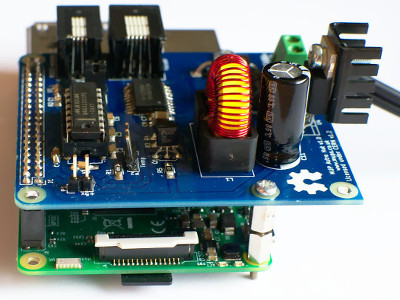
It’s often said that “Less is More”, and we think that the chic ESP8266 environmental monitor posted by Thingiverse user [bkpsu] definitely fits the bill. Dubbed “Kube”, the device is a 3D printed white cube with an OLED display in the center, which [bkpsu] says was designed specifically for the approval of his wife. Weirdly, she didn’t like the look of bare PCBs on the wall.

Multiple Kubes allow for whole-house monitoring.

Inside, things are a little more complex. The Kube uses the NodeMCU development board, and a custom breakout that [bkpsu] designed to interface with the display and sensors. For temperature and humidity monitoring, the Kube is using the ever-popular DHT22, and [bkpsu] mentions that he has future plans for things like motion sensors and direct control of RGB LED strips. All the data collected by the Kube is piped into openHAB via MQTT.

On the very detailed Thingiverse page, [bkpsu] gives background information on his design goals for the project, tips for printing out a high-quality case, a parts list with Amazon links, and pinout information for getting it all wired up. The PCB is even available on OSH Park for those who want a Kube of their own.

Even with all the stick home monitoring and automation products on the market today, many hackers simply can’t bring themselves to buying a turn-key commercial product. But we think with the results hackers have been getting rolling their own solutions, they just might be on to something.

Tips For Basic Machining On A Drill Press

It’s safe to say most Hackaday readers would love to have a mill at home, or a nice lathe, but such equipment isn’t always practical for the hobbyist. The expense and amount of room they take up is a hard sell unless you’re building things on them regularly, so we’re often forced to improvise. In his latest video, [Eric Strebel] gives some practical advice on using a standard drill press to perform tasks you would normally need a mill or lathe for; and while his tips probably won’t come as a surprise to the old-hands out there, they might just help some of the newer players get the most out of what they have access to.

[Eric] explains the concept of the cross slide vice, which is the piece of equipment that makes machining on a drill press possible. Essentially it’s a standard vice, but with screws that allow you to move the clamped piece in the X and Y dimensions under the drill which can already move in the Z dimension. For those counting along at home, that puts us up to the full three dimensions; in other words, you can not only make cuts of varying depths, but move the cut along the surface of the work piece in any direction.

You can even turn down a (small) piece of round stock by placing it in the chuck of the drill press, and putting a good chisel in the cross slide vice. The chisel can then be moved up against the spinning piece to make your cuts. We don’t suggest doing anything too heavy, but if you need to turn down something soft like a piece of plastic or wood to a certain diameter, it can do in a pinch.

[Eric Strebel] is quickly becoming a favorite around these parts. His well-produced videos show viewers the practical side of product design and in-house manufacturing. We recently covered his video on doing small-scale production, and there’s plenty more invaluable info to be had browsing back through his older videos.

The quest to do machining without actually having a machine shop is certainly not new to Hackaday. There have been many different approaches to solving the issue, but picking up a decent drill press and cross slide is a first step down the rabbit hole for most people.

Continue reading “Tips For Basic Machining On A Drill Press”