Jenny’s Daily Drivers: Haiku R1/beta5

Back in the mid 1990s, the release of Microsoft’s Windows 95 operating system cemented the Redmond software company’s dominance over most of the desktop operating system space. Apple were still in their period in the doldrums waiting for Steve Jobs to return with his NeXT, while other would-be challengers such as IBM’s OS/2 or Commodore’s Amiga were sinking into obscurity.

Into this unpromising marketplace came Be inc, with their BeBox computer and its very nice BeOS operating system. To try it out as we did at a trade show some time in the late ’90s was to step into a very polished multitasking multimedia OS, but sadly one which failed to gather sufficient traction to survive. The story ended in the early 2000s as Be were swallowed by Palm, and a dedicated band of BeOS enthusiasts set about implementing a free successor OS. This has become Haiku, and while it’s not BeOS it retains API compatibility with and certainly feels a lot like its inspiration. It’s been on my list for a Daily Drivers article for a while now, so it’s time to download the ISO and give it a go. I’m using the AMD64 version.

A Joy To Use, After A Few Snags

Hackaday, in WebPositive, on Haiku
If you ignore the odd font substitution in WebPositive, it’s a competent browser.

This isn’t the first time I’ve given Haiku a go in an attempt to write about it for this series, and I have found it consistently isn’t happy with my array of crusty old test laptops. So this time I pulled out something newer, my spare Lenovo Thinkpad X280. I was pleased to see that the Haiku installation USB volume booted and ran fine on this machine, and I was soon at the end of the install and ready to start my Haiku journey.

Here I hit my first snag, because sadly the OS hadn’t quite managed to set up its UEFI booting correctly. I thus found myself unexpectedly in a GRUB prompt, as the open source bootloader was left in place from a previous Linux install. Fixing this wasn’t too onerous as I was able to copy the relevant Haiku file to my UEFI partition, but it was a little unexpected. On with the show then, and in to Haiku.

In use, this operating system is a joy. Its desktop look and feel is polished, in a late-90s sense. There was nothing jarring or unintuitive, and though I had never used Haiku before I was never left searching for what I needed. It feels stable too, I was expecting the occasional crash or freeze, but none came. When I had to use the terminal to move the UEFI file it felt familiar to me as a Linux user, and all my settings were easy to get right.

Never Mind My Network Card

The Haiku network setup dialog
If only the network setup on my Thinkpad was as nice as the one in the VM.

I hit a problem when it came to network setup though, I found its wireless networking to be intermittent. I could connect to my network, but while DHCP would give it an IP address it failed to pick up the gateway and thus wasn’t a useful external connection. I could fix this by going to a fixed IP address and entering the gateway and DNS myself, and that gave me a connection, but not a reliable one. I would have it for a minute or two, and then it would be gone. Enough time for a quick software update and to load Hackaday on its WebPositive web browser, but not enough time to do any work. We’re tantalisingly close to a useful OS here, and I don’t want this review to end on that note.

The point of this series has been to try each OS in as real a situation as possible, to do my everyday Hackaday work of writing articles and manipulating graphics. I have used real hardware to achieve this, a motley array of older PCs and laptops. As I’ve described in previous paragraphs I’ve reached the limits of what I can do on real hardware due to the network issue, but I still want to give this one a fair evaluation. I have thus here for the first time used a test subject in a VM rather than on real hardware. What follows then is courtesy of Gnome Boxes on my everyday Linux powerhouse, so please excuse the obvious VM screenshots.

This One Is A True Daily Driver

The HaikuDepot software library.
There’s plenty of well-ported software, but nothing too esoteric.

With a Haiku install having a working network connection, it becomes an easy task to install software updates, and install new software. The library has fairly up-to-date versions of many popular packages, so I was easily able to install GIMP and LibreOffice. WebPositive is WebKit-based and up-to-date enough that the normally-picky Hackaday back-end doesn’t complain at me, so it more than fulfils my Daily Drivers  requirement for an everyday OS I can do my work on. In fact, the ’90s look-and-feel and the Wi-Fi issues notwithstanding, this OS feels stable and solid in a way that many of the other minority OSes I’ve tried do not. I could use this day-to-day, and the Haiku Thinkpad could accompany me on the road.

There is a snag though, and it’s not the fault of the Haiku folks but probably a function of the size of their community; this is a really great OS, but sadly there are software packages it simply doesn’t have available for it. They’ve concentrated on multimedia, the web, games, and productivity in their choice of software to port, and some of the more esoteric or engineering-specific stuff I use is unsurprisingly not there. I can not fault them for this given the obvious work that’s gone into this OS, but it’s something to consider if your needs are complex.

Haiku then, it’s a very nice desktop operating system that’s polished, stable, and a joy to use. Excuse it a few setup issues and take care to ensure your Wi-Fi card is on its nice list, and you can use it day-to-day. It will always have something of the late ’90s about it, but think of that as not a curse but the operating system some of us wished we could have back in the real late ’90s. I’ll be finding a machine to hang onto a Haiku install, this one bears further experimentation.

Moving From Windows To FreeBSD As The Linux Chaos Alternative

Back in the innocent days of Windows 98 SE, I nearly switched to Linux on account of how satisfied I was with my Windows experience. This started with the Year of the Linux Desktop in 1999 that started with me purchasing a boxed copy of SuSE Linux and ended with me switching to Windows 2000. After this I continued tinkering with non-Windows OSes including QNX, BeOS, various BSDs, as well as Linux distributions that promised a ‘Windows-like’ desktop experience, such as Lindows.

Now that Windows 2000’s proud legacy has seen itself reduced to a rusting wreck resting on cinderblocks on Microsoft’s dying front lawn, the quiet discomfort that many Windows users have felt since Windows 7 was forcefully End-Of-Life-d has only increased. With it comes the uncomfortable notion that Windows as a viable desktop OS may be nearing its demise. Yet where to from here?

Although the recommendations from the peanut gallery seem to coalesce around Linux or Apple’s MacOS (formerly OS X), there are a few dissenting voices extolling the virtues of FreeBSD over both. There are definitely compelling reasons to pick FreeBSD over Linux, in addition to it being effectively MacOS’s cousin. Best of all is not having to deal with the Chaos Vortex that spawns whenever you dare to utter the question of ‘which Linux distro?’. Within the world of FreeBSD there is just FreeBSD, which makes for a remarkably coherent experience.

Continue reading “Moving From Windows To FreeBSD As The Linux Chaos Alternative”

Jenny’s Daily Drivers: ReactOS 0.4.15

When picking operating systems for a closer look here in the Daily Drivers series, the aim has not been to merely pick the next well-known Linux distro off the pile, but to try out the interesting, esoteric or minority OS. The need remains to use it as a daily driver though, so each one we try has to have at least some chance of being a useful everyday environment in which a Hackaday piece could be written. With some of them such as the then-current BSD or Slackware versions we tried for interest’s sake a while back that’s not a surprising achievement, but for the minority operating systems it’s quite a thing. Today’s choice, ReactOS 0.4.15, is among the closest we’ve come so far to that ideal.

For The N’th Time In The Last 20 Years, I download A ReactOS ISO

A Windows-style ReactOS desktop with a web browser showing Hackaday
It’s fair to say there are still a few quirks, but it works.

ReactOS is an open-source clone of a Windows operating system from the early 2000s, having a lot on common with Windows XP. It started in the late 1990s and has slowly progressed ever since, making periodic releases that, bit-by-bit, have grown into a usable whole. I last looked at it for Hackaday with version 0.4.13 in 2020, so have five years made any difference? Time to download that ISO and give it a go.

Installing ReactOS has that bright blue and yellow screen feeling of a Windows install from around the millennium, but I found it to be surprisingly quick and pain free despite a few messages about unidentified hardware. The display driver it chose was a VESA one but since it supported all my monitor’s resolutions and colour depths that’s not the hardship it might once have been. Continue reading “Jenny’s Daily Drivers: ReactOS 0.4.15”

Building A DIY Ryzen-Based PC!

This project gives a whole new meaning to DIY PC. We don’t know how capable you were as a teenager, but could you have designed your own Ryzen-based mini PC?

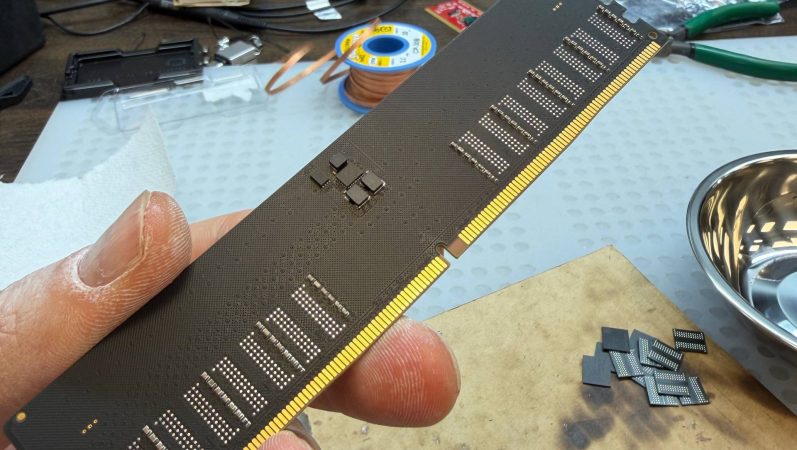
Whilst making repairs to laptop internals, [Dominik Baroński] was busy taking notes. Modern super-integrated laptop PCs have reached the point where all the functions of a complete PC are embedded in a single chip. But it’s a big, complicated chip with very specific feeding and care needs. Once you’ve figured out what it needs, it ‘merely’ remains to supply it power, hook up some DDR4 RAM, PCIe storage, and some USB ports, and you’re away. It sounds easy when you say it like that, but do not underestimate how difficult it is to create such a board—or even to populate it by hand—yet that’s precisely what [Dominik] has achieved.

Continue reading “Building A DIY Ryzen-Based PC!”

Tommy Flowers: How An Engineer Won The War

Back in 2016, we took you to a collection of slightly dilapidated prefabricated huts in the English Home Counties, and showed you a computer. The place was the National Museum of Computing, next to the famous Bletchley Park codebreaking museum, and the machine was their reconstruction of Colossus, the world’s first fully electronic digital computer. Its designer was a telephone engineer named Tommy Flowers, and the Guardian has a piece detailing his efforts in its creation.

The front of the museum's Colossus MkII.
TNMOC’s Colossus MkII.

It’s a piece written for a non-technical audience so you’ll have to forgive it glossing over some of the more interesting details, but nevertheless it sets out to right a long-held myth that the machine was instead the work of the mathematician Alan Turing. Flowers led the research department at the British Post Office, who ran the country’s telephone system, and was instrumental both in proposing the use of electronic switches in computing, and in producing a working machine. The connection is obvious when you see Colossus, as its racks are the same as those used in British telephone exchanges of the era.

All in all, the article makes for an interesting read for anyone with an interest in technology. You can take a look at Colossus as we saw it in 2016 here, and if your interest extends to the only glimpse the British public had of the technology behind it in the 1950s, we’ve also taken a look at another Tommy Flowers creation, ERNIE, the UK Premium Bond computer.

A screen shot of Wireshark in action.

Hacking A Banned Chinese Security Camera

Over on YouTube [Matt Brown] hacks a Chinese security camera recently banned by the US government. If you didn’t hear about this you can find out more over here: Major US online retailers remove listings for millions of prohibited Chinese electronics.

After powering the camera with a power-over-Ethernet (PoE) adapter [Matt] sets about monitoring network activity with Wireshark. The first data comes from DNS for the host devaccess.easy4ipcloud.com, which whois reports is operated by Alibaba Cloud LLC in California. This is a Chinese owned company with servers in the United States.

[Matt] covers some basics of TLS and how it works. He then goes on to explain how a Man in the Middle (MITM) attack works at a high level. To setup a MITM attack against the camera [Matt] sets up some port redirections using iptables for ports 443, 15301, 8683, 9898, and 12337 which his Wireshark analysis indicates were being used. His MITM attack works, which means the device is not properly verifying its certificate signing chain.

[Matt] goes on to reverse engineer the custom UDP protocol used for transmitting video data. He uses a vibe-coded Python program along with ffmpeg for that and manages to reconstruct a few frames of video taken from the UDP packet capture.

We think it would be safe to say that [Matt] did indeed find a few security problems with the camera as-is, but we don’t think that’s the point of the ban. The real problem is that there is auto-update facilities for the device firmware which means that in future malicious software could be uploaded by the manufacturer in the form of a firmware update. So even if this device was secure against MITM attacks and didn’t send unencrypted video data over UDP you would still have the problem of the firmware update if there is no trust.

Continue reading “Hacking A Banned Chinese Security Camera”

Some assembly code

Programming Space Game For X86 In Assembly Without An Operating System

In this video our hacker [Inkbox] shows us how to create a computer game that runs directly on computer hardware, without an operating system!

[Inkbox] briefly explains what BIOS is, then covers how UEFI replaces it. He talks about the genesis of UEFI from Intel in the late 90s. After Intel’s implementation of UEFI was made open source it got picked up by the TianoCore community who make tools such as the TianoCore EDK II.

[Inkbox] explains that the UEFI implementation provides boot services and runtime services. Boot services include things such as loading memory management facilities or running other UEFI applications, and runtime services include things like system clock access and system reset. In addition to these services there are many more UEFI protocols that are available.

Continue reading “Programming Space Game For X86 In Assembly Without An Operating System”