Hands On WIth The Raspberry Pi Compute Module Zero

We are all familiar enough by now with the succession of boards that have come from Raspberry Pi in Cambridge over the years, and when a new one comes out we’ve got a pretty good idea what to expect. The “classic” Pi model B+ form factor has been copied widely by other manufacturers as has their current Compute Module. If you buy the real Raspberry Pi you know you’ll get a solid board with exceptionally good software support.

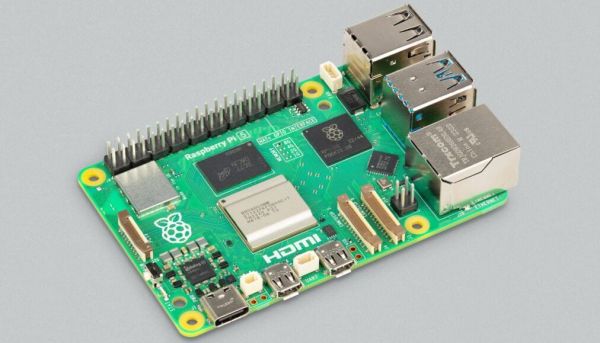
Every now and then though, they surprise us, with a board that follows a completely different path, which brings us to the one on our bench today. The Compute Module Zero packs the same quad-core RP3 system-on-chip (SoC) and Wi-Fi module as the Pi Zero 2 W with 512 MB of SDRAM onto a tiny 39 mm by 33 mm postage-stamp module. It’s a Pi, but not as you know it, so what is it useful for? Continue reading “Hands On WIth The Raspberry Pi Compute Module Zero”

Quote Printer Keeps Receipts

In the world of social media, “keeping receipts” refers to the practice of storing evidence that may come in handy for a callout post at a later date. For [Teddy Warner], though, it’s more applicable to a little printer he whipped up to record the very best banter from his cadre of friends.

[Teddy’s] idea was simple. He hoped to capture amusing or interesting quotes his friends made in his apartment, and store them in a more permanent form. He also wanted to allow his friends to do the same. To that end, he whipped up a small locally-hosted web interface which his friends could use to record quotes, along with proper attribution. Hosted on a Raspberry Pi 5, the web interface can then truck those quotes out to an 80 mm thermal receipt printer. The anecdote, epithet, or witticism is then spat out with a timestamp in a format roughly approximating a receipt you might get from your local gas station. What’s neat is that [Teddy] was also able to install the entire system within the housing of the Miemieyo receipt printer, by 3D printing a custom base that could house the Pi and a suitable power supply.

Beyond being fun, this system also serves a critical purpose. It creates a paper trail, such that in-jokes, rumors, and insults alike can be traced back to their originating source. No more can Crazy Terry claim to have invented “the Malaga bit,” because the server and the receipt clearly log that Gerald dropped it first at the Boxing Day do.

We’ve seen similar projects before, too. There’s just something neat about holding a bit of paper in your hand.

Continue reading “Quote Printer Keeps Receipts”

Low-Cost, Portable Streaming Server

Thanks to the Raspberry Pi, we have easy access to extremely inexpensive machines running Linux that have all kinds of GPIO as well as various networking protocols. And as the platform has improved over the years, we’ve seen more demanding applications on them as well as applications that use an incredibly small amount of power. This project combines all of these improvements and implements a media streaming server on a Raspberry Pi that uses a tiny amount of energy, something that wouldn’t have been possible on the first generations of Pi.

Part of the reason this server uses such low power, coming in just around two watts, is that it’s based on the Pi Zero 2W. It’s running a piece of software called Mini-Pi Media Server which turns the Pi into a DLNA server capable of streaming media over the network, in this case WiFi. Samba is used to share files and Cockpit is onboard for easy web administration. In testing, the server was capable of streaming video to four different wireless devices simultaneously, all while plugged in to a small USB power supply.

For anyone who wants to try this out, the files for it as well as instructions are also available on a GitHub page. We could think of a number of ways that this would be useful over a more traditional streaming setup, specifically in situations where power demand must remain low such as on a long car trip or while off grid. We also don’t imagine the Pi will be doing much transcoding or streaming of 4K videos with its power and processing limitations, but it would be unreasonable to expect it to do so. For that you’d need something more powerful.

Continue reading “Low-Cost, Portable Streaming Server”

Raspberry Pi Gets Desktop Form Factor

Before the Raspberry Pi came out, one cheap and easy way to get GPIO on a computer with a real operating system was to manipulate the pins on an old parallel port, then most commonly used for printers. Luckily, as that port became obsolete we got the Raspberry Pi, which has the GPIO and a number of other advantages over huge desktop computers from the 90s and 00s as well. But if you really miss that form factor or as yearn for the days of the old parallel port, this build which puts a Raspberry Pi into a mini ITX desktop case is just the thing for you.

There are a few features that make this build more than just a curiosity. The most obvious is that the Pi actually has support for PCIe and includes a single PCIe x1 slot which could be used for anything from a powerful networking card to an NVMe to a GPU for parallel computing in largely the same way that any desktop computer might them. The Pi Compute Module 5 that this motherboard is designed for doesn’t provide power to the PCIe slots automatically though, but the power supply that can be installed in the case should provide power not only to the CM5 but to any peripherals or expansion cards, PCIe or otherwise, that you could think of to put in this machine.

Of course all the GPIO is also made easily accessible, and there are also pins for installing various hats on the motherboard easily as well. And with everything installed in a desktop form factor it also helps to improve the cable management and alleviate the rats-nest-of-wires problems that often come with Pi-based projects. There’s also some more information on the project’s Hackaday.io page. And, if you’re surprised that Raspberry Pis can use normal graphics cards now, make sure to take a look at this build from a few years ago that uses completely standard gaming GPUs on the Pi 5.

A photo of the SigCoreUC

SigCore UC: An Open-Source Universal I/O Controller For The Raspberry Pi

Recently, [Edward Schmitz] wrote in to let us know about his Hackaday.io project: SigCore UC: An Open-Source Universal I/O Controller With Relays, Analog I/O, and Modbus for the Raspberry Pi.

In the video embedded below, [Edward] runs us through some of the features which he explains are a complete industrial control and data collection system. Features include Ethernet, WiFi, and Modbus TCP connectivity, regulated 5 V bus, eight relays, eight digital inputs, four analog inputs, and four analog outputs. All packaged in rugged housing and ready for installation/deployment.

[Edward] says he wanted something which went beyond development boards and expansion modules that provided a complete and ready-to-deploy solution. If you’re interested in the hardware, firmware, or software, everything is available on the project’s GitHub page. Beyond the Hackaday.io article, the GitHub repo, the YouTube explainer video, there is even an entire website devoted to the project: sigcoreuc.com. Our hats off to [Edward], he really put a lot of polish on this project.

If you’re interested in using the Raspberry Pi for input/output you might also like to read about Raspberry Pi Pico Makes For Expeditious Input Device and Smart Power Strip Revived With Raspberry Pi.

Continue reading “SigCore UC: An Open-Source Universal I/O Controller For The Raspberry Pi”

The Unusual Pi Boot Process Explained

If you’ve ever experimented with a microprocessor at the bare metal level, you’ll know that when it starts up, it will look at its program memory for something to do. On an old 8-bit machine, that program memory was usually an EPROM at the start of its address space, while on a PC, it would be the BIOS or UEFI firmware. This takes care of initialising the environment in both hardware and software, and then loading the program, OS, or whatever the processor does. The Raspberry Pi, though, isn’t like that, and [Patrick McCanna] is here to tell us why.

The Pi eschews bringing up its ARM core first. Instead, it has a GPU firmware that brings up the GPU. It’s this part of the chip that then initialises all peripherals and memory. Only then does it activate the ARM part of the chip. As he explains, this is because the original Pi chip, the BCM2835, is a set-top-box chip. It’s not an application processor at all, but a late-2000s GPU that happened to have an ARM core on a small part of its die, so the GPU wakes first, not the CPU. Even though the latest versions of the Pi have much more powerful Broadcom chips, this legacy of their ancestor remains. For most of us using the board it doesn’t matter much, but it’s interesting to know.

Fancy trying bare metal Pi programming? Give it a go. We’ve seen some practical projects that start at that level.

Plug Into USB, Read Hostname And IP Address

Ever wanted to just plug something in and conveniently read the hostname and IP addresses of a headless board like a Raspberry Pi? Chances are, a free USB port is more accessible than digging up a monitor and keyboard, and that’s where [C4KEW4LK]’s rpi_usb_ip_display comes in. Plug it into a free USB port, and a few moments later, read the built-in display. Handy!

The device is an RP2350 board and a 1.47″ Waveshare LCD, with a simple 3D-printed enclosure. It displays hostname, WiFi interface, Ethernet interface, and whatever others it can identify. There isn’t even a button to push; just plug it in and let it run.

Here’s how it works: once plugged in, the board identifies itself as a USB keyboard and a USB serial port. Then it launches a terminal with Ctrl-Alt-T, and from there it types and runs commands to do the following:

  1. Find the serial port that the RP2350 board just created.
  2. Get the parsed outputs of hostname, ip -o -4 addr show dev wlan0, ip -o -4 addr show dev eth0, and ip -o -4 addr show to gather up data on active interfaces.
  3. Send that information out the serial port to the RP2350 board.
  4. Display the information on the LCD.
  5. Update periodically.

The only catch is that the host system must be able to respond to launching a new terminal with Ctrl-Alt-T, which typically means the host must have someone logged in.

It’s a pretty nifty little tool, and its operation might remind you, in concept, of how BadUSB attacks happen: a piece of hardware, once plugged into a host, identifies itself to the host as something other than what it appears to be. Then it proceeds to input and execute actions. But in this case, it’s not at all malicious, just convenient and awfully cute.