Drawing Tablet Controls Laser In Real-Time

Some projects need no complicated use case to justify their development, and so it was with [Janne]’s BeamInk, which mashes a Wacom pen tablet with an xTool F1 laser engraver with the help of a little digital glue. For what purpose? So one can use a digital pen to draw with a laser in real time, of course!

Pen events from the drawing tablet get translated into a stream of G-code that controls laser state and power.

Here’s how it works: a Python script grabs events from a USB drawing tablet via evdev (the Linux kernel’s event device, which allows user programs to read raw device events), scales the tablet size to the laser’s working area, and turns pen events into a stream of laser power and movement G-code. The result? Draw on tablet, receive laser engraving.

It’s a playful project, but it also exists as a highly modular concept that can be adapted to different uses. If you’re looking at this and sensing a visit from the Good Ideas Fairy, check out the GitHub repository for more technical details plus tips for adapting it to other hardware.

We’re reminded of past projects like a laser cutter with Etch-a-Sketch controls as well as an attempt to turn pen marks into laser cuts, but something about using a drawing tablet for real-time laser control makes this stand on its own.

LED Matrix Clock Proudly Shows Its Inner Wiring

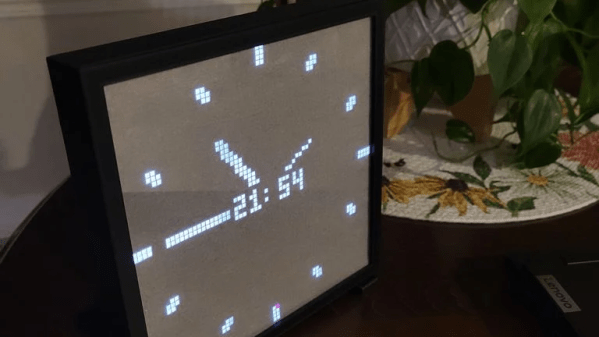
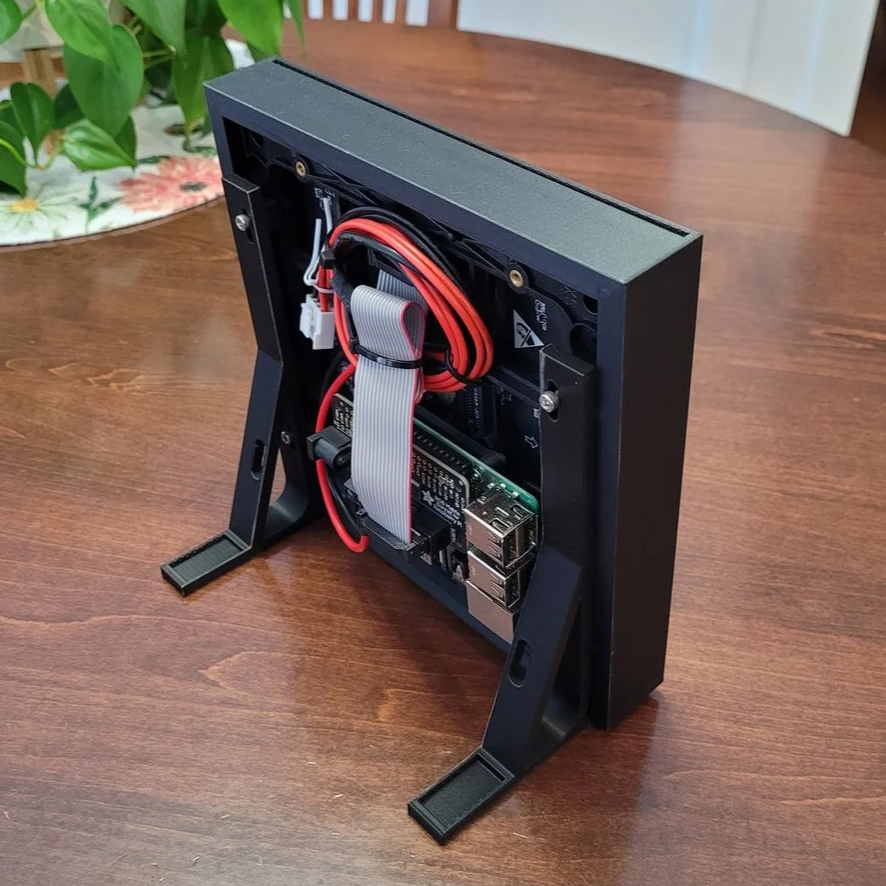
Some projects take great care to tuck away wire hookups, but not [Roberto Alsina]’s Reloj V2 clock. This desktop clock makes a point of exposing all components and wiring as part of its aesthetic. There are no hidden elements, everything that makes it work is open to view. Well, almost.

The exception is the four MAX7219 LED matrices whose faces are hidden behind a featureless red panel, and for good reason. As soon as the clock powers up, the LEDs shine through the thin red plastic in a clean glow that complements the rest of the clock nicely.

[Roberto]’s first version was a unit that worked similarly, but sealed everything away in a wedge-shaped enclosure that was just a little too sterile, featureless, and ugly for his liking. Hence this new version that takes the opposite approach. Clocks have long showcased their inner workings, and electronic clocks — like this circuit-sculpture design — are no exception.

The only components, besides the Raspberry Pi Zero W and the LED matrices, are the 3D-printed enclosure with a few hex screws and double-sided tape. Design files and code (including the FreeCAD project file) are available should you want to put your own spin on [Roberto]’s design.

Refill UV Printer Ink Cartridges Like It’s The Late 90s

The Eufymake E1 is a recently-released prosumer UV printer that can print high-resolution color images onto pretty much anything. It also uses proprietary ink cartridges (which integrate a magnetic stirrer, nice) which are far more expensive than UV ink in bulk. So [charliex] set out to figure out how to refill the ink cartridges, including the cleaning cartridge.

If one doesn’t mind a bit of fiddling, cartridges can be refilled without having to add any new holes.

UV printing in general is a bit of a maintenance hog, which has helped keep it from hobbyist use. UV ink doesn’t really like sitting idle in a machine, but the E1 automates cleaning and flushing of the print head as well as having swappable cartridges for each ink. This makes it a lot more user-friendly than UV printing has historically been.

The cartridge hardware can have a longer serviceable life than the ink inside, so it makes sense to try to refill them. There are more reasons to do this than just limiting costs. What if one wishes to print and the parent company is sold out of cartridges? What if they shut down? Refilling cartridges, and emptying waste from the cleaning cartridge, would become imperatives — lest an expensive prosumer UV printer turn into a paperweight. Thankfully software DRM control of the cartridges seems limited, at least so far.

Refilling cartridges can be carefully done with syringes combined with manual bypass of spring-loaded valve mechanisms. Emptying the cleaning cartridge can similarly be done by syringe, and it even has a hidden refill port under some plastic at its top.

[charliex] approaches all of this from a reverse-engineering perspective, indeed, he has a whole separate blog post about the software for the printer. So his solution is much more informed and elegant than, for example, just melting a new refill hole in the side of the things. It’s an interesting read, so check it out.

Our own Tom Nardi took a close, hands-on look at the E1 printer last year and came away pretty impressed with its capabilities. The cartridges are a big part of the user-friendliness of the system, but we hope there remains a viable option for manual refill for those of us who want to control costs or don’t wish to be locked in, and don’t mind violating a warranty or two in the process.

This Front Panel Makes Its Own Clean-Edged Drill Guides

We haven’t seen an instrument panel quite like [bluesyann]’s, which was made by curing UV resin directly onto plywood with the help of a 3D printer and a bit of software work. The result is faintly-raised linework that also makes hand drilling holes both cleaner and more accurate.

The process begins by designing the 2D layout in Inkscape, which has the advantage of letting one work in 1:1 dimensions. A 10 mm diameter circle will print as 10 mm; a nice advantage when designing for physical components. After making the layout one uses OpenSCAD to import the .svg and turn it into a 3D model that’s 0.5 mm tall. That 3D model gets loaded into the resin printer, and the goal is to put it directly onto a sheet of plywood.

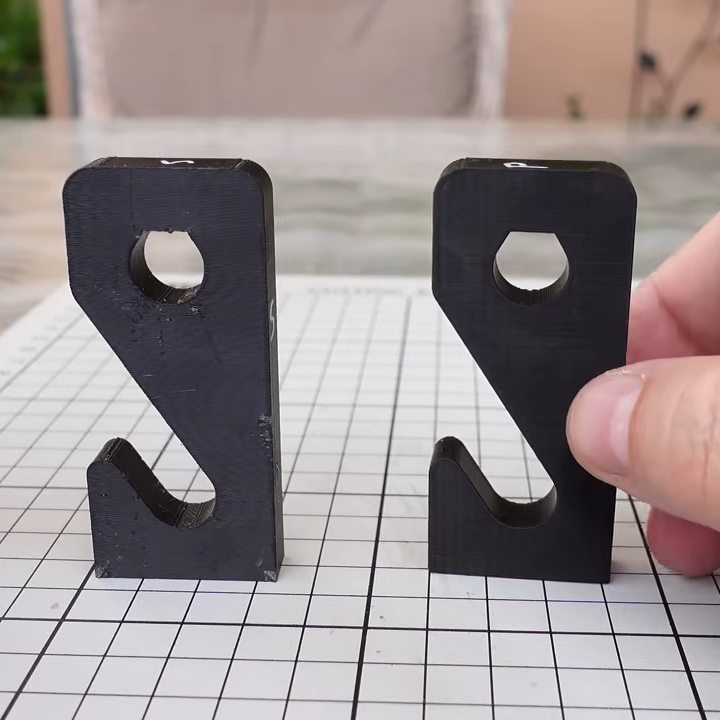
A little donut shape makes a drill centering feature, and the surrounding ring keeps the edges of the hole clean.

To do that, [bluesyann] sticks the plywood directly onto the 3D printer’s build platform with double-sided tape. With the plywood taking the place of the usual build surface, the printer can cure resin directly onto its surface. Cleanup still involves washing uncured resin off the board, but it’s nothing a soak in isopropyl alcohol and an old toothbrush can’t take care of.

[bluesyann] has a few tips for getting the best results, and one of our favorites is a way to make drilling holes easier and cleaner. Marking the center of a drill hit with a small donut-shaped feature makes a fantastic centering guide, making hand drilling much more accurate. And adding a thick ring around the drill hole ensures clean edges with no stray wood fibers, so no post-drilling cleanup required. Don’t want the ring to stick around after drilling? Just peel it off. There’s a load of other tips too, so be sure to check it out.

A nice front panel really does make a project better, and we’ve seen many different approaches over the years. One can stick laminated artwork onto an enclosure, or one can perform toner transfer onto 3D printed surfaces by putting the design on top of the 3D printer’s build surface, and letting the heat of molten plastic do the work of transferring the toner. And if one should like the idea of a plywood front panel but balk at resin printing onto it, old-fashioned toner transfer works great on wood.

Play A .WAV Instead Of Typing Line After Line Into Vintage Microcomputer

[Casey Bralla] got his hands on a Rockwell AIM 65 microcomputer, a fantastic example of vintage computing from the late 70s. It sports a full QWERTY keyboard, and a twenty character wide display complemented by a small thermal printer. The keyboard is remarkably comfortable, but doing software development on a one-line, twenty-character display is just not anyone’s idea of a good time. [Casey] made his own tools to let him write programs on his main PC, and transfer them easily to the AIM 65 instead.

A one-line, twenty-character wide display was a fantastic feature, but certainly lacking for development work.

Moving data wasn’t as straightforward in 1978 as it is today. While the Rockwell AIM 65 is a great machine, it has no disk drive and no filesystem. Programs can be written in assembler or BASIC (which had ROM support) but getting them into running memory where they could execute is not as simple as it is on modern machines. One can type a program in by hand, but no one wants to do that twice.

Fortunately the AIM 65 had a tape interface (two, actually) and could read and store data in an audio-encoded format. Rather than typing a program by hand, one could play an audio tape instead.

This is the angle [Casey]’s tools take, in the form of two Python programs: one for encoding into audio, and one for decoding. He can write a program on his main desktop, and encode it into a .wav file. To load the program, he sets up the AIM 65 then hits play on that same .wav file, sending the audio to the AIM 65 and essentially automating the process of typing it in. We’ve seen people emulate vintage tape drive hardware, but the approach of simply encoding text to and from .wav files is much more fitting in this case.

The audio encoding format Rockwell used for the AIM is very well-documented but no tools existed that [Casey] could find, so he made his own with the help of Anthropic’s Claude AI. The results were great, as Claude was able to read the documentation and, with [Casey]’s direction, generate working encoding and decoding tools that implemented the spec perfectly. It went so swimmingly he even went on to also make a two-pass assembler and source code formatter for the AIM, as well. With them, development is far friendlier.

Watch a demonstration in the video [Casey] made (embedded under the page break) that shows the encoded data being transferred at a screaming 300 baud, before being run on the AIM 65.

Continue reading “Play A .WAV Instead Of Typing Line After Line Into Vintage Microcomputer”

Playful ‘Space Dice’ Kit Shows Off Clever Design

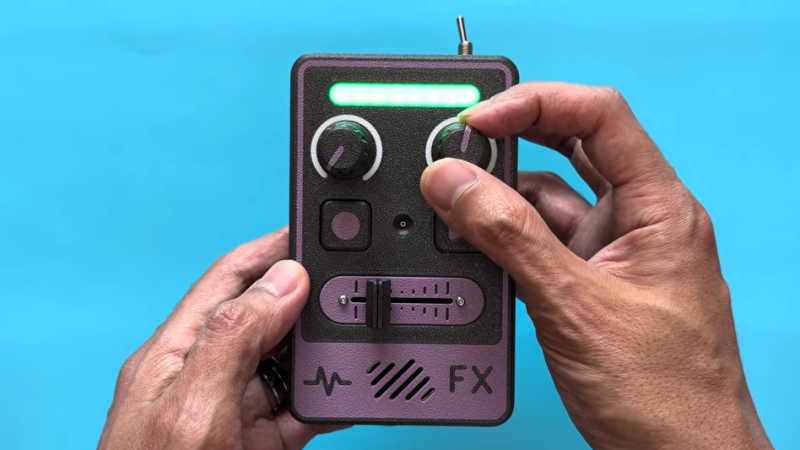
[Tommy] at Oskitone has been making hardware synth kits for years, and his designs are always worth checking out. His newest offering Space Dice is an educational kit that is a combination vintage sci-fi space laser sound generator, and six-sided die roller. What’s more, as a kit it represents an effort to be genuinely educational, rather than just using it as a meaningless marketing term.

There are several elements we find pretty interesting in Space Dice. One is the fact that, like most of [Tommy]’s designs, there isn’t a microcontroller in sight. Synthesizers based mostly on CMOS logic chips have been a mainstay of DIY electronics for years, as have “electronic dice” circuits. This device mashes both together in an accessible way that uses a minimum of components.

There are only three chips inside: a CD4093 quad NAND with Schmitt-trigger inputs used as a relaxation oscillator, a CD4040 binary counter used as a prescaler, and a CD4017 decade counter responsible for spinning a signal around six LEDs while sound is generated, to represent an electronic die. Sound emerges from a speaker on the backside of the PCB, which we’re delighted to see is driven not by a separate amplifier chip, but by unused gates on the CD4093 acting as a simple but effective square wave booster.

In addition, [Tommy] puts effort into minimizing part count and complexity, ensuring that physical assembly does not depend on separate fasteners or adhesives. We also like the way he uses a lever assembly to make the big activation button — mounted squarely above the 9 V battery — interface with a button on the PCB that is physically off to the side. The result is an enclosure that is compact and tidy.

We recommend checking out [Tommy]’s concise writeup on the design details of Space Dice for some great design insights, and take a look at the assembly guide to see for yourself the attention paid to making the process an educational one. We love the concept of presenting an evolving schematic diagram, which changes and fills out as each assembly step is performed and tested.

Watch it in action in a demo video, embedded just below. Space Dice is available for purchase but if you prefer to roll your own, all the design files and documentation are available online from the project’s GitHub repository.

Continue reading “Playful ‘Space Dice’ Kit Shows Off Clever Design”

Use A Gap-Cap To Embed Hardware In Your Next 3D Print

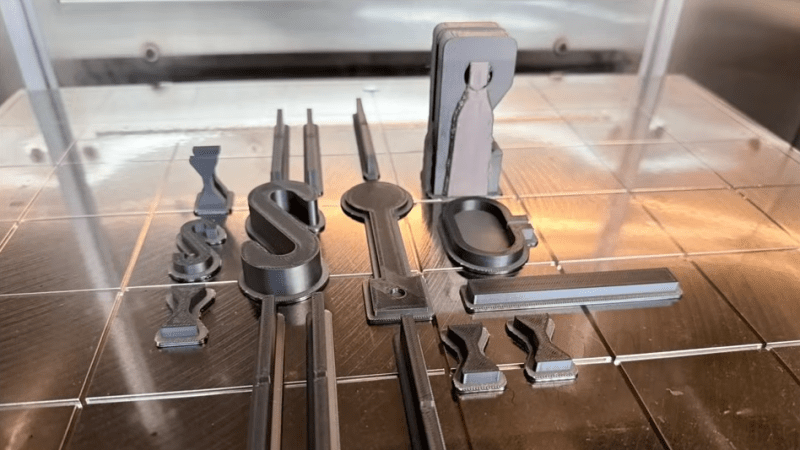
Embedding fasteners or other hardware into 3D prints is a useful technique, but it can bring challenges when applied to large or non-flat objects. The solution? Use a gap-cap.

The gap-cap technique is essentially a 3D printed lid. One pauses a print, inserts hardware, then covers it with a lid before resuming the print. The lid — or gap-cap — does three things. It seals in the part, it fills in empty space left above the component, and it provides a nice flat surface for subsequent layers which makes the whole process much cleaner and more reliable.

This whole technique is a bit reminiscent of the idea of manual supports, except that the inserted piece is intended to be sealed into the print along with the embedded hardware under it.

If you have never inserted anything larger than a nut or small magnet into a 3D print, you may wonder why one needs to bother with a gap-cap at all. The short version is that what works for printing over small bits doesn’t reliably carry over to big, odd-shaped bits.

For one thing, filament generally doesn’t like to stick to embedded hardware. As the size of the inserted object increases, especially if it isn’t flat, it increasingly complicates the printer’s ability to seal it in cleanly. Because most nuts are small, even if the printer gets a little messy it probably doesn’t matter much. But what works for small nuts won’t work for something like an LED strip mounted on its side, as shown here.

Cross-section of a print with an embedded LED strip. The print pauses (A), LED strip is inserted and capped with a gap-cap (B, C), then printing resumes and completes (D).

In cases like these a gap-cap is ideal. By pre-printing a form-fitting cap that covers the inserted hardware, one provides a smooth and flat surface that both seals the component in snugly while providing an ideal surface upon which to resume printing.

If needed, a bit of glue can help ensure a gap-cap doesn’t shift and cause trouble when printing resumes, but we can’t help but recall the pause-and-attach technique of embedding printed elements with the help of a LEGO-like connection. Perhaps a gap-cap designed in such a way would avoid needing any kind of adhesive at all.