Inputs Of Interest: The Infogrip BAT Chording Keyboard

I guess it shouldn’t surprise me that by researching weird and interesting keyboards, I would uncover more weird and interesting keyboards. This is the BAT personal keyboard by Infogrip, and it’s something I came across while researching the DataHand keyboard and mentally filed away as something cool to look into.

When I came across a used BAT for a reasonable price, I snagged it, even though it didn’t come with any of the manuals or software, not even a cord. Like I said, reasonable price. I looked these keyboards up and found out that you can buy them new for a lot more than what I paid.

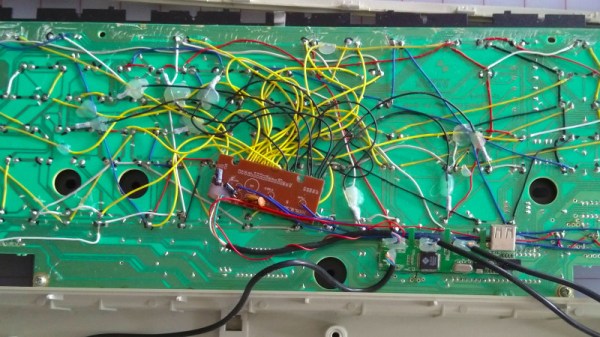
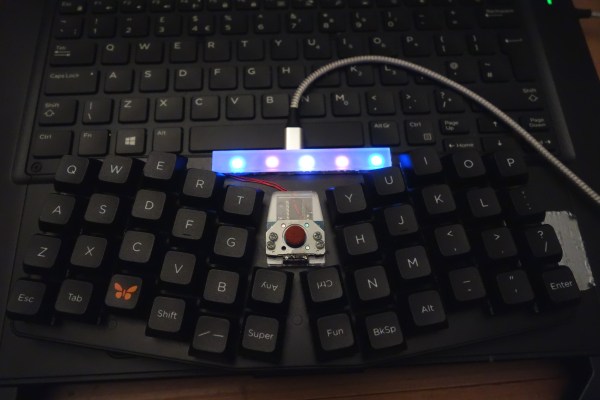
My gently used BAT in all its angular glory.
The lowercase letter chords use either the middle thumb key or no thumb key. Image via Infogrip

So what is this thing? It’s a chording keyboard that’s meant to be used a standard PC input device by anyone who either can’t use a regular keyboard or has a need for speed. Years of research went into the BAT’s chording scheme, which was developed in conjunction with NASA’s Stennis Space Center.

Instead of stretching your fingers all over a regular keyboard, poking keys one at a time to spell out words, you press combinations of keys simultaneously, like playing chords on a piano.

You’re meant to use your thumb for the red, grey, and blue keys, and lay the other four on the rest of the keys. All of the alphabet keys are chorded with or without the gray thumb key, and all the number, symbol, and modifier keys are accessed through the red and blue layers.

Why would you want one of these? Well, given enough time to learn the chords, you can do anything a standard 104+ keyboard can do with only seven keys. You would never need to look down, not even for those weird seldom-used keys, and the only finger that ever travels is your thumb. All of this reduced hand/finger/wrist travel is going to be easier on the body.

The BAT lets you CAD like a madlad. Via Bill Buxton

The BAT is also part programmable macro pad, and from what I can gather, the main selling point was that you could quickly input shortcuts in CAD programs and the like, because you could keep one hand on the mouse.

The BAT came in both left- and right-handed versions that can be used either alone or together. Imagine how fast you could type if you chorded everything and split the typing duties between both hands! The only trouble is learning all those different finger combinations, although they say it doesn’t take that long.

So why is it called the BAT? Legend has it that it’s because company started out in Baton Rouge, Louisiana, but also because a pair of BATs sitting next to each other resembles a bat (PDF).

Continue reading “Inputs Of Interest: The Infogrip BAT Chording Keyboard”

Keycap Customizer Brings All Your Caps To The Board

With bright colors and often intricate designs, after the physical shape of a keyboard the most conspicuous elements are surely the keycaps. Historically dictated by the stem of the key switch it attaches to, keycaps come in a variety of sizes, colors, profiles, and designs. As they necessarily include small features with tight tolerances to fit the stem of their key switch, injection molding is the classic manufacturing technique for a keycap. But as hobbyist 3D printing matures and resin printers become more accessible, home keycap manufacturing is increasingly good option. Instead of designing each cap by hand, consider trying [rsheldiii]’s KeyV2 OpenSCAD script to create custom caps with ease.

To cover the basics, KeyV2 can generate full keycap sets with Cherry or Alps stems, in the SA, DSA, DCS profiles (and more!) for any typically sized keyboard. Generating a particular cap of arbitrary profile, position, and size is just a short chain of function calls away. But standard keycap sets aren’t the highlight of this toolset.

If you’re not an OpenSCAD aficionado yet, visit [Brian Benchoffs] great getting-started guide or our other coverage to get a feel for what the tool can do. Part of OpenSCAD’s attraction is that it is the the paragon of parametric modeling. It’s declarative part files ensure that no parameter goes undefined, which is a perfect fit for KeyV2.

The root file upon which all caps are based on has about 150 keycap parameters which can be tweaked, and that’s before more elaborate customization. Making simple “artisan” caps is a snap, as the magic of OpenSCAD means the user can perform any Boolean operations they need on top of the fully parameterized keycap. Combining an arbitrary model with a keycap is one union() away. See the README for examples.

For the prospective user of KeyV2 worried about complexity; don’t be, the documentation is a treat. Basic use to generate standard keycaps is simple, and there are plenty of commented source files and examples to make more complex usage easy. Thinking about a new keyboard? Check out our recent spike in clacky coverage.

Split Keyboard Finder Stacks Them Up For Your Approval

Tired of a boring, single piece keyboard? Thinking about a change but don’t know what all your options are? Well prospective-keyboard-shopper, today is your lucky day. We at the Hackaday are here to facilitate the habit with two excellent resources for the eager keyboard shopper; [pvinis]’s awesome-split-keyboards and [jhelvy]’s splitkbcompare.

As indicated by its title, awesome-split-keyboards is an awesome list of split keyboards 50 examples strong. Every split we’ve come across seems to be represented here, many with at least an image or two along with links to more information about how to build or buy the model in question. If that’s not enough, the bottom of the page has a wealth of background information about building or buying your own.

But before making such an important decision it’s important to make sure the keyboard in question will be a good fit in the hands. This is where splitkbcompare comes in, providing a visualization of many popular split layouts. If we hadn’t just found awesome-split-keyboards this filterable list and wide selection would have been the highlight here. But what does stand out is the ability to generate 1:1 scale printouts of the layouts in question, even stacking them for comparison, allowing a prospective buyer get a hands on feel for what they’re considering.

Not enough clackin’ action? Recently we’ve been producing a fierce amount of keyboard related content, of particular highlight is [Kristina Panos’]’ series called Inputs of Interest. Earlier in the summer she even built her own Ergodox split keeb.

[Main image source: HeliDox by diimdeep]

Building A YouTube Remote Control Worthy Of 2020

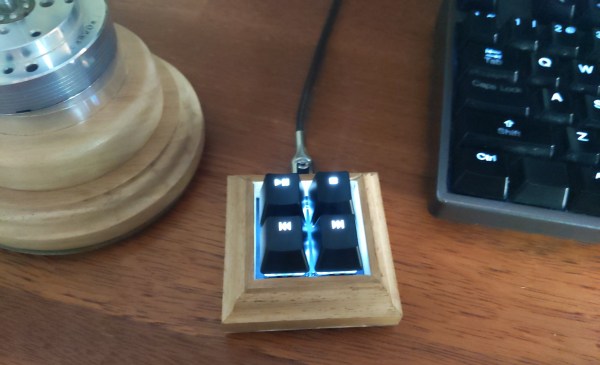
Back in 2018, [Gryo] built a remote control specifically for watching YouTube videos on his computer. It worked perfectly, but it didn’t quite fit the expectation one has for a modern media remote — it was a bit chunky, the buttons weren’t very responsive, and it didn’t feel as nice as the remotes that ship with consumer streaming devices. Looking to improve on things, he’s recently unveiled a far more svelte version of his scratch built media streaming remote includes a scrollwheel, color feedback, and a UI for customizing how it works.

It might not look the part, but technically [Gyro] categorizes his creation as a wireless keyboard since that’s what the operating system sees it as. This makes it easy to use with whatever media playback software or service might be running on the computer, as button presses on the remote are picked up as standard keyboard events. And the software easily sets which key each button on the remote will be associated with.

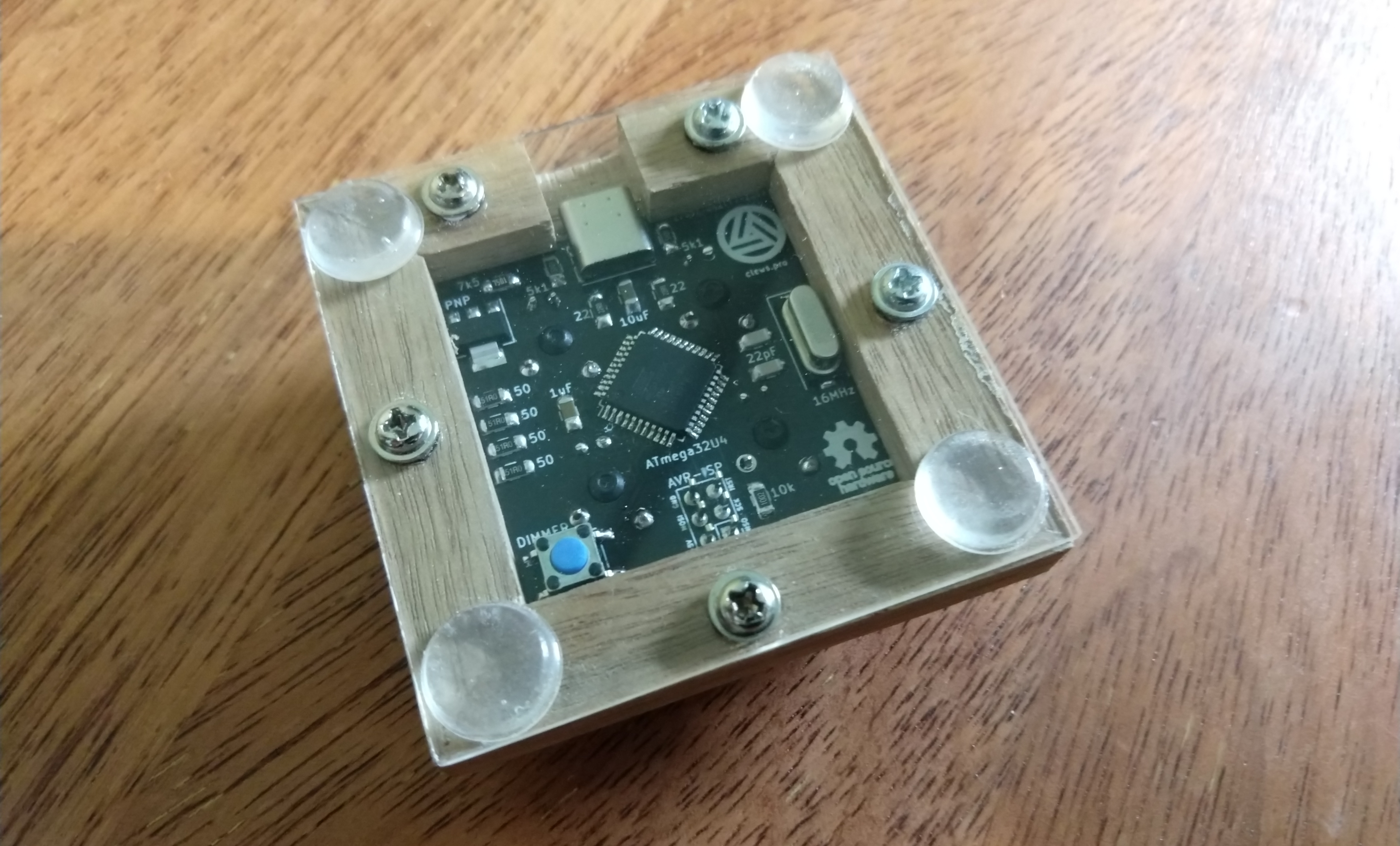
Inside the 3D printed case there’s a custom PCB that pulls together the ATmega328P, NRF24L01 radio, and TP4056 charger that tops off the 500 mAh Li-Po battery via USB-C. The receiver is also a custom creation, using a second NRF24L01 chip but swapping out the microcontroller for the ATmega32U4.

[Gyro] has done a fantastic job documenting this build in the write-up, and provides everything you need should you want to spin up your own copy. As much as we liked the unique approach used in the first version of the remote, we’ve got to admit this iteration is much more likely to end up sitting on our living room table.

Continue reading “Building A YouTube Remote Control Worthy Of 2020”

Raspberry Pi Gets PATA/IDE Drive Via GPIO Header

By and large, the Raspberry Pi is a computer that eschews legacy interfaces. Primarily relying on SD cards for storage and USB ports for further expansion, magnetic hard drives are a rare sight. However, [Manawyrm] decided that some 40-pin goodness was in order, and set to making a PATA IDE adapter for the platform.

To achieve the task of interfacing now-vintage IDE devices with the Raspberry Pi, [Manawyrm] elected to use the single board computer’s GPIO pins to get the job done. 23 pins are required, with 16 used for the data bus, with the rest dedicated to address lines, strobes, and other features.

The adapter is no speed demon, netting 800 KiB/s on reads and 500 KiB/s on writes with a Raspberry Pi 4. The main bottleneck comes from relying on libgpiod, which [Manawyrm] readily admits is designed for general IO tasks, not data transfers. Despite this, it’s still fast enough to play an audio CD from an IDE CD-ROM drive without skipping. A kernel build is required, however, as Raspberry Pis are unsurprisingly not configured to use ATA disks by default.

Obviously, more serious applications would substitute a dedicated USB hard disk adapter or give the Raspberry Pi a PCI-express (PCIe) card for sata drives instead, but that doesn’t discount the fun inherent in the build. While it may be slow, it shows that talking to PATA hard disks is actually quite straightforward when you understand the basics. Of course, if you want to do the opposite, and have your Raspberry Pi emulate a PATA disk, that’s possible too. Video after the break.

Continue reading “Raspberry Pi Gets PATA/IDE Drive Via GPIO Header”

Recreating Early Apple Mice For The Modern Era

At a time when practical graphical user interfaces were only just becoming a reality on desktop computers, Apple took a leap of faith and released one of the first commercially available mice back in 1983. It was criticized as being little more than a toy back then, but we all know how that particular story ends.

While the Apple G5431 isn’t that first mouse, it’s not too far removed. So much so that [Stephen Arsenault] believed it was worthy of historic preservation. Whether you want to print out a new case to replace a damaged original or try your hand at updating the classic design with modern electronics, his CAD model of this early computer peripheral is available under the Creative Commons license for anyone who wants it.

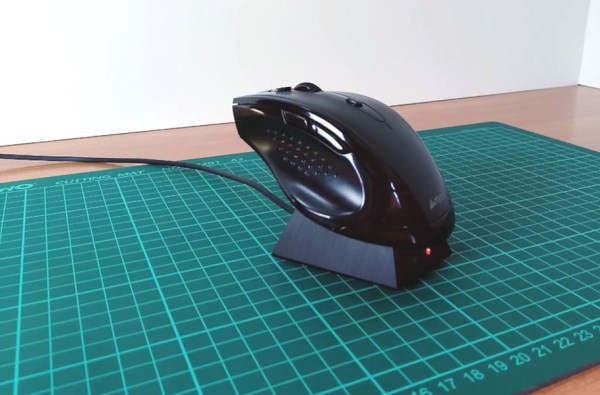
The model is exceptionally well detailed.

[Stephen] tells us that he was inspired to take on this project after he saw new manufactured cases for the G5431 popping up online, including a variant made out of translucent plastic. Realizing that a product from 1986 is old enough that Apple (probably) isn’t worried about people cloning it, he set out to produce this definitive digital version of the original case components for community use.

With these 3D models available, [Stephen] hopes that others will be inspired to try and modify the iconic design of the G5431. Perhaps by creating a Bluetooth version, or adding the ability to right-click. Considering we’ve already seen custom PCBs for mice, it’s hardly a stretch. We’d love to see somebody take him up on the offer, but even if not, the digital preservation of computer history is always welcome.

DIY HID, OMG!

William English, one of the creators of the mouse back in the 60s, passed away last week. And that got me thinking of how amazing it would have been to be in the place that was inventing what would become modern computing interfaces. What a special time! Of course, they probably had no idea.

From here, it looks like the mouse changed everything, but you have to realize that they were working in a world with light-pens, where you could actually draw on the screen. In contrast, the mouse seems positively non-futuristic. They must have known they’d come up with an improvement over the status quo, but did they know they’d created a revolution?

So where has the revolutionary spirit in DIY human interface devices gone? I’d claim it’s still alive and kicking. Indeed our own Kristina Panos has a series called “Inputs of Interest” and we’ve seen a ton of DIY keyboards of late. Then there are many varieties of dial inputs. I used to have a dedicated scroll wheel made out of a hard-drive platter, and when I was reading lots of PDFs on-screen, I have to say it earned its desk-space. Heck, we’ve even seen people make their own mouse.

But what I love about the story of the development of the mouse is that they asked the question “what is the best way to locate a point on a screen” and tried to answer it. Half of their success is probably in simply asking the right question, and the other half in prototyping something half-workable. My gut says that we don’t have inputs figured out 100% on mobile yet. This sounds like a job for Hackaday. What’s the next big human-interface design need? And have you got any crazy ideas to solve it?

Hackaday Remoticon

And this week, we announced the Hackaday Remoticon, our shelter-in-place version of the Supercon. It’s going to take place in November as usual, but online instead of IRL.

The good news? It’s going to be chock full of workshops, all streamed online and recorded for posterity. And for that we need your proposals. If you’d like to teach a group of distributed hackers learning your favorite techniques and tricks, this is your chance!

The bad news is of course that we won’t get to see you all in person. That’s going to make the 2021 Hackaday Supercon seem even more super.