Fulcrum Foils Finger Fatigue

It turns out that typing all day just might be bad for your hands and fingers. Repetitive Strain Injury, RSI, was a real problem for [David Schiller], particularly when coding. So, naturally, he started designing his own keyboard. And bless him, he’s shared the whole project on GitHub.

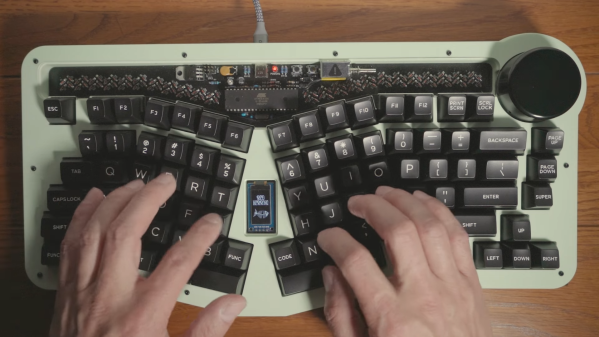
The solution is Fulcrum, a chording keyboard with keys that can be pressed with minimal movement. And one more clever trick is a thumb joystick, mounted in the thumb’s opposable orientation. It’s a 5-way switch, making for a bunch of combinations. The base model is a 20-key arrangement, and he’s also designed a larger, 40-key option.

The build is pretty simple, if you have access to a 3D printer. Print the STLs, add key switches, and wire it all up to a microcontroller. Use the supplied code, and all that’s left is to learn all the chord combos. And why stop with combos for single characters, when there are plenty of common words and plenty of key combinations. If you decide to build your own take on the Fulcrum, be sure to let us know about it!

Mechanical Keyboard Is Also A Mouse

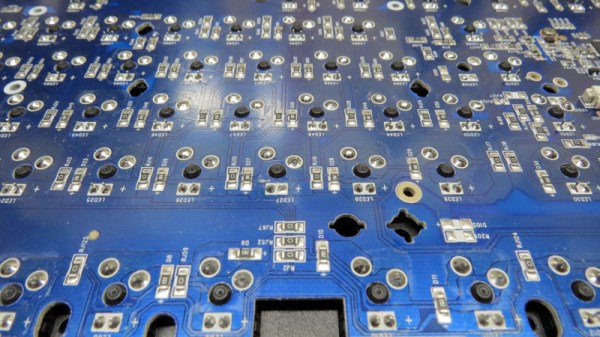
The mechanical keyboard community is a vibrant, if not fanatical, group of enthusiasts determined to find as many possible ways of assembling, building, and using as many high-quality keyboards as possible. With so many dedicated participants, most things that can be done with a keyboard already have been done. So when something as unique as this split keyboard that also doubles as a mouse pops up, we take notice.

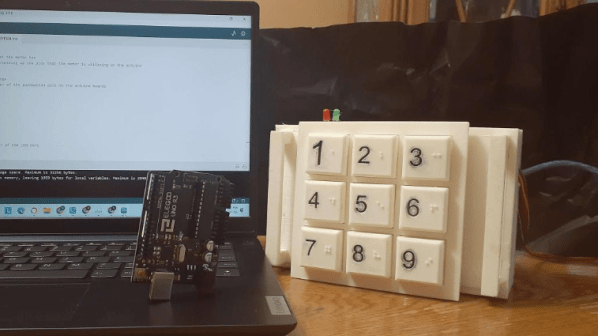
The keyboard is a custom build from [Taliyah Huang] which uses a pair of Arduinos, one in each half of the keyboard, to communicate key and mouse information to a third Arduino which is plugged in to her laptop. The right-hand half of the keyboard also includes the circuitry from an optical mouse, which gets powered up when the caps lock button is held down. When activated, this allows the keyboard to be used as a mouse directly. It also includes support for most Mac gestures as well, making it just as useful as a trackpad.

While there were some problems with the design, including being slightly too tall to be ergonomic and taking nearly 24 hours of soldering to complete, the prototype device is an interesting one especially since it allows for full control of a computer without needing a dedicated mouse. For other unique mechanical keyboard concepts, we recently featured this build which takes design and functionality cues from the Commodore 64.

Continue reading “Mechanical Keyboard Is Also A Mouse”

Building A Fake Printer To Grab Screenshots Off The Parallel Port

[Tom Verbeure] recently found himself lamenting the need to take screen grabs from an Advantest R3273 spectrum analyzer with a phone camera, as the older gear requires you to either grab tables of data over an expensive GPIB interface card, or print them to paper. Then he realized, why not make a simple printer port add-on that looks like a printer, but sends the data over USB as a serial stream?

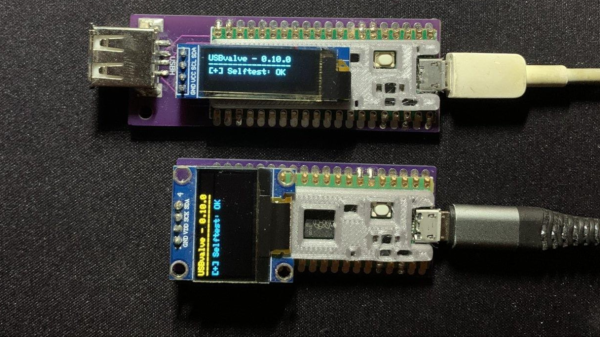
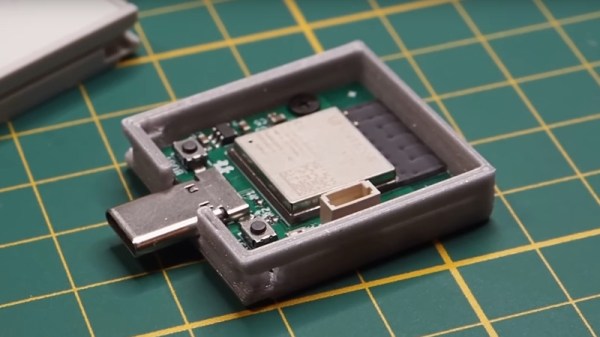
On the hardware side, the custom PCB (KiCAD project) is based on the Raspberry Pi Pico. Obvious form factor issues aside ([Tom] did revise the PCB to make it smaller) this is a shrewd move, as this is not a critical-path gadget so using the Pico as a USB-to-thing solution is a cost-effective way to get something working with minimal risk. One interesting design point was the use of the 74LVC161284 special function bus interface that handles the 5 V tolerance that the RP2040 lacks, whilst making the project compliant with IEEE-1284 — useful for the fussier instruments.

Using the service manual of the Sharp AP-PK11 copier/printer as a reference, [Tom] again, shows how to correctly use the chip, minimizing the design effort and scope for error. The complete project, with preliminary firmware and everything needed to build this thing, can be found on the project GitHub page. [Tom] does add a warning however that this project is still being worked on so adopters might wish to bear that in mind.

If you don’t own such fancy bench instrumentation, but grabbing screenshots from devices that don’t normally support it, is more your thing, then how about a tool to grab Game Boy screenshots?

SteamDeck connected to a laptop with a USB cable, showing the 'printed-out' document on its screen inside a PDF reader

SteamDeck: Become Printer

Wonderful things happen when we read the documentation. For instance, we’ve all seen a Raspberry Pi work as an Ethernet adapter over USB, or a ESP32-S2 presenting as a storage device. Well, [parkerlreed] has made his Steam Deck work as a USB printer after reading the Linux kernel docs on the USB gadget configuration, and all it took was some C code and a BIOS setting change.

“Wouldn’t it be cool if our USB tablets exposed a fake printer interface and saved the received documents as PDF?” With a SteamDeck, you can do just that – thanks to the g_printer kernel module. The C code is fairly straightforward, and even lets you configure some aspects of the printer device.

Of course, there’s gotta be a cherry on the cake, and [parkerlreed]’s shell script hides an addition that makes your PDF printing experience all that more realistic! Not to spoil it too much – you should watch the video of the script in action, showcasing both the ease of use and the added realism.

Jokes aside, the usefulness of this script is undeniable, and owners of USB-device-capable portable Linux devices will find this script a must-have. It’s seriously cool when someone dives into documentation and pulls out a clever solution to a “wouldn’t it be cool” idea – fundamentally, it is the same mindset that gave us the venerable RTL-SDR. What’s your favourite ‘dig into docs and figure out a clever feature’ hack?

We thank [Myself] for sharing this with us on the Hackaday Discord!

Continue reading “SteamDeck: Become Printer”

Exploring The Hall Effect For Haptic Feedback PS4 Joysticks

Modern gaming console controllers aren’t without their annoyances — Joy-Con drift, anyone? The problems might stem from design deficiencies, but we suspect that user enthusiasm and the mechanical stress it can introduce might play a significant role as well. Either way, [Marius Heier] decided to take a look at what would be required to build a better joystick and came up with some interesting results.

The first video below lays the basic groundwork, with a bunch of experiments with 3-axis Hall effect sensors, specifically the Texas Instruments TMAG5273 and TMAG5170. They’re essentially the same sensor with different interfaces — SPI for the 5170 and I2C for the 5273. Using just one of these sensors, he was able to build a joystick with the usual X- and Y- axis control, but also with a rotary axis. What’s more, he built a motorized version using two NEMA 17 steppers to mechanically drive the stick back to center.

The joystick is bulky, but it looks like he’s got plans for a much smaller one with [Carl Bugeja]-style PCB motors that should fit into a PS4 controller. That’s the subject of the second video below, which uses a different Hall sensor — an Allegro A1304 — and is mainly concerned with getting the output of a non-motorized but considerably miniaturized joystick stick talking the language that the controller expects. It’s not a simple process, but it seems to be coming along nicely, and we’ll be watching progress closely.

Continue reading “Exploring The Hall Effect For Haptic Feedback PS4 Joysticks”

DIY Macro Keyboard Wood Be Nice

Editing video tends to involve a lot of keyboard shortcuts, and while this might be fine for the occasional edit, those who regularly deal with video often reach for a macro pad to streamline their workflow. There are plenty of macro keyboards available specifically meant to meet the needs of those who edit a lot of video, but if you want something tailored for your personal workflow you may want to design your own keyboard like this wooden macro pad from [SS4H].

The keyboard itself is built around an STM32 microcontroller, which gives it plenty of power to drive and read the keyboard matrix. It also handles an encoder that is typically included on macro keyboards for video editing, but rather than using a potentiometer-type encoder this one uses a magnetic rotary encoder for accuracy and reliability. There’s a display built into the keyboard as well with its own on-board microcontroller that needs to be programmed separately, but with everything assembled it looks like a professional offering.

[SS4H] built a prototype using 3D printed parts, but for the final version he created one with a wooden case and laser etched keys to add a bit of uniqueness to the build. He also open-sourced all of the PCB schematics and other files needed to recreate this build so anyone can make it if they’d like. It’s not the only macro keyboard we’ve seen before, either, so if you’re looking for something even more esoteric take a look at this keyboard designed to be operated by foot.

Continue reading “DIY Macro Keyboard Wood Be Nice”

What Else Is An M.2 WiFi Slot Good For?

Many mainboards and laptops these days come with a range of M.2 slots, with only a subset capable of NVME SSDs, and often a stubby one keyed for ‘WiFi’ cards. Or that’s what those are generally intended to be used for, but as [Peter Brockie] found out when pilfering sites like AliExpress, is that you can get a lot of alternate expansion cards for those slots that have nothing to do with WiFi.

Why this should be no surprise to anyone who knows about the M.2 interface is because each ‘key’ type specifies one or more electrical interfaces that are available on that particular M.2 slot. For slots intended to be used with NVME SSDs, you see M-keying, that makes 4 lanes of PCIe available. The so-called ‘WiFi slots’ on many mainboards are keyed usually for A/E, which means two lanes of PCIe, USB 2.0, I2C and a few other, rather low-level interfaces. What this means is that you can hook up any PCIe or or USB (2.0) peripheral to these slots, as long as the bandwidth is sufficient.

What [Peter] found includes adapter cards that add Ethernet (1 Gb, 2.5 Gb), USB 2.0 ports, SIM card (wireless adapter?), an SFP fiber-based networking adapter, multiple M.2 to 2+ SATA port adapters, tensor accelerator chips (NPUs) and even a full-blown M.2 to x16 PCIe slot adapter. The nice thing about this is that if you do not care about using WiFi with a system, but you do have one of those ports lounging about uselessly, you could put it to work for Ethernet, SFP, SATA or other purposes, or just for hooking up internal USB devices.

Clearly this isn’t a market that has gone unexploited for very long, with a bright outlook for one’s self-designed M.2 cards. Who doesn’t want an FPGA device snuggled in a PCIe x2 slot to tinker with?

Continue reading “What Else Is An M.2 WiFi Slot Good For?”