Chess Computer Retires To Play Jazz

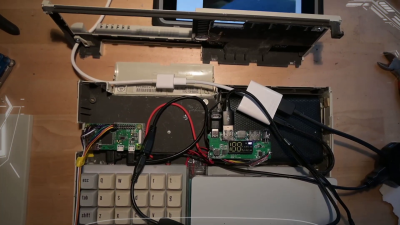
Years ago, [Leo Neumann]’s girlfriend gave him a 1970s chess computer game that was missing almost everything but the super cool clicky keyboard. Noting the similarity of chess move labeling to chord notation, [Leo] decided to turn it into something even nerdier — a jazz chord game where you jam with the computer.

To play the game, you and the computer take turns entering jazz chords that progress musically from the last one played. The hardware is simple — a Raspberry Pi Zero and a WM8960 audio hat with amplifier in speakers. [Leo] also put in a slightly larger display than the original and printed a new bottom half for the case. We love the look of this build, especially the groovy custom line font [Leo] designed.

On the software side, [Leo] made a Python prototyping environment using PYO Module and Kivy UI. Not content with other approaches to tonal consonance, [Leo] played a couple thousand chords and rated them according to their progressive harmony. Shake out those jazz hands and check it out after the break.

Want to play chess with computers? Make Alexa your go-between.

Continue reading “Chess Computer Retires To Play Jazz”

True Networked KVM Without Breaking The Bank

For administering many computers at once, an IP KVM is an invaluable piece of equipment that makes it possible to get the job done over the network without having to haul a keyboard, monitor, and mouse around to each computer. The only downside is that they can get pricey, unless of course you can roll one out based on the Raspberry Pi and the PiKVM image for little more than the cost of the Pi itself.

The video linked below shows how to set all of this up, which involves flashing the image and then setting up the necessary hardware. The build shows an option for using HDMI over USB, but another option using the CSI bus would allow for control over options like video resolution and color that a USB HDMI dongle doesn’t allow for. It also makes it possible to restart the computer and do things like configure BIOS or boot from removable media, which is something that would be impossible with a remote desktop solution like VNC.

The creator of PiKVM was mentioned in a previous post about the creation of the CSI bus capture card, and a Pi hat based on this build will be available soon which would include options for ATX controls as well. Right now, though, it’s possible to build all of this on your own without the hat, and is part of what makes the Pi-KVM impressive, as well as its very low cost.

Continue reading “True Networked KVM Without Breaking The Bank”

Easy Device Configuration For Your Pi Projects

We’re all familiar with a typical configuration sequence for a new mass-market IoT device. Turn it on for the first time and it exposes a temporary Wi-Fi network, connect to that network and open a Web page for device configuration. Wouldn’t it be useful to be able to incorporate that functionality into your own projects without having to write it yourself! Happily now thanks to [Peter Walsh] you can, with his AppDaemon project for the Raspberry Pi.

At its heart isĀ  a set of Perl scripts that run whatever your software is, then monitor a GPIO. A button press toggling the GPIO stops the application and fires up the access point and web server. Handily the code can all be found in a GitHub repository, and there is a run-through of the features in a video that we’ve placed below the break. It’s not something that will appeal to everybody, but for anyone who has to pass their work onto people who can’t dive into a config file and break out the editor, it should be a particularly useful addition to the armoury.

Continue reading “Easy Device Configuration For Your Pi Projects”

Haunted TV Does Mirror Scares With Raspberry Pi

Hallowe’en may be over for another year, but that just means you’ve got more time to prepare your build for next time. [gocivici] has a fun twist on the classic mirror scare that might be just up your alley.

The build starts with an old black and white TV, hooked up to a Raspberry Pi 3. The Pi films the scene in front of the television through a camera secreted into the screen’s headphone jack, and displays it on screen. The camera feed is run through OpenCV, which runs face and eye detection algorithms to determine when a person is looking at the screen. Based on a basic timer script, when a viewer has looked long enough, a ghostly apparition is displayed, lurking behind the viewer. When the user looks over their shoulder, the apparition quickly disappears, as per the classical horror trope.

It’s a fun build that would make an excellent set piece for your next Hallowe’en party. For extra effect, be sure to secret it down a dark hallway with some IR LEDs illuminating the scene for the camera only. If you prefer something with a little more whimsy, consider these animated singing pumpkins instead. Video after the break.

Continue reading “Haunted TV Does Mirror Scares With Raspberry Pi”

Easy Carrier Board For The Compute Module 4 Shows You Can Do It, Too

The Raspberry Pi Compute Module 4 has got many excited, with a raft of new features bringing exciting possibilities. However, for those used to the standard Raspberry Pi line, switching over to the Compute Module form factor can be daunting. To show just how easy it is to get started, [timonsku] set about producing a quick and dirty carrier board for the module at home.

The Twitter thread goes into further detail on the design of the board. The carrier features HDMI, USB-A and USB-C ports, as well as a microSD slot. It’s all put together on a single-sided copper PCB that [timonsku] routed at home. The board was built as an exercise to show that high-speed signals and many-pin connectors can be dealt with by the home gamer, with [timonsku] sharing tips on how to get the job done with cheap, accessible tools.

The board may look rough around the edges, but that’s the point. [timonsku] doesn’t recommend producing PCBs at home when multi-layer designs can be had cheaply from overseas. Instead, it serves to show how little is really required to design a carrier board that works. Even four-layer boards can be had for under $10 apiece now, so there’s never been a better time to up your game and get designing.

For those eager to learn more about the CM4, we’ve got a full breakdown to get you up to speed!

Adventures In Overclocking: Which Raspberry Pi 4 Flavor Is Fastest?

There are three different versions of the Raspberry Pi 4 out on the market right now: the “normal” Pi 4 Model B, the Compute Module 4, and the just-released Raspberry Pi 400 computer-in-a-keyboard. They’re all riffing on the same tune, but there are enough differences among them that you might be richer for the choice.

The Pi 4B is easiest to integrate into projects, the CM4 is easiest to break out all the system’s features if you’re designing your own PCB, and the Pi 400 is seemingly aimed at the consumer market, but it has a dark secret: it’s an overclocking monster capable of running full-out at 2.15 GHz indefinitely in its stock configuration.

In retrospect, there were hints dropped everywhere. The system-on-a-chip that runs the show on the Model B is a Broadcom 2711ZPKFSB06B0T, while the SOC on the CM4 and Pi 400 is a 2711ZPKFSB06C0T. If you squint just right, you can make out the revision change from “B” to “C”. And in the CM4 datasheet, there’s a throwaway sentence about it running more efficiently than the Model B. And when I looked inside the Pi 400, there was this giant aluminum heat spreader attached to the SOC, presumably to keep it from overheating within the tight keyboard case. But there was one more clue: the Pi 400 comes clocked by default at 1.8 GHz, instead of 1.5 GHz for the other two, which are sold without a heat-sink.

Can the CM4 keep up with the Pi 400 with a little added aluminum? Will the newer siblings leave the Pi 4 Model B in the dust? Time to play a little overclocking!

Continue reading “Adventures In Overclocking: Which Raspberry Pi 4 Flavor Is Fastest?”

Trying (And Failing) To Use GPUs With The Compute Module 4

The Raspberry Pi platform grows more capable and powerful with each iteration. With that said, they’re still not the go-to for high powered computing, and their external interfaces are limited for reasons of cost and scope. Despite this, people like [Jeff Geerling] strive to push the platform to its limits on a regular basis. Unfortunately, [Jeff’s] recent experiments with GPUs hit a hard stop that he’s as yet unable to overcome.

With the release of the new Compute Module 4, the Raspberry Pi ecosystem now has a device that has a PCI-Express 2.0 1x interface as stock. This lead to many questioning whether or not GPUs could be used with the hardware. [Jeff] was determined to find out, buying a pair of older ATI and NVIDIA GPUs to play with.

Immediate results were underwhelming, with no output whatsoever after plugging the modules in. Of course, [Jeff] didn’t expect things to be plug and play, so dug into the kernel messages to find out where the problems lay. The first problem was the Pi’s limited Base Address Space; GPUs need a significant chunk of memory allocated in the BAR to work. With the CM4’s BAR expanded from 64MB to 1GB, the cards appeared to be properly recognised and ARM drivers were able to be installed.

Alas, the story ends for now without success. Both NVIDIA and ATI drivers failed to properly initialise the cards. The latter driver throws an error due to the Raspberry Pi failing to account for the I/O BAR space, a legacy x86 feature, however others suggest the problem may lay elsewhere. While [Jeff] may not have pulled off the feat yet, he got close, and we suspect with a little more work the community will find a solution. Given ARM drivers exist for these GPUs, we’re sure it’s just a matter of time.

For more of a breakdown on the Compute Module 4, check out our comprehensive article. Video after the break.

Continue reading “Trying (And Failing) To Use GPUs With The Compute Module 4”